
Introduction
In WM1, you can change the text that appears within the desktop client application windows and CAP panels. For example, you can change field names and error message text.
| Note | Depending on the version of WM1 that you have installed, while completing this procedure you may see references to Dynaman instead of WM1 within the application windows. The steps and images in these procedures refer to Dynaman. |
Prerequisite
To complete this procedure, you must have administrative permissions in WM1 to ensure that you can manipulate data files.
Procedure
IMPORTANT |
You use the Culture Caption application to change text within the desktop client application windows and CAP panels. The changes that you make will be reflected throughout the system. Consequently, when changing text, whether it be for an application name, field name or error message, it is imperative that you understand all of the windows/panels in which the text will appear. For example, if you change text for an error message to address the functionality in a specific application, be sure that the change makes sense for other areas in which the same error message may appear. Also, culture caption text overrides field name changes that you make in the CAP Panel Designer. For example, if you change the culture caption for User to user, then user will appear in your CAP panels even if the field name in the CAP Panel designer is User. |
- Log on to the WM1 desktop client.
- On the menu, expand Basic Data > System > Caption and then double-click Culture – Caption. The Culture Caption window appears.
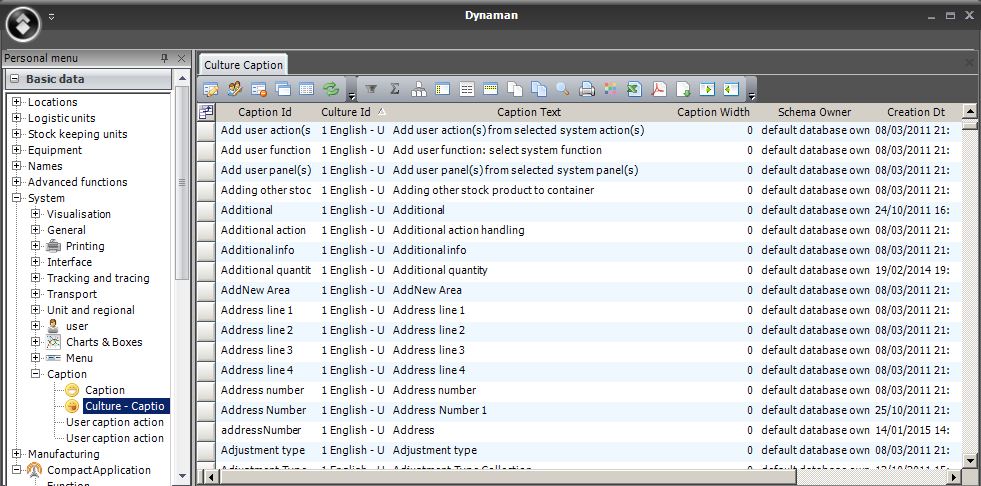
- Filter the data to locate the caption that you want to change.
- In the toolbar, click
 .
.

- In the Culture Id filter criteria box, type the language for which you want to change text. For example, to view all English culture captions, type English.
- Locate the caption text that you want to change.
- If you want to change the text on a window or panel, then in the Caption Id filter criteria box, type all or part of the text that you want to change. For example to change the text for work order, type work or work order.

- If you want to change the text of an error message, in the Caption Id filter criteria box, type all or part of the error code. For example, to change the text of an error message for work orders, type WOOR.

- If you want to change the text on a window or panel, then in the Caption Id filter criteria box, type all or part of the text that you want to change. For example to change the text for work order, type work or work order.
- When you have located the caption that you want to change, right-click the caption, and then click Edit Culture Caption. The Edit Culture Caption window appears.

- In the Caption Text box, select the existing content, and then type the text that you want to see in within the client application windows and CAP panels.
- Click Save.
- To view the change, log out of WM1 and then log on again.
- In the toolbar, click
