Contents
Introduction
Iptor WM1 Compact Application (CAP) is the interactive user interface for mobile devices, such as radio frequency (RF) devices and tablets. While CAP is designed for mobile devices to be used in the warehouse, you can also open CAP from a desktop client. Using the CAP panels from a desktop client is useful for testing and training purposes.
In this guide, you will learn how to log in to Iptor WM1 CAP from:
- The desktop client.
- An RF terminal.
You will also learn how to navigate through the CAP panels. All actions performed within CAP are executed in real time.
Log in to the Iptor WM1 CAP
In this procedure, you will:
- Log in to the Iptor WM1 CAP.
- Review the tasks that can be done using the CAP panels.
Prerequisites
Before you can work in the Iptor WM1 CAP, you must provide your login credentials, which define the functions that you can perform and the data that you can access. Your login credentials include your:
- User name
- Password
- Warehouse ID (if your Iptor WM1 environment is configured to support multiple warehouses)
- Equipment (code for the RF terminal with which you will be working)
Procedure
- Take one of the following actions.
| If you are logging in from… | Then… | And then… | ||
| The desktop client, | On your desktop, double-click  . . |
The Iptor WM1 CAP Login panel appears.
|
||
| An RF terminal, | Turn on the RF terminal. |
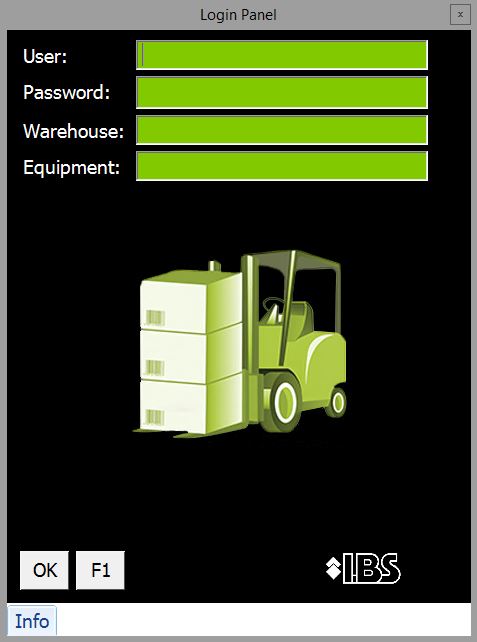
- In the User box, type or scan your user name.
| Note | If you are working with an RF terminal, you may need to tap the box before you type or scan. |
- In the Password box, type or scan your password.
- If the warehouse ID does not already appear, then in the Warehouse ID box, type or scan the ID for the warehouse in which you are working.
| Note | If your Iptor WM1 installation is not configured to support multiple warehouses, the Warehouse ID field may not appear. |
- In the Equipment field, type or scan the code for the RF terminal that you are using, and then click OK. The CAP Main menu appears. All tasks that you will perform using CAP panels are grouped under six functional areas.
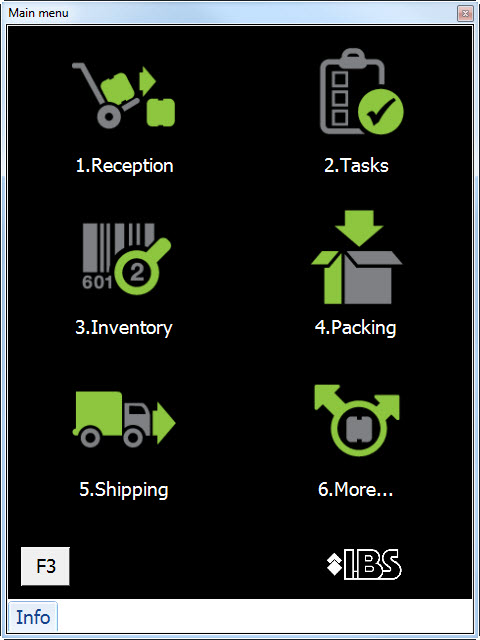
| Note | If your Iptor WM1 installation is configured to do so, you may not see the Main menu. Instead, you will automatically see the panel that you use most often. |
- Take one of these actions.
| If you are working… | Then… | And then… |
| In the desktop client, | Click the desired function, |
|
| With an RF terminal, | On the RF terminal keypad, press the number that appears in front of the desired function, |
CAP panel flow
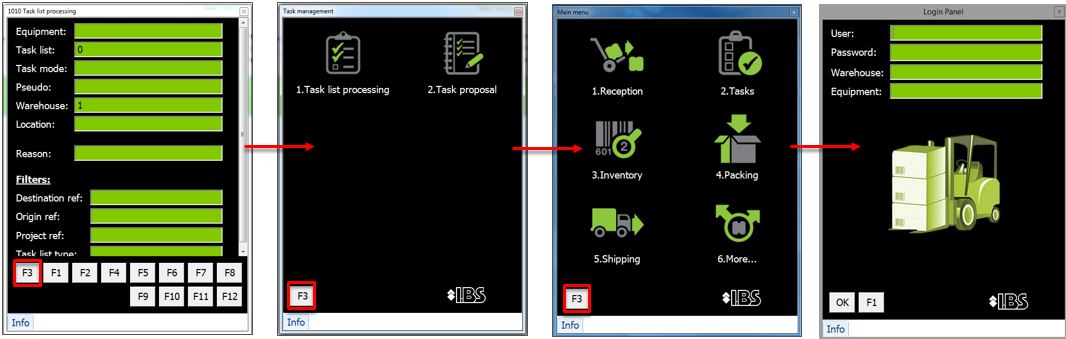
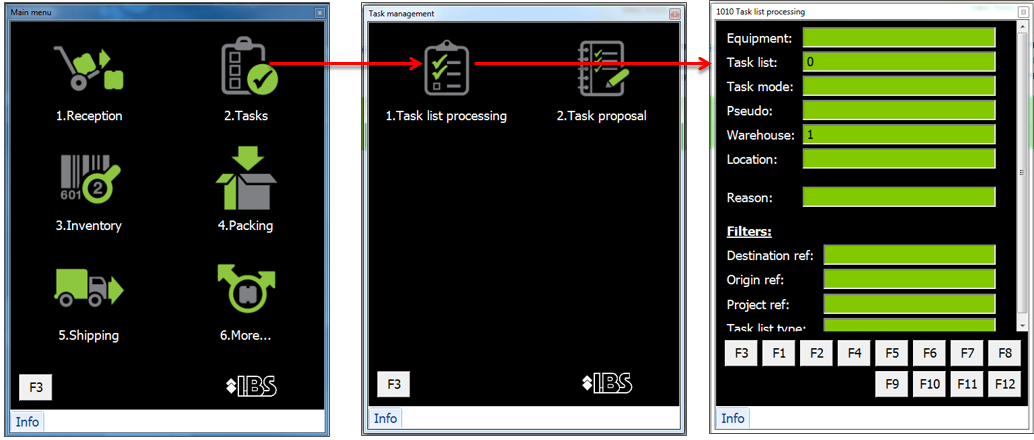
To work in Iptor WM1 using CAP, you must open the CAP panel that will let you complete your task. In many cases, RF operators will use the Task Processing panel; therefore, the images in the example below illustrate how to navigate to that panel.
CAP function keys
All CAP panels contain one or more function keys. You press a function key to take an action. This table describes the actions associated with the function keys on the Task Processing panel.
| Function Key | Description |
| F1 | Applies task selection criteria, or from the Main menu, exits the CAP |
| F2 | Prepares equipment |
| F3 | Exits the current panel and displays the previous panel |
| F4 | Moves pallet with task |
| F5 | Direct move container with equipment |
| F6 | Starts task list processing |
| F7 | Starts task confirmation |
| F8 | Displays an overview of tasks |
| F9 | Displays containers of equipment |
| F10 | Displays a prioritized list of tasks for the logged in user |
| F11 | Displays a prioritized list of tasks for the equipment |
| F12 | Lets you propose an equipment move |
View inventory details
The Container Inventory Review function in the WM1 CAP, lets you view detailed inventory information and take actions against selected inventory.
- Log in to the WM1 CAP.
- On the Main Menu, press 3 for Inventory. The Inventory menu appears.
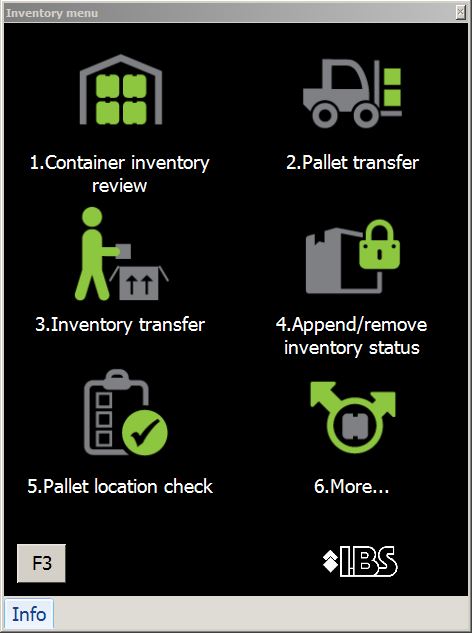
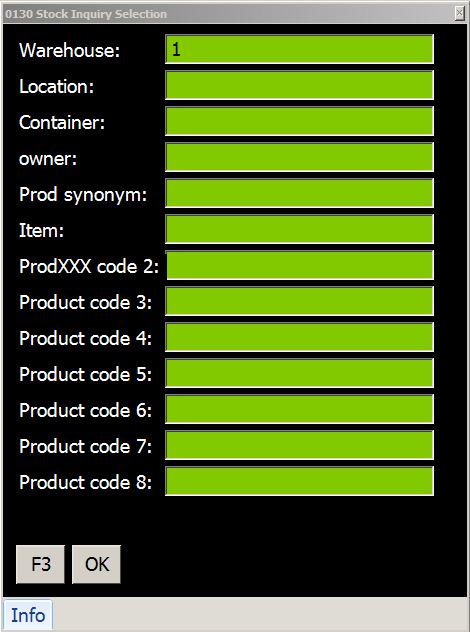
- Press 1 for Container inventory review. The Stock Inquiry Selection panel appears.
- Take one of the following actions.
If you want to… Then… And then the… Search for specific inventory.
Enter the selection criteria for the inventory that you want to view, and press OK.
Note For example, to view all inventory in a specific location, in the Location field, enter the location code. Stock Overview panel appears.
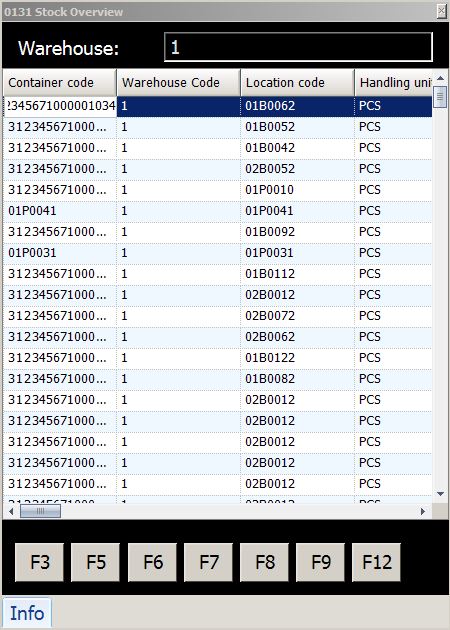
View all inventory, Press OK. - Scroll through the panel to locate the inventory information that you want to view.
- If you want to take an action against inventory, then select the inventory and take any one of these actions.
To… Press… Print a container label, F12. Your WM1 environment must be configured for printing. Transfer inventory, F9. Remove inventory, F8. Change inventory quantity, F7. Print an item label, F6. Your WM1 environment must be configured for printing. Refresh the display, F5. Return to the previous panel, F3.
Send an RF message
The RF messaging functionality in Iptor WM1 lets you send and receive instant messages. Messages can be sent to other RF users and to desktop client users.
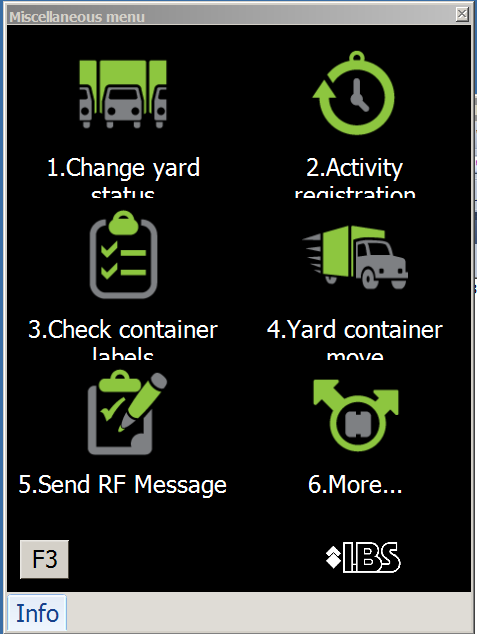
- On the CAP Main menu, press 6. More. The Miscellaneous menu appears.
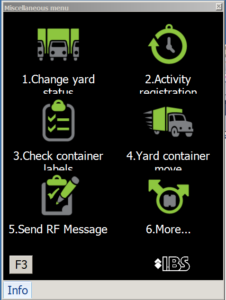
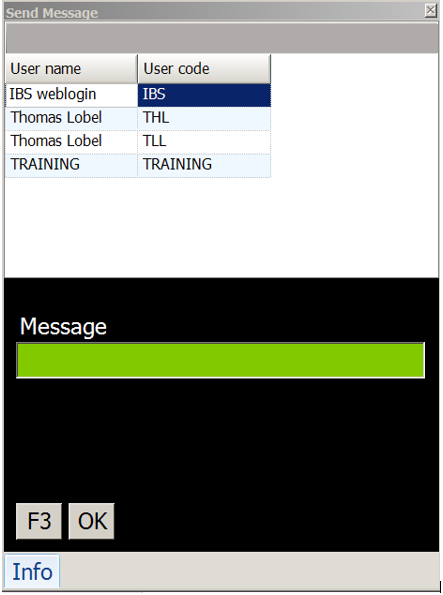
- Press 5.Send RF Message. The Send Message panel appears.
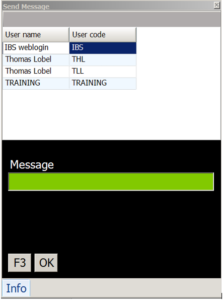
- In the Message box, type the message and press OK.
Log out of the Iptor WM1 CAP
To keep the information in Iptor WM1 secure, it is important that you log out when you are done working.
- On a CAP panel, press F3 until you reach the CAP Main menu.
- Press F1 to exit.