
Introduction
How Iptor WM1 handles inventory
A quantity of a stock product, belonging to an owner in a handling unit, is placed on a (multi-level) container that is situated on a location and moved by (automated) equipment by means of task(list)s.
Task definition
Tasks are used to perform work in the warehouse. This consists mainly of:
- Creation of containers with inventory
- Inventory movement – from one container to another container
- Container movement – from one location to another location
- Shipping – inventory leaving the warehouse
The system can also use tasks for:
- Counting
- Container value added logistics
- Yard container checks
Tasks are created by the system (for example, picking tasks created at picklist release or putaway tasks triggered by a location exception). Tasks can also be initiated by a user (for example, scanning a container code and getting a task proposal).
Tasks can be executed by:
- A user in the Iptor WM1 desktop client
- A user that logs in with equipment on the Iptor WM1 compact application (CAP)
- External applications, such as MHE (Machine Handing Equipment), that are interfaced to get task details and to confirm the details of the task execution
The system proposes task completion in order of priority. The lower the task priority number, the more urgent the task. Task priority is assigned at task creation and can be modified using an aging handler or manually in the desktop client.
This guide explains how to identify and provide specific details that are used in task creation by the system or in task execution by the users with equipment.
Basic data
In this guide you will learn how to set up the following data.
- Task modes
- Task mode types
- Task mode authority
- Task selection groups
- Task selection group rule sets
- Task selection rule sets
- Task selection rules
- Task selection rule conditions
Task modes
A task mode refers to one or more task types. Task modes are used to execute tasks. Task mode attributes identify how tasks are executed.
The task mode is authorized to user type(s), to which a user belongs. It defaults from the equipment group and can be overruled at execution in CAP.
Add a task mode
- On the menu, expand Basic Data > Equipments, and then double-click Task Mode.
- On the Task Mode window, click
 . The Add Task Mode dialog box appears.
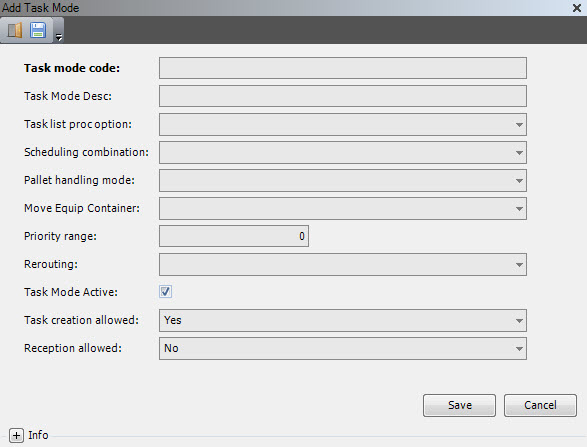
- Enter the following information.
| Field | Description | Required | ||||||||||
| Task Mode Code | Unique system code that identifies a task mode. This code is used in combination with associated task mode type codes to determine which tasks users can perform when working in this mode. | Yes | ||||||||||
| Task Mode Desc | Simple statement that defines the task mode code. For example, if the task mode code is COUNT, the description may be Counting tasks. | Yes | ||||||||||
| Task List Proc Option | Value that indicates if and how task list processing will be performed.
(*) The system has assigned the task list number before the task execution is started. |
No | ||||||||||
| Scheduling Combination | Value that indicates if task types can be combined when working in this task mode. This is especially important if you want to combine inbound and outbound tasks.
|
Yes | ||||||||||
| Pallet Handling Mode | Value that indicates how many pallet tasks can be confirmed in one operation.
|
Yes | ||||||||||
| Move Equip Container | Value that indicates how the system should create tasks to move the containers from the equipment after all tasks on the task list are finished.
|
No | ||||||||||
| Priority Range | Value that determines whether Iptor WM1 will propose combining an inbound and outbound task. If the priority of the combined inbound and outbound task exceeds the priority range, Iptor WM1 will not propose the combined task.
This value is used only when the Scheduling Combination value is set to DRUN. |
No | ||||||||||
| Rerouting |
Value that indicates how Iptor WM1 will respond when equipment working in this task mode must perform a task in an equipment zone that is currently unavailable.
|
Yes | ||||||||||
| Task Mode Active | When selected, indicates that the task mode is active. | No | ||||||||||
| Task Creation Allowed | Value that indicates whether Iptor WM1 can create tasks for users and equipment when working in this task mode. | No | ||||||||||
| Reception Allowed | Value that indicates whether receiving tasks can be incorporated when equipment and users are working in this task mode.
Using a task mode with this setting on allows an ‘impulsive move’ in CAP (F4 – Pallet move with task) for a container that is on an open arrival detail. The system will then execute the reception of the container, and after that execute the putaway for the container. |
No |
- Click Save.
Task mode types
Task mode types are used to define the tasks that a user can perform when working in a particular task mode. A task mode must have at least one task type defined in the ‘task mode type’.
In the task mode type, you can define the specific actions that require confirmation. For example, when assigning a picking task mode type to a task mode, you may want users to confirm the location from which they are picking.
Standard task types
Task types that execute a move of (stock products on) containers, are executing:
- a container move
- an inventory move
The diagram below shows:
- A PICKP (Picking pallet) and a STAGE (Staging task) – that moves a container from one location to another location.
- A PICKC (Picking SKU task) – that moves inventory from a container on a location to another container on a location.

You can choose from the following standard Iptor WM1 task types.
| Task Type | Description |
| NONE – None | No task executed. |
| CONVAL – Container Value Added Logistics | Task to direct a user to a container (or trailer) where the user must perform defined inline VAL actions. |
| ICTCC – Inventory Control Container Check | Task to execute counting. |
| PALBL – Pallet Building | Task to move inventory from one container to another container (for example, from a real transportable container to a fictitious non-transportable container of a pick location). Different from TRANS, which executes a container move. |
| PICKC – Picking SKU | Task to execute picking for an inventory move from a container (on the pick location) to a container (on the picking equipment) |
| PICKP – Picking Pallet | Task to execute picking for a container move of a full, clean (only 1 stock product) container from a location to a (dock) location. The ‘from’ location (where the container to pick resides) does not have a primary location type code with the usage picking and the ‘from’ container is real transportable. |
| PICKM – Picking Mixed Pallet | Task to execute picking for inventory moves of multiple stock products, all from the same container (on the pick location) to a container (on the picking equipment). Several tasks (on the same picklist) are combined as PICKM task. The ‘original’ PICKC / PICKP tasks are only in the task header file, and are associated (via the fields dependent_on_task_number, asc_to_task_number) to a PICKM task header that is decomposed in task details. This is controlled by the parameter group, mixed pallet picking, on the picklist template / picklist header. |
| PICKB – Picking Box | Task to execute picking for an inventory move from a child container to a parent container. |
| REPLU – Replenishment SKU | Task to execute picking for a replenishment order. Similar to PICKC. |
| REPLE – Replenishment Pallet | Task to execute picking for a replenishment order, when the entire inventory from a clean real transportable pallet must be replenished. Similar to PICKP. |
| REPLM – Replenishment Mixed Pallet | Task to execute picking for a replenishment order. Similar to PICKM. |
| REPLB – Replenishment Box | Task to execute picking for a replenishment order. Similar to PICKB. |
| SHIPP – Shipping | Task to execute shipping. A shipping task is a container move, related to a shipping bill detail to a (gate) location. The stock product inventory will then leave the warehouse, due to the shipping bill closing. |
| STAGE – Staging | Task to move a container with pickings from pick equipment to a (dock) location. |
| TRANS – Transport Pallet | Task to move a container (with or without inventory) from one location to another. Different from PALBL, which executes an inventory move. |
| VALOG – Value Added Logistics | Currently not in use. |
| VEHCONMOV – Vehicle Container Move | Task to move a trailer. |
| YARDCHK – Yard Container Check | Task to audit a trailer, allowing a user to register damage, fuel level, etc. |
The diagram below provides an example of some task types.

Add a task mode type
- On the menu, expand Basic Data > Equipments, and then double-click Task Mode.
- On the Task Mode window, right-click the task mode to which you want to add task mode types, and then click Task Mode Type.
- In the Task Mode Type grid view toolbar, click . The Add Task Mode Type dialog box appears.

- Enter the following information.
Note Not all controls can be used for every task type.
| Field | Description | Required | ||||||||||||||||||
| Task Mode Code | Unique system code that identifies a task mode. | Display only | ||||||||||||||||||
| Task Type | Specific task that you want to assign to the specified task mode code. | Yes | ||||||||||||||||||
| Allowed | When selected, indicates that users and equipment working in the selected task mode will be allowed to perform the selected task type. | Yes | ||||||||||||||||||
| Preference Number | Priority setting that is used by some putaway algorithms. The smaller the preference number, the higher the priority given to the task mode code/task type combination. | No | ||||||||||||||||||
| Task Confirm | Value that indicates how task confirmation processing is performed.
|
No | ||||||||||||||||||
| Product Synonym Conf | Value that indicates if confirmation is required and how it is handled when product synonyms are used.
|
No | ||||||||||||||||||
| Handling Qty Conf | Value that indicates if and how the CAP panel will handle the input control, ‘handling quantity’.
|
No | ||||||||||||||||||
| From Container Conf | Value that indicates if and how the source container for a task must be confirmed.
|
No | ||||||||||||||||||
| From Location Conf | Value that indicates if and how the source location for a task must be confirmed.
|
No | ||||||||||||||||||
| To Conf | Value that indicates when the destinations for a task must be confirmed.
|
No | ||||||||||||||||||
| To Container Conf | Value that indicates if and how the target container for a task must be confirmed.
|
No | ||||||||||||||||||
| To Location Conf | Value that indicates if and how the target container for a task must be confirmed.
|
No | ||||||||||||||||||
| Equipment Conf | Value that indicates if and how equipment must be confirmed.
|
No | ||||||||||||||||||
| Task Switch at Pallet Move | Value that determines if a deviating container with a deviating task can be performed when users propose a pallet move on an RF terminal.
|
No | ||||||||||||||||||
| No Task at Pallet Move | Value that determines what Iptor WM1 will do if users choose to deviate a container without an active task when proposing a pallet move.
|
No | ||||||||||||||||||
| Moved Fixed Container | Value that determines how a task, which is completed with equipment that has a fixed container, is handled.
|
No | ||||||||||||||||||
| Stock Change Code | Unique system code that can be used to indicate the reason why an inventory transaction or task execution is done. It can be authorized by user type and determines what kind of inventory transaction or task execution is allowed. It is also used to define if the inventory transaction or task execution is interfaced. In this usage, you can define the default stock change code that will be used on the CAP panel, when executing a task of this task type, using this task mode. | No | ||||||||||||||||||
| To Container Deviation | Value that determines how the system handles a deviation of the ‘to container’.
|
No |
- Click Save.
Task mode authority is the mechanism used to define the users and equipment that are able to perform the tasks within a particular task mode.
Authorization is done by using user type and equipment group. (A user has a user type and an equipment belongs to an equipment group).
For example, you can specify that reach trucks are allowed to perform full pallet picks, while stock picking carts are available for piece picking.
- On the menu, expand Basic Data > Equipments, and then double-click Task Mode.
- On the Task Mode window, right-click the task mode to which you want to define task mode authority, and then click Task Mode Authority.
- In the Task Mode Authority grid view toolbar, click . The Add Task Mode Authority dialog box appears.

- Enter the following information.
| Field | Description | Required |
| Task Mode Code | Unique system code that identifies a task mode. | Display only |
| User Type Code | Unique system code that identifies a user type. In this usage, it is the group of users who will be able to perform the tasks within this task mode. | Yes |
| Equipment Group Code | Unique system code that identifies an equipment group. In this usage, it is the equipment that will be able to perform the tasks within this task mode. | Yes |
| Allowed | When selected, indicates that task mode authority is allowed. | No |
- Click Save.
Task selection groups
Task selection groups are used in combination with task selection rules to filter a subset of tasks for processing. A task selection group can be linked to an equipment. It can also be defined in the ABC analysis template. This reduces the number of tasks assigned to the equipment during task execution on CAP. In the ABC analysis detail creation, it is used to filter the tasks for the ABC calculation.
Add a task selection group
- On the menu, expand Basic Data > Advanced Functions > Task Selection Group, and then double-click Task Selection Group.
- On the Task Selection Group window, in the toolbar, click . The Add Task Selection Group dialog box appears.

- Enter the following information.
| Field | Description | Required |
| Task Selection Group Code | Unique system code that identifies a task selection group. The task selection group is used in combination with task selection rules to filter a subset of tasks for processing. | Yes |
| Task Selection Group Desc | Simple statement that defines the task selection group. For example, if the task selection group code is RT, the description may be Reach trucks. | Yes |
| Task Selection Group Status Active | When selected, indicates that the task selection group is active. | Yes |
- Click Save.
Task selection group rule sets
You can define the task selection group rule sets that belong to the specified task selection group.
Add a task selection group rule set
- On the menu, expand Basic Data > Advanced Functions > Task Selection Group, and then double-click Task Selection Group.
- On the Task Selection Group window, right-click the task selection to which you want to define task selection group rules, and then click Task Selection Group Rule Set.
- In the Task Selection Group Rule Set grid view toolbar, click . The Add Task Selection Group Rule Set dialog box appears.

- Enter the following information.
| Field | Description | Required |
| Task Selection Group Code | Unique system code that identifies a task selection group. The task selection group is used in combination with task selection rules to filter a subset of tasks for processing. In this usage, it is the task selection group for which the rule sets are defined. | Yes |
| Task Selection Rule Set Code | Unique system code that identifies a task selection rule set. Each task selection rule belongs to a task selection rule set. In this usage, it is the task selection rule set that is attached to the task selection group. | Yes |
| Task Selection Rule Set Sequence | Order in which this task selection rule set will be evaluated within a task selection group. This number must be unique within the task selection group. | Yes |
| Task Selection Rule Set Active | When selected, indicates that the task selection rule set is active. | Yes |
- Click Save.
Task selection rule sets
You can define a collection of task selection rules. If one task selection rule is satisfied, then the task selection rule set is applicable.
Add a task selection rule set
- On the menu, expand Basic Data > Advanced Functions > Task Selection Group, and then double-click Task Selection Rule Set.
- On the Task Selection Rule Set window, in the toolbar, click . The Add Task Selection Rule Set dialog box appears.

- Enter the following information.
| Field | Description | Required |
| Task Selection Rule Set Code | Unique system code that identifies a task selection rule set. Each task selection rule belongs to a task selection rule set. | Yes |
| Task Selection Rule Set Desc | Simple statement that defines the task selection rule set. For example, if the task selection rule set is SP, the description may be SKU picking. | Yes |
| Task Selection Rule Set Active | When selected, indicates that the task selection rule set is active. | Yes |
- Click Save.
Task selection rules
Within the task selection rule set, individual rules are set up that dictate how the task selections are calculated for different warehouse processes.
Add a task selection rule
- On the menu, expand Basic Data > Advanced Functions > Task Selection Group, and then double-click Task Selection Rule Set.
- On the Task Selection Rule Set window, right-click the task selection rule set to which you want to add a task selection rule, and then click Task Selection Rule.
- In the Task Selection Rule grid view toolbar, click . The Add Task Selection Rule dialog box appears.

- Enter the following information.
| Field | Description | Required |
| Task Selection Rule Set Code | Unique system code that identifies a task selection rule set. Each task selection rule belongs to a task selection rule set. In this usage, it is the task selection rule set for which the rules are defined. | Display only |
| Task Selection Rule Code | Unique system code that identifies a task selection rule. A task selection rule is identified by a task selection rule set code and a task selection rule code. | Yes |
| Task Selection Rule Desc | Simple statement that defines the task selection rule. For example, if the task selection rule is SP, the description may be SKU picking. | Yes |
| Task Selection Rule Sequence | Order in which this task selection rule will be evaluated within a task selection group. This number must be unique within the task selection rule set. | Yes |
| Task Selection Rule Active | When selected, indicates that the task selection rule is active. | Yes |
- Click Save.
Note After the task selection rule is saved, when viewing the details, you can click the SQL Statement tab to analyze the rules.
Task selection rule conditions
Task selection rule conditions identify the conditions that must be satisfied for the task selection rule to be applicable.
Add a task selection rule condition
- On the menu, expand Basic Data > Advanced Functions > Task Selection Group, and then double-click Task Selection Rule Set.
- On the Task Selection Rule Set window, right-click the task selection rule set to which you want to define task selection rule conditions, and then click Task Selection Rule.
- On the Task Selection Rule window, right-click the task selection rule to which you want to define task selection rule conditions, and then click Task Selection Rule Condition.
- In the Task Selection Rule Condition grid view toolbar, click . The Add Task Selection Rule Condition dialog box appears.

- Enter the following information.
Field Description Required Task Selection Rule Set Code Unique system code that identifies a task selection rule set. Each task selection rule belongs to a task selection rule set. Display only Task Selection Rule Code Unique system code that identifies a task selection rule. A task selection rule is identified by a task selection rule set code and a task selection rule code. Display only Task Selection Rule Sequence Order in which this task selection rule will be evaluated within a task selection group. This number must be unique within the task selection rule set. Yes Reference Table Table from which a field is selected in this condition. Yes Field Name Name of the field that is used in this condition. Yes Operator Code Operator Description SQL
OperatorOperator
PrefixOperator
Suffix< is less than < <= is less than or equal to <= <> does not equal <> = equals = == same as original == > is greater than > >= is greater than or equal to >= B- does not begin with NOT LIKE % B+ begins with LIKE * C- does not contain NOT LIKE % C+ contains LIKE % % E- does not end with NOT LIKE % E+ ends with LIKE % ISNOTNULL is not null IS NOT NULL ISNULL is null IS NULL Yes Use User Defined Function When selected, indicates that the Field Value contains a ’user defined function’ like an SQL function or a reference to a field in another table. - When Use user defined function = 1, the system will not put the value entered in Field value ‘between quotes’. The system will generate the SQL statement of the rule accordingly.
- When Use user defined function = 0, the system will not put the value entered in Field value ‘between quotes’, if this is needed, depending of the field type of the selected Field Name.
No Field Value Value that is used by the operator. You can enter a constant value like 0 or ABC or 2016-12-31 00:00:00.000. Do not put the entered value between quotes and put Use user defined function to 0. You can also enter a ’user defined function’ like an SQL function (for example, getdate()) or a reference to a field in another table (for example, item qty_per_container_expected), but then put Use user defined function to 1.
Yes
- Click Save.
