
Contents
Introduction
This guide explains how to identify and provide specific details about the customers and/or suppliers with whom you do business.
Basic data
In this guide you will learn how to set up the following data.
- Relation groups (optional)
- Business partners
- Business partner addresses
- Business partner container types
- Business partner package types
- Business partner texts
Relation groups
Relation groups are used to group business partners. You can define a relation group to be used for only customers, only suppliers or both.
Add a relation group
- On the menu, expand Basic Data > Names, and then double-click Relation Group.
- On the Relation Group window, in the toolbar, click
 . The Add Relation Group dialog box appears.

- Enter the following information.
| Field | Description | Required |
| Relation Group Code | Unique system code that identifies a relation group. | Yes |
| Relation Group Desc | Simple statement that defines the group. For example, if the relation group code is CUST_WEB, the description may be Web customers. | Yes |
| Relation Group Type | Value that indicates who the relation group applies to. The following values are supported.
|
Yes |
Business partners
Business partners are the customers to whom you ship product, and the suppliers from whom you receive product. You set up business partners to ensure that you can effectively manage both inbound and outbound orders, and meet the specific order requirements associated with the individual partners.
Iptor WM1 also needs an internal business partner for outbound orders that are used internally for replenishment and manufacturing.
Prerequisites
When configuring business partners, you are asked to provide the following prerequisite data.
- Language code
- Terms of delivery (optional)
- Manner of transport (optional)
- Terms of payment (optional)
- Currency code (optional)
- Logistic group (optional)
- User Code (optional)
- Container type (optional)
- Package type (optional)
If you have not done so, perform the setup tasks for required data first. Then, return to complete this procedure. For optional data, if you do not have it defined yet, you can return to this section later in the setup process to add that detail.
Add a business partner
- On the menu, expand Basic Data > Names, and then double-click Business Partner.
- On the Business Partner window, in the toolbar, click . The Add Business Partner dialog box appears.

- Enter the following information.
| Field | Description | Required |
| Owner Code | Unique system code that identifies an owner. In this usage, it is the owner with which this business partner is associated. | Yes |
| Business Partner Code | Unique system code that identifies a business partner. | Yes |
- On the General tab, enter the following information.
| Field | Description | Required |
| Business Partner Initiation |
Value that indicates how the business partner was created. The system defaults to the applicable value.
|
Display only |
| Business Partner Name | Display name for the business partner that appears within the Iptor WM1 application windows and grid views. | Yes |
| Internal Name | Additional name for the business partner that is used for internal purposes only. | No |
| Business Partner Alias | Alternative identifier for the business partner, often used to keep a reference of the business partner or an internal code. | No |
| Supplier Type | When selected, indicates that this business partner is a supplier. | No |
| Customer Type | When selected, indicates that this business partner is a customer. | No |
| Language Code | Unique system code that identifies a language. Iptor WM1 uses ISO standard codes by default. However, these values can be changed. For example, they can be mapped to the codes for any host system. If a language is not specified, then the company language code is used by default. | Yes |
| Backlog Allowed | Currently not used. | No |
| Terms of Delivery Code | Unique system code that identifies a contractual delivery obligation between a seller and a buyer. In this usage, it is the delivery terms for the business partner. | No |
| Manner of Transport Code | Unique system code that identifies a transportation method. In this usage, it is the manner of transport for the business partner. | No |
| Terms of Payment Code | Unique system code that identifies a payment rule that a supplier has imposed on a customer to ensure payment is received in a reasonable amount of time. In this usage, it is the payment terms for the business partner. | No |
| Cash on Delivery | Value that indicates whether the terms of payment require cash payment upon delivery. The following values are supported:
|
Yes |
| Currency Code | Unique system code that identifies a type of currency. In this usage, it is the currency used by the business partner. | No |
| Relation Group Code | Unique system code that identifies a relation group. In this usage, the selected relation group must be allowed for the values of Customer Type and Supplier Type of the business partner. | No |
| Business Partner Trusted | When selected, indicates that direct putaway is used for ASN receiving. | No |
| Business Partner Active | When selected, indicates that the business partner is active. | Yes |
- Click the Extended tab.

- Enter the following information.
| Field | Description | Required |
| Creation Timestamp | Date and time of creation. Defaults to the current date and time. | Display only |
| Last Change Timestamp | Date and time that an update was last saved. | Display only |
| Name Cat 1―6 | Name used to group information for reporting purposes. As an example, you might set up name categories if you have multiple divisions for which you generate separate reports, such as pharmaceutical and automotive. | No |
| Certificated | Value that indicates if the transport company is ISO certified. The following values are supported.
|
No |
| Inbound Logistic Group Code | Unique system code that identifies a logistic group. Logistics groups are used by the Iptor WM1 Compact Application to evaluate if logistic action (In-line VAL) must be executed during reception, picking or other task execution. In this usage, it is the logistic code for inbound warehouse functions. | No |
| Outbound Logistic Group Code | Unique system code that identifies a logistic group. Logistics groups are used by the Iptor WM1 Compact Application to evaluate if logistic action (In-line VAL) must be executed during reception, picking or other task execution. In this usage, it is the logistic code for outbound warehouse functions. | No |
| Allow Product Substitution | When selected, indicates that the business partner allows product substitutions. | No |
| Check Product Substitution |
Value that indicates what type of product substitutions are allowed, provided the Allow Product Substitution check box is selected. Defaults to ITSUB. The following values are supported.
|
No |
| Creation User Code | Unique system code that identifies a user. In this usage, it defaults to the user who added the business partner information to Iptor WM1. | Display only |
| Responsible User Code | Unique system code that identifies a user. In this usage, it is the user who is responsible for the business partner information. | No |
- Click the User Defined tab.
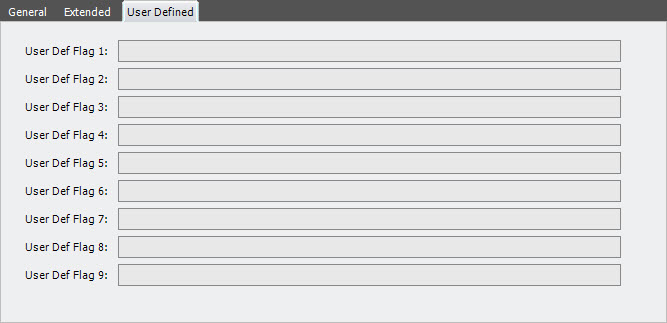
- Enter the following information.
| Field | Description | Required |
| User Def Flag 1―9 | Reserved for customer-specific needs. | No |
- Click Save.
Business partner addresses
Business partners need at least one address. The business partner address is assigned to inbound orders, outbound orders and shipping bills.
Prerequisites
When configuring business partner addresses, you are asked to provide the following prerequisite data.
- Country code
- Language code (optional)
- Layout type (optional)
If you have not done so, perform the setup tasks for required data first. Then, return to complete this procedure. For optional data, if you do not have it defined yet, you can return to this section later in the setup process to add that detail.
Add a business partner address
- On the menu, expand Basic Data > Names, and then double-click Business Partner.
- On the Business Partner window, right-click the business partner for which you want to add an address, and then click Business Partner Address.
- On the Business Partner Address grid view toolbar, click . The Add Business Partner Address dialog box appears.

- Enter the following information.
Field Description Required Owner Code Unique system code that identifies an owner. In this usage, it is the owner with which this business partner is associated. Yes Business Partner Code Unique system code that identifies a business partner. Yes Field Description Required Address Number Unique system code that identifies a address for a business partner. The address number is a numeric value. Address number 0 is also allowed. Yes Contact Person Full name of the person who is the main contact. No Address Line 1―4 Postal address that can be configured to print on internal or external documents. Typically address line 4 could be used for the city or community, if in printed documents it appears next to the postal code. No Postal Code Postal code for the address. Format can be customized based your country’s postal code format. No Country Code Unique system code that identifies a country. Iptor WM1 uses ISO standard codes by default. However, these values can be changed. For example, they can be mapped to the codes for any host system. Yes Language Code Unique system code that identifies a language. Iptor WM1 uses ISO standard codes by default. However, these values can be changed. For example, they can be mapped to the codes for any host system. If a language is not specified, then the company language code is used by default. In this usage, it is the language in which this transport company’s labels and external documents print.
Yes Telephone Number Contact phone number. Format as necessary with country calling codes and area codes. Example: x-xxx-xxx-xxxx No Fax Number Phone number to which fax messages can be sent. Include country calling codes or area codes and use formatting as necessary. Example: xxx-xxx-xxxx No Email Address Address to which email messages can be sent, such as name@company.com. No VAT Registration Number Unique code that identifies the business partner address towards VAT administration. Informational only. Can be used to print on external reports. No EAN Address Code Unique system code that uniquely identifies the address. Can be used for EDI transactions. No Consol Address Code Unique system code that offers the possibility to refer to the same physical address with several logical addresses (for example, the same address for business partners from different owners).
No Layout Type Code Unique system code that identifies a layout type. The layout type can be used to assign specific layouts of printing documents that are defined in the printing type. The layout type can be controlled via business partner address, transport company, wave template, picklist template, outbound template, replenishment template and yard template. It can also be used from the counting template. In this usage, it is the transactions that are created for this business partner address. No - Click Save.
Business partner container types
Per business partner, a link to container type(s) can be defined. The Check partner container type parameter on the warehouse default can restrict you to only use container types that are defined for the business partner.
Add a business partner container type
- On the menu, expand Basic Data > Names, and then double-click Business Partner.
- On the Business Partner window, right-click the business partner for which you want to add a container type, and then click Business Partner Container Type.
- On the Business Partner Container Type grid view toolbar, click . The Add Business Partner Container Type dialog box appears.

- Enter the following information.
Field Description Required Owner Code Unique system code that identifies an owner. In this usage, it is the owner with which this business partner is associated. Yes Business Partner Code Unique system code that identifies a business partner. Yes Field Description Required Container Type Code Unique system code that identifies a container type. Yes Allowed When selected, indicates that this container type is allowed for the business partner. Yes - Click Save.
Business partner package types
A set of business partner package types can be defined. This is interpreted the moment that a picklist order shortage is created, in order to assign only business partner specific package types.
Add a business partner package type
- On the menu, expand Basic Data > Names, and then double-click Business Partner.
- On the Business Partner window, right-click the business partner for which you want to add a package type, and then click Business Partner Package Type.
- On the Business Partner Package Type grid view toolbar, click . The Add Business Partner Package Type dialog box appears.

- Enter the following information.
Field Description Required Owner Code Unique system code that identifies an owner. In this usage, it is the owner with which this business partner is associated. Yes Business Partner Code Unique system code that identifies a business partner. Yes Field Description Required Package Type Code Unique system code that identifies a package type. Package calculation types can be used for package calculations during the picking reservation process, depending on the picking algorithm. Records from the Outbound order detail table can refer to a package calculation type. The package calculation can be done, based on the package type code on the picklist order shortage.
In this usage, it is the package type code that the system should overrule with the alternate package type, for this business partner.Yes Alt Package Type Code Unique system code that specifies the alternative package type to use; for the package type for this business partner. Yes - Click Save.
Business partner texts
Business partner texts can be defined per business partner and per language. The texts come through an interface with a logistic system or are entered manually in the Iptor WM1 desktop client. This definition concerns texts or documents that can be linked to business partners.
Business partner texts can be used when designing reports or labels.
Add a business partner text
- On the menu, expand Basic Data > Names, and then double-click Business Partner.
- On the Business Partner window, right-click the business partner for which you want to add text, and then click Business Partner Text.
- On the Business Partner Text grid view toolbar, click . The Add Business Partner Text dialog box appears.

- Enter the following information.
Field Description Required Owner Code Unique system code that identifies an owner. In this usage, it is the owner with which this business partner is associated. Yes Business Partner Code Unique system code that identifies a business partner. Yes Field Description Required Language Code Unique system code that identifies a language. Iptor WM1 uses ISO standard codes by default. However, these values can be changed. For example, they can be mapped to the codes for any host system. If a language is not specified, then the company language code is used by default. In this usage, it is the language for which the text is defined.
Yes Text Number Unique text number associated with each text line. Yes Descriptive Text Simple text line or document name, based on the text type. Yes Text Sort
Value that indicates if the text is applicable for a specific logistic process. The following values are supported.
- GEN - General
- PICK - Pick
- PACK - Pack
- SHIP - Ship
- RECEI - Receive
Yes Text Type Value that indicates the format for the descriptive text. The following values are supported.
- T – Simple text line
- D – Document name
Yes Document1-9 Print Text When selected, indicates that the text must be printed on the corresponding document.
The documents that corresponds to document 1-9 are agreed on system setup.Yes - Click Save.
