
Contents
Introduction
This guide explains how to identify and provide specific details about putaway.
In general, the term putaway refers to the functionality to move goods from a reception location to a storage location.
In Iptor WM1, putaway is any internal movement for which the system can calculate a destination location. This calculation is based on putaway groups, which contain putaway rule sets. WM1 checks the rules within a group in sequenced order. Once an acceptable location is found, the search stops.
There are multiple putaway task types.
| When… | Then the putaway task type is… |
| Distinct stock products are put away (inventory move), | Pallet building. |
| A container with several picked stock products must be moved to a (dock) location, | Stage. |
| The entire container is moved, | Transport Pallet. |
| WM1 replaces the putaway task with a pick pallet task based on cross dock (XD) allocations, | Picking Pallet. |
Putaway logic
The putaway logic uses the two steps detailed below. In Iptor WM1, putaway logic is also used for replenishment, where the system calculates dynamic pick locations based on putaway rules with the logistic flow, Pick location determination.
Step 1: The putaway task is generated. Putaway tasks can be generated:
- Automatically – After reception confirmation or when the container is put on a location with the location exception, ‘NEWTK – Create new task’.
- Manually – In the Iptor WM1 desktop client with the option, ‘Create putaway task’.
- Through an interface – For example, material handling equipment that scans a container and sends a record in the ‘container_scanning’ table, that is processed by the system via a ‘container scanning handler’.
- Automatically – Due to the close arrival event.
Step 2: WM1 calculates a destination.
- When a putaway is created, the system searches for a putaway group in the arrival detail, stock product, item, product location group, and warehouse default. The system selects the putaway group from the most detailed level to the most general level. (If no putaway group is found, no destination can be calculated.)
- The system processes all putaway rules of the selected putaway group to find a destination location.
- As soon as a location is found, it is used as ‘to location’ in the task to be created.
- When no destination is found, an error can be displayed (if running the Putaway interactively) and no task is created.
Putaway setup
A putaway group is a group of sequenced putaway rule sets that contain one or more putaway rules. Every rule can have one or more sequenced criteria and one or more sequenced destinations.

Criteria define the WM1 flow for which the rule will be activated.
| For… | The WM1 flow is… |
| Putaway, | Putaway process. |
| Staging, | Pick and stage. |
| Calculating a dynamic pick location, | Pick location determination. |
| Calculating the dock location of the tasks at picklist release, | Picklist docking location. |
Criteria also define the container properties for the putaway container (for example, full container, mixed container, and so on.) Each criteria can have several conditions. If all conditions are true, the destination searches can be activated. If not all conditions are true, the system processes the next criteria if it exists. Otherwise, no putaway is calculated.
Destinations define the way the system searches for the target location for the putaway. This is how the system must select a location in the group of fit locations. Each destination can have several condition(s) for the group of fit locations within the built-in system checks (see Basic conditions below). The first location, according to the defined ‘putaway calculation method’, is then the destination location of the putaway. Most typically, the ‘Lowest value for putaway sequence 1’ method is used. But you can also use other logic such as ‘Close to first pick location’ or ‘Existing pick location’. If no destination location is found, the system processes the next destination if it exists. Otherwise the next putaway rule for the group is applied or – at the end – no putaway is calculated.
| Note | A ‘catch all’ rule set (with the highest sequence in the putaway group) selecting an overflow location can be useful. Then, putaway tasks can be created to empty the reception location, but the destination indicates that the rules are wrong or the locations are all occupied. The warehouse supervisor must find a solution for items going to overflow. |
| IMPORTANT | Putaway can be very complex. It is handy to draw sketches of the putaway flows for several material flows. |
Basic conditions
The system always applies the following four basic conditions:
| Basic conditions… | Further detail… |
| Stock oriented | Product location group of the item should be allowed on the location group of the location. Location group of the location must (if needed) allow multiple owners, items, stock products, etc. |
| Container oriented | Container size of the container must be allowed for the location size of the location. Location size of the location must (if needed) allow multiple container sizes. |
| Location availability | Location must be active. Location occupancy is not Full (see Occupancy Conf field). |
| Macro location (optional) | Container size of the container must be allowed in the macro structure of the location. Container size of the container must match the container size of the containers in the other locations of the location’s macro location. |

Yard
Determinations about where a trailer should move are made according to defined putaway rules. The putaway rules also determine locations when a move is requested on closing a shipment. The rules are built using two filters: criteria and destination. Filter criteria must be met for a corresponding set of destinations to be considered.
Moves without putaway
- A CAP operator can select a container and move it to another location of his/her choice.
- A client desktop user can manually move a container from one location to another (using the ‘Create putaway task’ menu function on the Stock Detail grid).
- In both cases, no putaway calculation is done and thus no putaway rules are checked. Only the built-in inventory-location checks, such as product location group, are validating the destination.
Basic data
In this guide you will learn how to set up the following data.
- Putaway rule sets
- Putaway rules
- Putaway rule criteria
- Putaway rule criteria conditions
- Putaway destinations
- Putaway groups
Putaway rule sets
A putaway rule set groups a set of putaway rules. The putaway rule sets are defined independently, but they will be assigned in a given sequence to a putaway group. The system processes the putaway rule sets of a group in sequence, until a destination location is found.
Add a putaway rule set
- On the menu, expand Basic Data > Advanced Functions > Putaway Group, and then double-click Putaway Rule Sets.
- On the Putaway Rule Sets window, in the toolbar, click
 . The Add Putaway Rule Set dialog box appears.
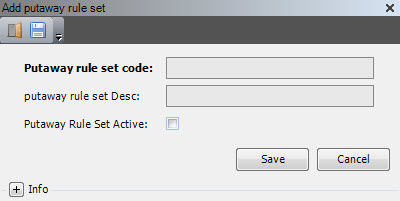
- Enter the following information.
| Field | Description | Required |
| Putaway Rule Set Code | Unique system code that identifies a putaway rule set. | Yes |
| Putaway Rule Set Desc | Simple statement that defines the putaway rule set. For example, if the putaway rule set code is YARD, the description may be Trailer moves. | Yes |
| Putaway Rule Set Status Active | When selected, indicates that the putaway rules set is active. | Yes |
- Click Save.
Putaway rules
A putaway rule contains combinations of putaway criteria and destinations. The system processes the putaway rules of a putaway rule set in sequence, until a destination location is found.
Add a putaway rule
- On the menu, expand Basic Data > Advanced Functions > Putaway Group, and then double-click Putaway Rule Sets.
- On the Putaway Rule Sets window, right-click the putaway rule set to which you want to add a rule, and then click Putaway Rule.
- In the Putaway Rule grid view toolbar, click . The Add Putaway Rule dialog box appears.

- Enter the following information.
| Field | Description | Required |
| Putaway Rule Set Code | Unique system code that identifies a putaway rule set. In this usage, it is the putaway rule set to which the putaway rule code belongs. | Display only |
| Putaway Rule Code | Unique system code that identifies a putaway rule. In this usage, it is the putaway rule that is attached to the rule set. | Yes |
| Putaway Rule Desc | Simple statement that defines the putaway rule. For example, if the putaway rule code is GATEINBREF, the description may be Inbound refer. | Yes |
| Putaway Rule Sequence | Value that must be unique within the putaway rule set. Rules are evaluated by sequence. Leave a gap between sequencing numbers. This allows you to easily add sequences later, as needed. | No |
| Putaway Rule Active | When selected, indicates that the putaway rule is active. | No |
- Click Save.
Putaway rule criteria
Putaway rule criteria define the logistic flow for which the rule applies, as well as the conditions that must be met for the stock detail to be moved. The system evaluates the criteria of a putaway rule. The putaway rule is applicable if one criteria is fulfilled (OR-relation). A criteria is fulfilled if all conditions are valid (AND-relation).
Add a putaway rule criteria
- On the menu, expand Basic Data > Advanced Functions > Putaway Group, and then double-click Putaway Rule Sets.
- On the Putaway Rule Sets window, right-click the putaway rule set to which you want to add a putaway rule criteria, and then click Putaway Rule.
- In the Putaway Rule grid view, right-click the putaway rule to which you want to add a putaway rule criteria, and then click Putaway Rule Criteria.
- In the Putaway Rule Criteria grid view toolbar, click . The Add Putaway Rule Criteria dialog box appears.

- Enter the following information.
| Field | Description | Required | ||||||||||
| Putaway Rule Set Code | Unique system code that identifies a putaway rule set. In this usage, it is the putaway rule set to which the putaway rule code belongs. | Display only | ||||||||||
| Putaway Rule Code | Unique system code that identifies a putaway rule. | Display only | ||||||||||
| Putaway Rule Criteria Sequence | Number the identifies the position of this putaway rule criteria relative to the other putaway rule criteria. | Yes | ||||||||||
| Putaway Rule Criteria Descr | Simple statement that defines the putaway rule criteria. For example, if the putaway rule code is PAD2DOCKREF, the description may be Inbound refer on pad, to dock. | Yes | ||||||||||
| Logistic Flow |
Logistic flow for which the putaway rule can be used.
|
Yes | ||||||||||
| SKU Putaway Allowed | When selected, indicates that the rule applies to SKU putaway (putaway of pieces instead of the entire container). | No | ||||||||||
| Full Container Allowed | When selected, indicates that the rule applies to full containers. | No | ||||||||||
| Partial Container Allowed | When selected, indicates that the rule applies to partially filled containers. | No | ||||||||||
| Empty Container Allowed | When selected, indicates that the rule applies to empty containers. | No | ||||||||||
| Clean Container Allowed | When selected, indicates that the rule applies to containers containing a single stock product. | No | ||||||||||
| Mixed Container Allowed | When selected, indicates that the rule applies to containers containing multiple stock products. | No | ||||||||||
| Rule Criteria Active | When selected, indicates that the rule criteria is usable. | No |
- Click Save.
| Note | After a putaway rule criteria is saved, you can click the SQL Statement tab to analyze the criteria when viewing the details. |
Putaway rule criteria conditions
The putaway rule criteria conditions allow you to define the conditions that should be met for the criteria to apply. The system will evaluate all conditions in a AND relation.
You can define conditions using the fields of a set of pre-defined tables. You also can include SQL functions. The tables can be extended, as far as a unique link to the stock detail for which the putaway rules application is possible. Ask the Iptor WM1 Professional Services department for guidance in how to implement extra tables.
Add a putaway rule criteria condition
- On the menu, expand Basic Data > Advanced Functions > Putaway Group, and then double-click Putaway Rule Sets.
- On the Putaway Rule Sets window, right-click the putaway rule set to which you want to add a putaway rule criteria condition, and then click Putaway Rule.
- In the Putaway Rule grid view, right-click the putaway rule to which you want to add a putaway rule criteria condition, and then click Putaway Rule Criteria.
- In the Putaway Rule Criteria grid view, right-click the putaway rule criteria to which you want to add a putaway rule criteria condition, and then click Putaway Rule Criteria Condition.
- In the Putaway Rule Criteria Condition grid view toolbar, click . The Add Putaway Rule Criteria Condition dialog box appears.

- Enter the following information. All conditions of one criteria act as AND phrases.
| Field | Description | Required |
| Putaway Rule Set Code | Unique system code that identifies a putaway rule set. In this usage, it is the putaway rule set to which this putaway rule criteria condition belongs. | Display only |
| Putaway Rule Code | Unique system code that identifies a putaway rule. In this usage, it is the putaway rule to which this putaway rule criteria condition belongs. | Display only |
| Putaway Rule Criteria Sequence | Value that must be unique within the putaway rule. Criteria are evaluated by sequence. | Display only |
| Reference Table | Tables allowed for putaway rule criterion. If required, the business consultant can extend the list of reference tables. | No |
| Field Name | Drop-down box with the field names of the selected table. | No |
| Operator Code | Unique system code that identifies an operator. | No |
| Use User Defined Function | When selected, indicates that the Field Value contains a ’user defined function’ like an SQL function or a reference to a field in another table.
|
No |
| Field Value | Value that is used by the operator. You can enter a constant value like 0 or ABC or 2016-12-31 00:00:00.000. Do not put the entered value between quotes and put Use user defined function to 0. You can also enter a ’user defined function’ like an SQL function (for example, getdate()) or a reference to a field in another table (for example, item qty_per_container_expected), but then put Use user defined function to 1. |
No |
- Click Save.
Putaway rule destinations
The putaway rule destination defines the calculation method and destination validation, as well as the conditions that must be met for the stock detail to be moved.
The system evaluates the destinations of a putaway rule in sequence. When a destination is fulfilled, the system uses the found location as the destination. No further destinations, rules or rule sets of the putaway group are used. A destination is fulfilled if all conditions are valid (AND-relation).
| IMPORTANT | Keep in mind that the system always includes the basic conditions in this process. |
Add a putaway rule destination
- On the menu, expand Basic Data > Advanced Functions > Putaway Group, and then double-click Putaway Rule Sets.
- On the Putaway Rule Sets window, right-click the putaway rule set to which you want to add a putaway rule destination, and then click Putaway Rule.
- In the Putaway Rule grid view, right-click the putaway rule to which you want to add a putaway rule destination, and then click Putaway Rule Destination.
- In the Putaway Rule Destination grid view toolbar, click . The Add Putaway Rule Destination dialog box appears.

- Enter the following information.
| Field | Description | Required | ||||||||||||||||||||||||||||||||||||
| Putaway Rule Set Code | Unique system code that identifies a putaway rule set. In this usage, it is the putaway rule set to which this putaway rule destination belongs. | Display only | ||||||||||||||||||||||||||||||||||||
| Putaway Rule Code | Unique system code that identifies a putaway rule. In this usage, it is the putaway rule to which this putaway rule destination belongs. | Display only | ||||||||||||||||||||||||||||||||||||
| Putaway Rule Destination Seq | Value that must be unique within the putaway rule. | No | ||||||||||||||||||||||||||||||||||||
| Putaway Rule Destination Descr | Simple statement that defines the putaway rule destination. For example, if the putaway rule code is GATEINBREF, the description may be Standard inbound, frozen docks. | No | ||||||||||||||||||||||||||||||||||||
| Putaway Calc Method |
Method for calculating putaway.
|
No | ||||||||||||||||||||||||||||||||||||
| Number of Keys | For some calculation methods, the number of stock product keys is important for the location determination. | No | ||||||||||||||||||||||||||||||||||||
| Rule Destination Active | When selected, indicates that the putaway rule destination is usable. | No | ||||||||||||||||||||||||||||||||||||
| Destination Fixed Validation | Value that allows you to bypass the fixed validation checks. Default value is Pallet move (PALMOVE) and comprises strongest validation (such as, container and its stock allowed on location). Inventory move (INVMOVE) only checks if stock allowed on location. | No |
- Click Save.
| Note | After the putaway rule destination is saved, when viewing the details, you can click the various SQL Statement tabs to analyze the data. |
Putaway rule destination conditions
The putaway rule destination conditions allow you to define conditions that should be met for the destination to apply. The system will evaluate all conditions in an AND relation.
You can define conditions using the fields of a set of pre-defined tables. You also can include SQL functions. The tables can be extended, as far as a unique link to the stock detail for which the putaway rules application is possible. Ask the Iptor WM1 Professional Services department for guidance in how to implement extra tables.
Add a putaway rule destination condition
- On the menu, expand Basic Data > Advanced Functions > Putaway Group, and then double-click Putaway Rule Sets.
- On the Putaway Rule Sets window, right-click the putaway rule set to which you want to add a putaway rule destination condition, and then click Putaway Rule.
- In the Putaway Rule grid view, right-click the putaway rule to which you want to add a putaway rule destination condition, and then click Putaway Rule Destination.
- In the Putaway Rule Destination grid view, right-click the putaway rule destination to which you want to add putaway rule destination condition, and then click Putaway Rule Destination Condition.
- In the Putaway Rule Destination Condition grid view toolbar, click . The Add Putaway Rule Destination Condition dialog box appears.

- Enter the following information.
| Field | Description | Required |
| Putaway Rule Set Code | Unique system code that identifies a putaway rule set. In this usage, it is the putaway rule set to which this putaway rule destination coordination belongs. | Display only |
| Putaway Rule Code | Unique system code that identifies a putaway rule. In this usage, it is the putaway rule to which this putaway rule destination coordination belongs. | Display only |
| Putaway Rule Destination Seq | Value that must be unique within the putaway rule. | No |
| Reference Table | Tables allowed for putaway rule destination. | No |
| Field Name | Field names of the selected table. | No |
| Operator Code | Unique system code that identifies the operators. | No |
| Use User Defined Function | When selected, indicates that the Field Value contains a ’user defined function’ like an SQL function or a reference to a field in another table.
|
No |
| Field Value | Value that is used by the operator. You can enter a constant value like 0 or ABC or 2016-12-31 00:00:00.000. Do not put the entered value between quotes and put Use user defined function to 0. You can also enter a ’user defined function’ like an SQL function (for example, getdate()) or a reference to a field in another table (for example, item qty_per_container_expected), but then put Use user defined function to 1. |
No |
- Click Save.
Putaway groups
You can group putaway rule sets into putaway groups that you then assign to the correct WMS object. It is always useful to have a general warehouse putaway group. If putaway is generated via the reception flow, the putaway group in the inbound/arrival detail takes precedence. Otherwise, the system checks in the order shown below.
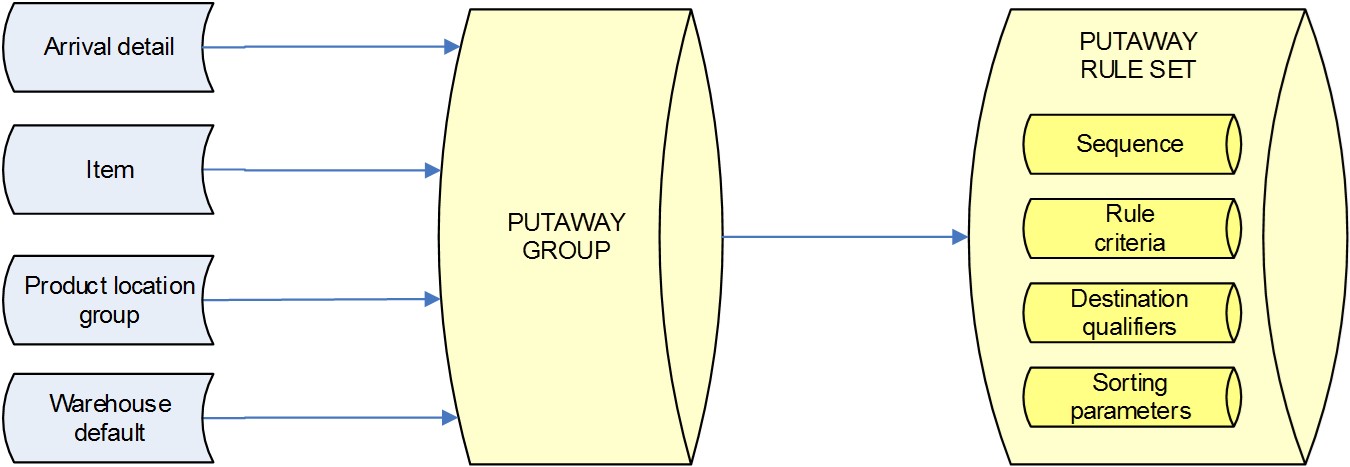
Add a putaway group
- On the menu, expand Basic Data > Advanced Functions > Putaway Group, and then double-click Putaway Group.
- On the Putaway Group window, in the toolbar, click . The Add Putaway Group dialog box appears.
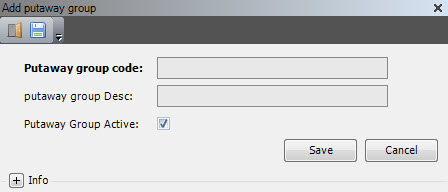
- Enter the following information.
| Field | Description | Required |
| Putaway Group Code | Unique system code that identifies a putaway group. Putaway groups are used by the putaway logic in Iptor WM1. The putaway group can be defined on the arrival detail, stock product/item, product location group and/or warehouse default and is the stakeholder for the putaway rules to be used. | Yes |
| Putaway Group Desc | Simple statement that describes the putaway group. Informational only. | Yes |
| Putaway Group Active | When selected, indicates that the putaway group is usable. | Yes |
- Click Save.
Putaway group rule sets
For a putaway group, you can define a sequence of rule sets to apply.
Add a putaway group rule set
- On the menu, expand Basic Data > Advanced Functions > Putaway Group, and then double-click Putaway Group.
- In the Putaway Group grid view, right-click the putaway group to which you want to add a putaway group rule set, and then click Putaway Group Rule Set.
- In the Putaway Group Rule Set grid view toolbar, click . The Add Putaway Group Rule Set dialog box appears.
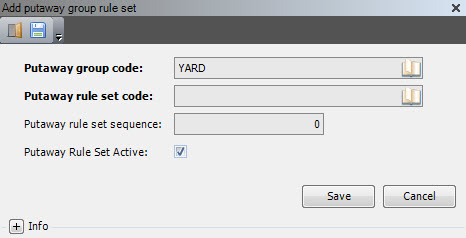
- Enter the following information.
| Field | Description | Required |
| Putaway Group Code | Unique system code that identifies a putaway group. Putaway groups are used by the putaway logic in Iptor WM1. The putaway group can be defined on the arrival detail, stock product/item, product location group and/or warehouse default and is the stakeholder for the putaway rules to be used. | Display only |
| Putaway Rule Set Code | Unique system code that identifies a putaway rule set. | Yes |
| Putaway Rule Set Sequence | Sequential number that the system will use to apply the rule sets within the putaway group. | No |
| Putaway Rule Set Active | When selected, indicates that the putaway rule set is usable. | No |
- Click Save.
