
Contents
Introduction
This guide explains how to identify and provide specific details for several system-wide settings. These initial settings are prerequisites for many warehouse setup tasks, and therefore must be defined first.
Basic data
In this guide you will learn how to set up the following data.
- Company
- Countries
- Currencies
- Languages
- Owners
- Units
- Unit conversion factors
Company
A company is the organization that is running Iptor WM1. Each installation must have a company defined. Iptor WM1 can also use company information for printing labels and documents. In addition, later in the setup process, after you define all of the basic data required to run your warehouse, you can update company information to include company-level default settings.
Add a company
- On the menu, expand Basic Data > System > General, and then double-click Company.
- On the Company window, in the toolbar, click
 . The Add Company dialog box appears.
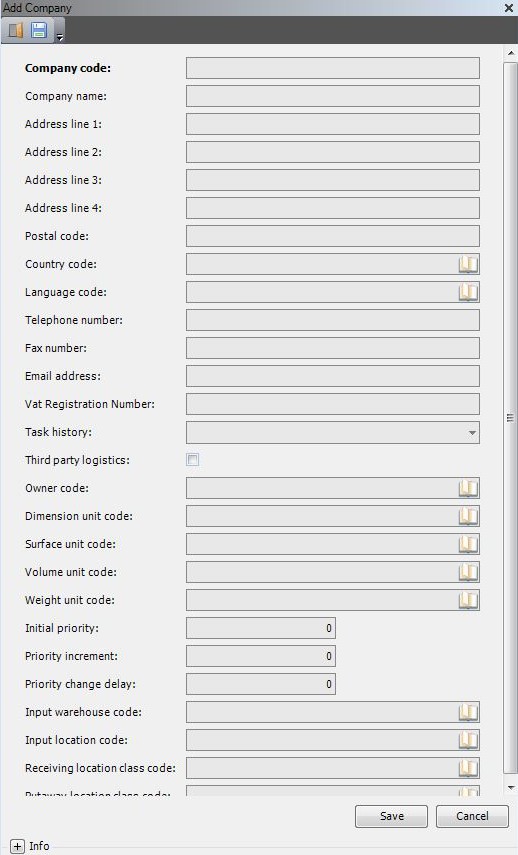
- Enter the following information.
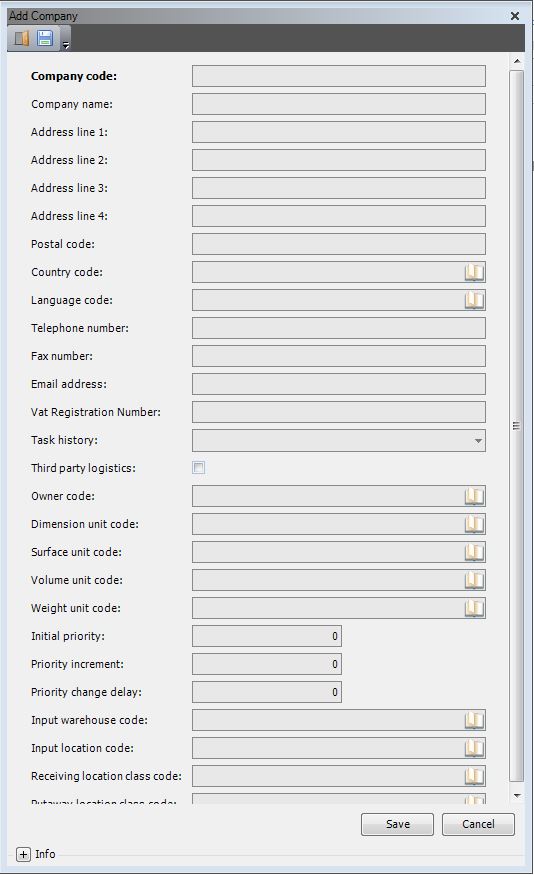
| Field | Description | Required |
| Company Code | Unique system code that identifies your company. | Yes |
| Company Name | Full name of your company. Used for display purposes. | Yes |
| Address Line 1―4 | Postal address that can be configured to print on internal or external documents. Typically address line 4 could be used for the city or community, if in printed documents it appears next to the postal code. | Yes |
| Postal Code | Postal code for the address. Format can be customized based your country’s postal code format. | No |
| Country Code | Unique system code that identifies a country. Iptor WM1 uses ISO standard codes by default. However, these values can be changed. For example, they can be mapped to the codes for any host system. | No |
| Language Code | Unique system code that identifies a language. Iptor WM1 uses ISO standard codes by default. However, these values can be changed. For example, they can be mapped to the codes for any host system. If a language is not specified, then the company language code is used by default. | No |
| Telephone Number | Contact phone number. Format as necessary with country calling codes and area codes. Example: x-xxx-xxx-xxxx | No |
| Fax Number | Phone number to which fax messages can be sent. Include country calling codes or area codes and use formatting as necessary. Example: xxx-xxx-xxxx | No |
| Email Address | Address to which email messages can be sent, such as name@company.com. | No |
| VAT Registration Number | Identifier for corporations doing business in a European Union country that uses the value-added tax system. | No |
| Task History | Informational only. Not used by the system. | No |
| Third-Party Logistics | Toggle if Iptor WM1 is used for multiple owners. Even if not using owners, the application uses at least 1 owner. | No |
| Owner Code | Unique system code that identifies an owner. In this setting, the system can use this owner code as default, if Third-Party Logistics is not used. | No |
| Dimension Unit Code | Value that determines the dimension unit expressed. This may be overridden at some specific levels, such as the item level. | No |
| Surface Unit Code | Informational only. Not used by the system. | No |
| Volume Unit Code | Value that determines the volume unit expressed.
|
No |
| Weight Unit Code | Value that determines the weight unit expressed. This may be overridden at some specific levels, such as the location size level.
|
No |
| Initial Priority | Informational only. Not used by the system. | No |
| Priority Increment | Informational only. Not used by the system. | No |
| Priority Change Delay | Informational only. Not used by the system. | No |
| Input Warehouse Code | Informational only. Not used by the system. | No |
| Input Location Code | Informational only. Not used by the system. | No |
| Receiving Location Class Code | Informational only. Not used by the system. | No |
| Putaway Location Class Code | Informational only. Not used by the system. | No |
- Click Save.
Countries
For successful setup, you must define the countries in which you conduct business. Although country information is optional on many setup windows, such as owners and warehouses, it is required on some setup windows, such as transport companies.
Add a country
- On the menu, expand Basic Data > System > Unit and Regional, and then double-click Country.
- On the Country window, in the toolbar, click . The Add Country dialog box appears.
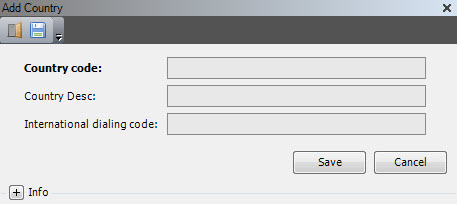
- Enter the following information.
| Field | Description | Required |
| Country Code | Unique system code that identifies a country. Iptor WM1 uses ISO standard codes by default. However, these values can be changed. For example, they can be mapped to the codes for any host system. | Yes |
| Country Desc | Simple statement that defines the country code. For example, if the country code is US, the description may be United States of America. | Yes |
| International Dialing Code | Informational only. Also known as a country calling code, it is the dialing prefix for a member country of the International Telecommunication Union (ITU). It is dialed after the international call prefix (or dial out code), and before the destination telephone number.
The United States and Canada have a one-digit country calling code, which is 1. Most countries have a two-digit country calling code. For example, the country calling code for the Netherlands is 31, Belgium is 32 and the United Kingdom is 44. Some less populated countries have a three-digit country calling code. For example, the country calling code for the Republic of Ireland is 353. |
No |
- Click Save.
Currencies
You can define the different currencies that you use to conduct business. When setting up your business partners, you can select the currency to use when working with that partner.
Add a currency
- On the menu, expand Basic Data > System > Unit and Regional, and then double-click Currency.
- On the Currency window, click . The Add Currency dialog box appears.
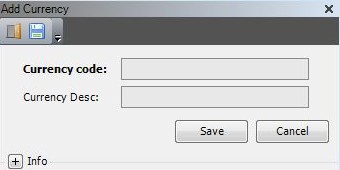
- Enter this information.

| Field | Description | Required |
| Currency Code | Unique system code that identifies a currency. Iptor WM1 uses ISO standard codes by default. However, these values can be changed. For example, they can be mapped to the codes for any host system. | Yes |
| Currency Desc | Simple statement that defines the currency code. For example, if the currency code is USD, the description would be U.S. Dollar. | Yes |
- Click Save.
Languages
Language setup identifies the languages used. Languages can also be used for printing labels and other external documents. If multiple languages are required, then the translated files must also be available to support the languages that you add during this setup procedure.
Add a language
- On the menu, expand Basic Data > System > Unit and Regional, and then double-click Language.
- On the Language window, in the toolbar, click . The Add Language dialog box appears.

- Enter the following information.
| Field | Description | Required |
| Language Code | Unique system code that identifies a language. Iptor WM1 uses ISO standard codes by default. However, these values can be changed. For example, they can be mapped to the codes for any host system. If a language is not specified, then the company language code is used by default. | Yes |
| Language Desc | Simple statement that defines the language code. For example, if the language code is en, the description may be English. | Yes |
- Click Save.
Owners
All inventory in your warehouse must belong to an owner. For warehouses that manage inventory for multiple clients (3PL), an owner must be defined for each client. When multiple owners are defined, users performing warehouse operations are required to select the owner that is associated with the tasks that they are performing. When only one owner is defined, users are not required to select an owner.
Defining owners is an important initial step in the setup process, as many other setup tasks require selection of an owner. However, owner information can include identification of several owner-level default settings that are not yet defined, such as activity groups, package types, product control types, warehouses, putaway groups, transport companies and containers. For this optional data, you can return to this procedure later in the setup process to add that detail.
Add an owner
- On the menu, expand Basic Data > System > General, and then double-click Owner.
- On the Owner window, in the toolbar, click . The Add Owner dialog box appears.
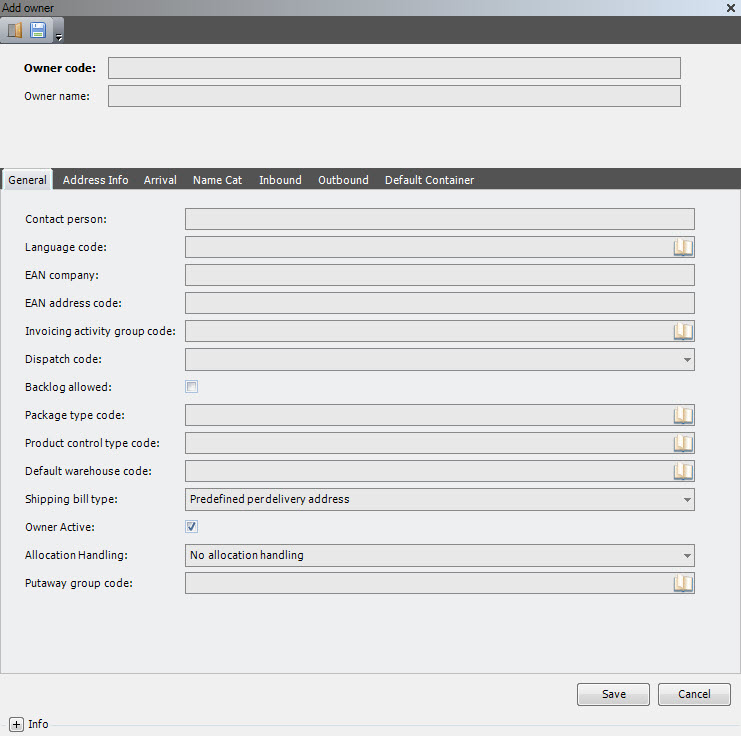
- Enter the following information.
| Field | Description | Required |
| Owner Code | Unique system code that identifies an owner. | Yes |
| Owner Name | Display name for the owner that appears within the Iptor WM1 application windows and grid views. | Yes |
- On the General tab, enter the following information.
| Field | Description | Required |
| Contact Person | Full name of the person who is the main contact. | No |
| Language Code | Unique system code that identifies a language. Iptor WM1 uses ISO standard codes by default. However, these values can be changed. For example, they can be mapped to the codes for any host system. If a language is not specified, then the company language code is used by default. | No |
| EAN Company | GS1 (7 digit) company prefix to be used for generating SSCC codes. | No |
| EAN Addres Code | Unique system code that uniquely identifies the address. Can be used for EDI transactions. | No |
| Invoicing Activity Group Code | Unique system code that identifies an invoicing activity group. Used for 3PL environments. | No |
| Dispatch Code |
Value that indicates the dispatch code used when order headers are created. The following values are supported.
|
No |
| Backlog Allowed | Currently not used. | No |
| Package Type Code | Unique system code that identifies a package type. In this usage, it is the package type to use in package calculations. If a value is entered here, it can be overwritten later during entry. | No |
| Product Control Type Code | Reserved for future use. | No |
| Default Warehouse Code | Unique system code that identifies a warehouse. In this usage, it is the warehouse that is associated with an item when a stock product is created without user interaction. | No |
| Shipping Bill Type |
Value that identifies the type of shipping bill that this owner uses. The following values are supported.
|
No |
| Owner Active | When selected, indicates that activities associated with the owner can be performed in the warehouse. | Yes |
| Allocation Handling |
Value that identifies how inventory allocation is managed for the owner. The following values are supported.
|
No |
| Putaway Group Code | Unique system code that identifies a putaway group. Putaway groups are used by the putaway logic in Iptor WM1. The putaway group can be defined on the arrival detail, stock product/item, product location group and/or warehouse default and is the stakeholder for the putaway rules to be used. In this usage, it is the putaway group to use when storing inventory for the owner. | No |
- Click the Address Info tab.
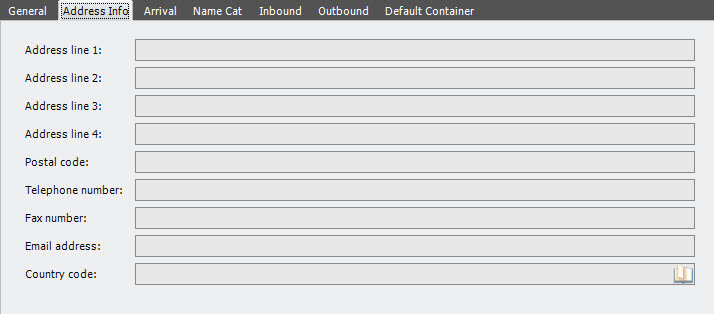
- Enter the following information.
| Field | Description | Required |
| Address Line 1―4 | Postal address that can be configured to print on internal or external documents. Typically address line 4 could be used for the city or community, if in printed documents it appears next to the postal code. | No |
| Postal Code | Postal code for the address. Format can be customized based your country’s postal code format. | No |
| Telephone Number | Contact phone number. Format as necessary with country calling codes and area codes. Example: x-xxx-xxx-xxxx | No |
| Fax Number | Phone number to which fax messages can be sent. Include country calling codes or area codes and use formatting as necessary. Example: xxx-xxx-xxxx | No |
| Email Address | Address to which email messages can be sent, such as name@company.com. | No |
| Country Code | Unique system code that identifies a country. Iptor WM1 uses ISO standard codes by default. However, these values can be changed. For example, they can be mapped to the codes for any host system. | No |
- Click the Arrival tab.
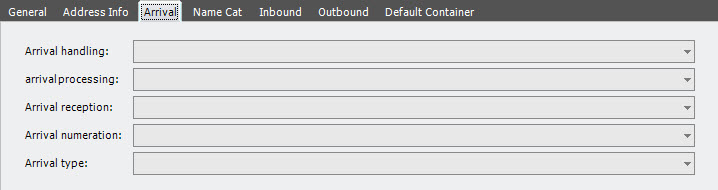
- Enter the following information.
| Field | Description | Required |
| Arrival Handling | Value that indicates the way in which arrivals for the owner are created. The following values are supported.
|
Yes |
| Arrival Processing | Value that indicates how arrivals for the owner are processed. This value is used as a default when creating an arrival for the owner, and indicates whether all steps must be confirmed explicitly or if certain steps are automatically performed by the system. The following values are supported.
|
Yes |
| Arrival Reception | Value that indicates how the lines to receive are presented; individually or cumulative. Currently, only the following value is supported.
|
Yes |
| Arrival Numeration | Algorithm used to generate the numerator for system-generated arrival numbers. The following values are supported.
|
Yes |
| Arrival Type |
Value that indicates the type of arrival to be used as the default for the owner. The following values are supported.
|
Yes |
- Click the Name Cat tab.
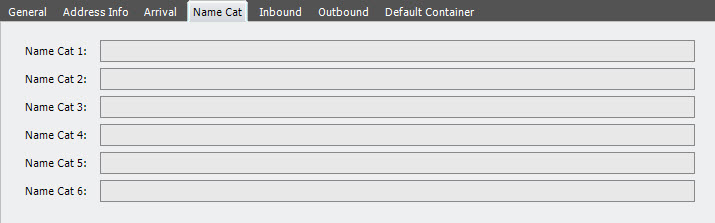
- Enter the following information.
| Field | Description | Required |
| Name Cat 1―6 | Name used to group information for reporting purposes. As an example, you might set up name categories if you have multiple divisions for which you generate separate reports, such as pharmaceutical and automotive. | No |
- Click the Inbound tab.

- Enter the following information.
| Field | Description | Required |
| Inbound Order Handling |
Value that indicates how inbound orders for the owner are created. The following values are supported.
|
Yes |
| Inbound Transport Company Code | Unique system code that identifies a transport company (carrier). In this usage, it is the carrier for inbound shipments. | No |
| Shipment Handling |
Value that indicates the how shipment for the owner is created. The following values are supported.
|
No |
- Click the Outbound tab.
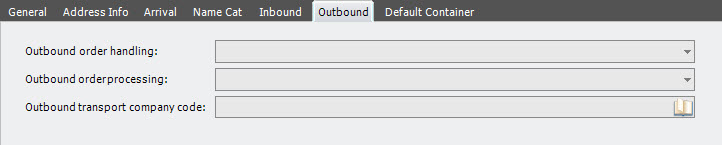
- Enter the following information.
| Field | Description | Required |
| Outbound Order Handling |
Value that indicates how outbound orders for the owner are created. The following values are supported.
|
Yes |
| Outbound Order Processing |
Value that indicates how outbound orders for the owner are processed. The following value is supported.
|
Yes |
| Outbound Transport Company Code | Unique system code that identifies a transport company (carrier). In this usage, it is the carrier for outbound shipments. | No |
- Click the Default Container tab.
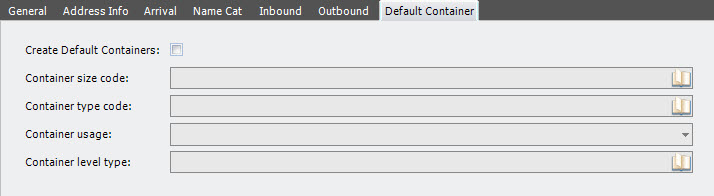
- Enter the following information.
| Note | Containers must be configured before you can provide this default owner information. |
| Field | Description | Required |
| Create Default Container | When selected, indicates that when creating a new container for the owner, the container details specified on this tab are used as defaults. | No |
| Container Size Code | Unique system code that identifies a container size. In this usage, it is the default container size for the owner. | No |
| Container Type Code | Unique system code that identifies a container type. In this usage, it is the default container type for the owner. | No |
| Container Usage | Defined use for a container of the specified container type. The following values are supported.
|
No |
| Container Level Type | Unique system code that identifies a container level. In this usage, it is the default container level type for the owner. | No |
- Click Save.
Units
Units consist of all measurement units by which you measure dimensions, quantities and duration of time, along with the handling units by which you store and manage inventory in your facility. Iptor WM1 is delivered with predefined units. You can add to or edit existing units to meet your requirements.
When you have defined a unit to be used in your warehouse, you can then define a conversion factor for that unit. Unit conversions allow you to handle inventory at different levels. You can have multiple conversion factors for a unit.
Add a unit
- On the menu, expand Basic Data > System > Unit and Regional, and then double-click Unit.
- On the Unit window, in the toolbar, click . The Add Unit dialog box appears.
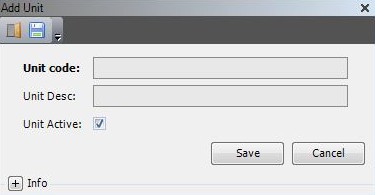
- Enter the following information.
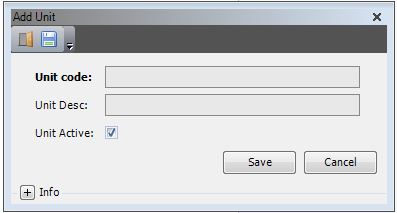
| Field | Description | Required |
| Unit Code | Unique system code that identifies the unit. Aligning the values used with interfaced systems (for example, a legacy system) will avoid extra mappings unless you align it with the operator’s common practices. | Yes |
| Unit Desc | Simple statement that describes the unit. For example, if the unit code is PAL, the description may be Pallet. Used for display purposes. | Yes |
| Unit Active | When selected, indicates that the unit is available for use. | Yes |
- Click Save.
Unit conversion factors
Add a unit conversion factor
- On the menu, expand Basic Data > System > Unit and regional, and then double-click Unit.
- On the Unit window, right-click the unit for which you want to define a conversion factor, and then click Unit Conversion.
- In the Unit Conversion grid view toolbar, click . The Add Unit Conversion dialog box appears.
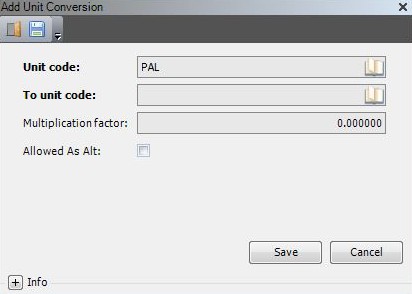
- Enter the following information.
| Field | Description | Required |
| Unit Code | Unique system code that identifies the unit. | Display only |
| To Unit Code | Code associated with the unit to which you want to convert the selected unit. | Yes |
| Multiplication Factor | Number by which to multiply a single instance of the original unit code to achieve the equivalent unit code. For example, if a pallet contains 24 boxes and you want to convert the pallet to boxes, your multiplication factor would be 24. 1 Pallet = 24 boxes. | Yes |
| Allowed as Alt | When selected, indicates that the converted value will be accepted during warehouse processing. | Yes |
- Click Save.
