
Contents
Introduction
The yard is the trailer parking area outside of the warehouse building. Vehicles are parked in yard locations and moved to and from the docks. This guide explains how to identify and provide specific details about the yard.
Basic data
In this guide you will learn how to set up the following data.
- Yard actions
- Yard templates
Prerequisites
To complete the procedures in this section, you must have already set up the following data.
- Container sizes
- Container types
- Reason (stock change) codes
If you have not done so, perform the setup tasks for required data first. Then, return to complete this procedure. For optional data, if you do not have it defined yet, you can return to this section later in the setup process to add that detail.
Yard actions
A yard action is defined for all yard status changes. Each yard action is assigned to a command, which is a stored procedure that perfoms processing related to the yard action.
Add a yard action
- On the menu, expand Yard Management, and then double-click Yard Action.
- On the Yard Action window, in the toolbar, click
 . The Add Yard Action dialog box appears.
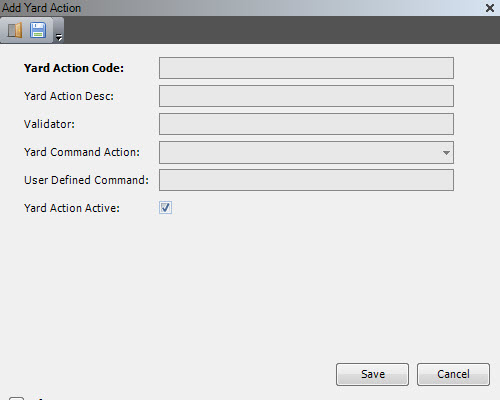
- Enter the following information.
| Field | Description | Required |
| Yard Action Code | Unique system code that identifies the yard action. | Yes |
| Yard Action Desc | Simple statement that defines the yard action code. For example, if the yard action code is CLOSE_INB, the description may be Close Inbound Shipment. | Yes |
| Validator | User-defined stored procedure that validates the yard action data. | No |
| Yard Command Action | Stored procedure that performs processing related to the yard action. | No |
| User Defined Command | User-defined stored procedure that performs processing related to the yard action. Leave blank if a Yard Command Action is used. | No |
| Yard Action Active | When selected, indicates that the yard action is active. | Yes |
- Click Save.
Yard templates
A yard template is used to define the type and size of containers allowed in the yard, the layout type, and whether it will be used for inbound or outbound shipments. You can also define the yard status and status change using yard templates.
Add a yard template
- On the menu, expand Yard Management, and then double-click Yard Template.
- On the Yard Template window, in the toolbar, click . The Add Yard Template dialog box appears.
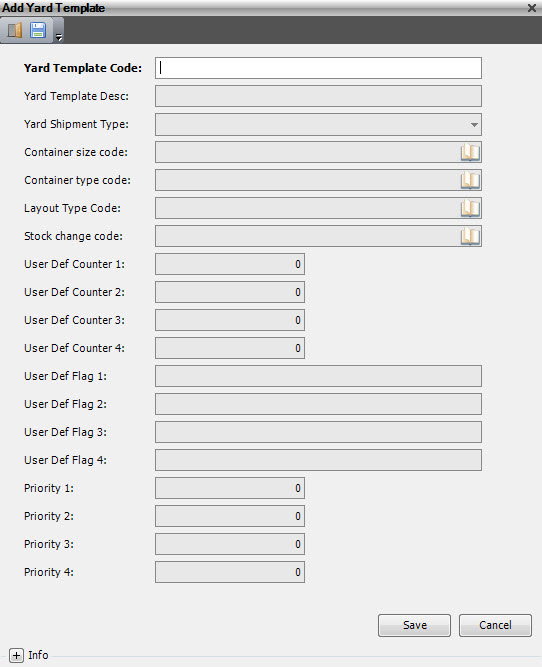
- Enter the following information.
| Field | Description | Required |
| Yard Template Code | Unique system code that identifies a yard template. | Yes |
| Yard Template Desc | Simple statement that defines the yard template code. For example, if the yard template code is INB, the description may be Inbound shipment. | Yes |
| Yard Shipment Type |
Value that identifies the type of yard shipment. The following values are supported.
|
No |
| Container Size Code | Unique system code that identifies a container size. In this usage, it is the container size used when containers must be generated for this shipment type. | No |
| Container Type Code | Unique system code that identifies a container type. In this usage, it is the container type used when containers must be generated for this shipment type. | No |
| Layout Type Code | Unique system code that identifies a layout type. The layout type can be used to assign specific layouts of printing documents that are defined in the printing type. The layout type can be controlled via business partner address, transport company, wave template, picklist template, outbound template, replenishment template and yard template. It can also be used from the counting template. In this usage, it is the inventory transactions that are created for this shipment type. | No |
| Stock Change Code | Unique system code that can be used to indicate the reason why an inventory transaction or task execution is done. It can be authorized by user type and determines what kind of inventory transaction or task execution is allowed. It is also used to define if the inventory transaction or task execution is interfaced. | No |
| User Def Counter 1–4 | Reserved for customer-specific needs. | No |
| User Def Flag 1–4 | Reserved for customer-specific needs. | No |
| Priority 1–4 | Reserved for customer-specific needs. | No |
- Click Save.
Add a yard template status
- On the menu, expand Yard Management, and then double-click Yard Template.
- On the Yard Template window, right-click the yard template to which you want to add a yard template status, and then click Yard Template Status.
- In the Yard Template Status grid view toolbar, click . The Add Yard Template Status dialog box appears.
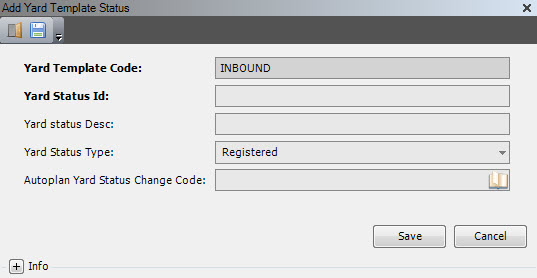
- Enter the following information.
| Field | Description | Required |
| Yard Template Code | Unique system code that identifies a yard template. In this usage, it defaults to the selected yard template. | Yes |
| Yard Status ID | Value that is used to identify the yard status. The following values are supported.
|
Yes |
| Yard Status Desc | Simple statement that defines the yard status ID. For example, if the yard status ID is UNLFIN, the description may be Unloading finished. | Yes |
| Yard Status Type | System value for the defined yard status. | No |
| Autoplan Yard Status Change Code | Unique system code that identifies a yard template status change. In this usage, it is used for directed moves generated by autoplan. | No |
- Click Save.
Add a yard template status change
- On the menu, expand Yard Management, and then double-click Yard Template.
- On the Yard Template window, right-click the yard template to which you want to add a yard template status change, and then click Yard Template Status Change.
- In the Yard Template Status Change grid view toolbar, click . The Add Yard Template Status Change dialog box appears.
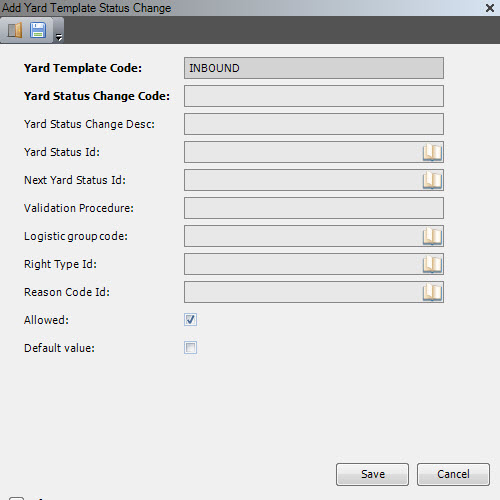
- Enter the following information.
| Field | Description | Required |
| Yard Template Code | Unique system code that identifies a yard template. | Yes |
| Yard Status Change Code | Unique system code that identifies a yard status change code. | Yes |
| Yard Status Change Desc | Simple statement that defines the yard status ID. For example, if the yard status ID is CLOSE_INB, the description may be Close inbound shipment. | No |
| Yard Status ID | Value that is used to identify the yard status. The following values are supported.
|
Yes |
| Next Yard Status ID | Value that is used to identify the new status of the yard after the change. The following values are supported.
|
Yes |
| Validation Procedure | Name of the customized stored procedure used to validate the status change. | No |
| Logistic Group Code | Unique system code that identifies a logistic group. Logistics groups are used by the Iptor WM1 Compact Application to evaluate if logistic action (In-line VAL) must be executed during reception, picking or other task execution. | No |
| Right Type ID | Unique system code that identifies a right type. In this usage, it is the rights that the user needs in order to perform the change. | No |
| Reason Code ID | Unique system code that can be used to indicate the reason why an inventory transaction or task execution is done. It can be authorized by user type and determines what kind of inventory transaction or task execution is allowed. It is also used to define if the inventory transaction or task execution is interfaced. In this usage, it is the default reason code to apply when changes occur to this yard status ID. | No |
| Allowed | When selected, indicates that the yard template status change is active. | No |
| Default Value | When selected, indicates that this is the default status change to use for shipments with this yard status ID. | No |
- Click Save.
Add a yard template status change action
- On the menu, expand Yard Management, and then double-click Yard Template.
- On the Yard Template window, right-click the yard template to which you want to add a yard template status change action, and then click Yard Template Status Change.
- In the Yard Template Status Change grid view right-click the yard template status change to which you want to add a yard template status change action, and then click Yard Template Status Change Action.
- In the Yard Template Status Change Action grid view toolbar, click . The Add Yard Template Status Change Action dialog box appears.
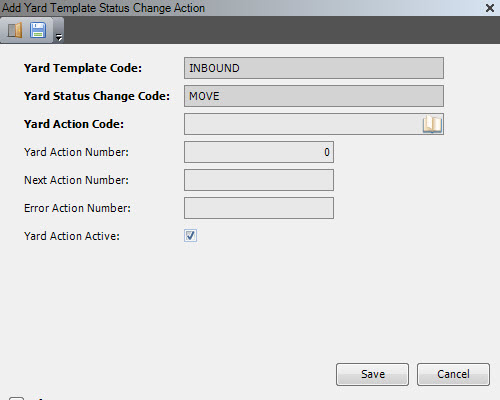
- Enter the following information.
| Field | Description | Required |
| Yard Template Code | Unique system code that identifies a yard template. | Yes |
| Yard Status Change Code | Unique system code that identifies a yard status change code. | Yes |
| Yard Action Code | Unique system code that identifies the yard action. In this usage, it is the yard action code that is triggered when the yard status changes for the selected template. | Yes |
| Yard Action Number | Number applied to the current yard action. | No |
| Next Action Number | Yard action number to position with after the current action executes and there are no errors. If a next action number is not specified, numbering occurs sequentially with no gaps. | No |
| Error Action Number | Yard action number to position with after the current action executes and there are errors. | No |
| Yard Action Active | When selected, the yard template status change action is active. | No |
- Click Save.
