
Contents
Introduction
This guide explains how to set up the items in your facility.
Basic data
In this guide you will learn how to set up the following data.
- Product control types
- Product location groups
- Product and location group relationships
- Product families
- Product family extensions
- Item types
- Item level types
- Item and container level type relationships
- Stacking classes
- Items
- Item business partners
- Item containers
- Item units
- Item languages
- Stock product units
- Stock product management
- Stock product lot information
- Item inventory statuses
- Item substitutes
- Item activity times
- Item texts
- Item warehouse margins
- Product synonyms
- Product pick locations
- Item pick location management
| Note | Product structure definitions, which are required for work order operations, are included in the Product Structure Setup guide. |
Product control types
The control type of an item specifies:
- The number of extra product codes that must be used for the stock product.
- Use of a second unit of measure.
- Use of expiration date.
- Use of serial number
- Whether to create product codes automatically.
Stock products can have eight parameters/product codes and an expiry date.
- Product code 1 is the mandatory item code.
- Product code 7 is typically used for batch/lot numbers.
- Product code 8 is typically used for serial numbers.
Add a product control type
- On the menu, expand Basic Data > Stock Keeping Units > Product Parameter, and then double-click Product Control Type.
- On the Product Control Type window, in the toolbar, click
 . The Add Product Control Type dialog box appears.
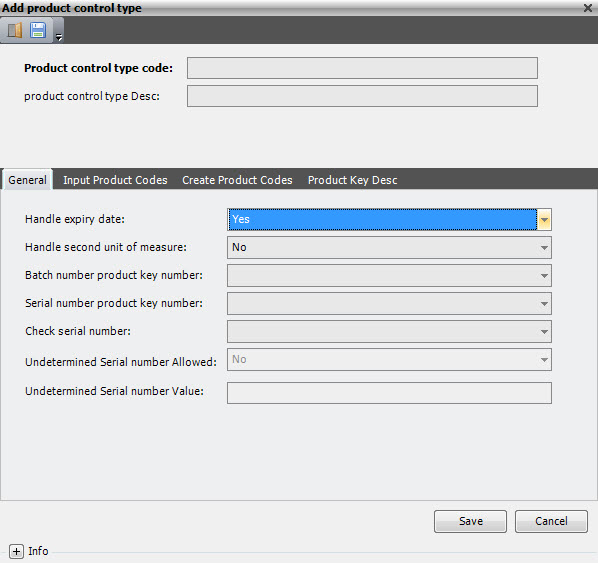
- Enter the following information.
| Field | Description | Required |
| Product Control Type Code | Unique system code that identifies the product control type. | Yes |
| Product Control Type Desc | Simple statement that describes the product control type. | Yes |
- On the General tab, enter the following information.
| Field | Description | Required |
| Handle Expiry Date |
Value that indicates if expiry dates are treated for items that belong to the product control type. The following values are supported.
|
No |
| Handle Second Unit of Measure |
Value that indicates if a second unit of measure must be treated for items belonging to the product control type. The following values are supported.
|
No |
| Batch Number Product Key Number | Value that specifies which key to use, if batch numbers are used as a product key. In a standard setup, product key 7 is used as lot number. | No |
| Serial Number Product Key Number | Value that specifies which key to use, if serial numbers are used as a product key. In a standard setup, product key 8 is used as serial number. | No |
| Check Serial Number | Value that indicates how serial numbers are handled. The following values are supported.
|
Yes |
| Undetermined Serial Number Allowed | Value that indicates whether to limit the use of serial numbers to part of the process (for example, to work without serial numbers until the moment of shipping goods). The following values are supported.
|
No |
| Undetermined Serial Number Value | If this is filled in and the system allows undetermined serial numbers, then the uniqueness of the stock will not be checked if the stock product key for serial number tracking (compulsory product key 8) has this undetermined serial number value. | No |
- Click the Input Product Codes tab.

- Enter the following information.
| Field | Description | Required |
| Input Product Code 2–8 |
Value that indicates if the product key is required. The following values are supported.
|
No |
- Click the Create Product Codes tab.
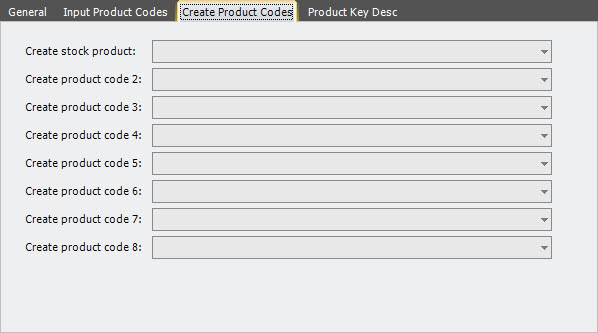
- Enter the following information.
| Field | Description | Required | ||||||||||||||||
| Create Stock Product | When an item record is created, a corresponding stock product record (Product code 2–8 = blank) can be created.
|
Yes | ||||||||||||||||
| Create Product Code 2–6 | Value that the system can use to automatically create the product code.
|
Yes | ||||||||||||||||
| Create Product Code 7 |
Value that the system can use to automatically create the product code. Product code 2–6 values, plus the following values can be selected.
|
|||||||||||||||||
| Create Product Code 8 |
Value that the system can use to automatically create the product code. Product code 2–6 values (except RCYWW), plus the following values can be selected.
|
- Click the Product Key Desc tab.

- Enter the following information.
| Field | Description | Required |
| Product Key Description 2–8 | Simple statement that describes the product key. Informational only. Text does not display in CAP or in the desktop client. In most cases, the system cannot know what product control type applies, when prompting for product codes. | No |
- Click Save.
Product location groups
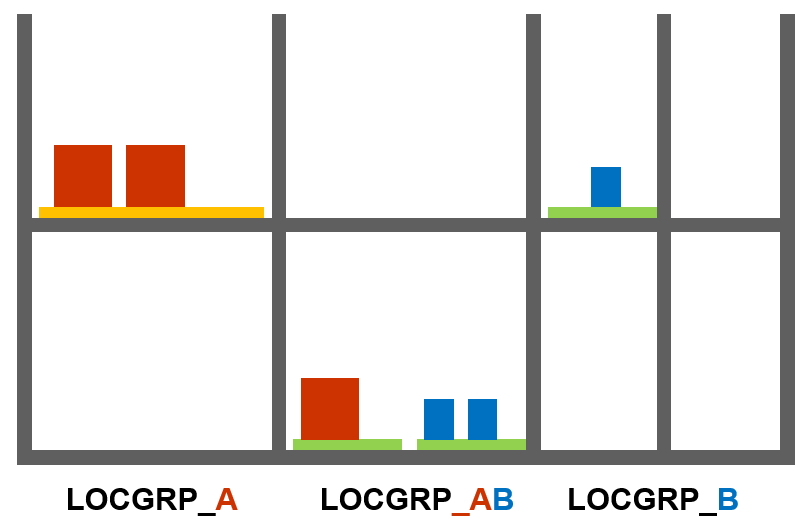
Product location groups describe the parameters that can be used to specify the way a product is stored, and how it could be handled during inbound and outbound processes.
- Product location groups must be defined for all items.
- The product location group can be linked to one or more location groups.
- The item can only reside in a location with a location group that allows that product location group.
- On a linked product location group – location group, a preference number and the type of containers allowed can be assigned.
- Normally, a container and a location contain goods of one product group.
- A container/location exception can be defined to allow multiple product groups in one container or location. This is typical for receiving, packing and shipping locations.
- Optionally, putaway and picking settings can be set for product location groups.
Add a product location group
- On the menu, expand Basic Data > Stock Keeping Units > Product Parameter, and then double-click Product Location Group.
- On the Product Location Group window, in the toolbar, click . The Add Product Location Group dialog box appears.

- Enter the following information.
| Field | Description | Required |
| Product Location Group Code | Unique system code that identifies a product location group. | Yes |
| Product Location Group Descr | Simple statement that describes the product location group. | Yes |
| Putaway Group Code | Unique system code that identifies a putaway group. Putaway groups are used by the putaway logic in Iptor WM1. The putaway group can be defined on the arrival detail, stock product/item, product location group and/or warehouse default and is the stakeholder for the putaway rules to be used. In this setting, it is the putaway group code that is used as default, if it could not be found on a more detailed level. The search order is: arrival detail / arrival inbound > stock product / item > product location group > warehouse default. | No |
| Picking Group Code | Unique system code that identifies a picking group. A picking group is a group of sequenced picking rule sets that are linked to an order. The picking rules within the picking group are used to search for the inventory to satisfy an order. In this setting, it is the picking group code that is used as default, if it could not be found on a more detailed level. The search order is: picklist order shortage > stock product / item > product location group > warehouse default. | No |
| Repl Group Code | Unique system code that identifies a replenishment group. In this setting, it is the replenishment group code that is used as default, if it could not be found on a more detailed level. The search order is: stock product / item > product location group > warehouse default. | No |
| Putaway Anomaly Number of Keys | Rules apply when a user wants to deviate from a location calculated by the system. For rules applying to stock products that may or may not be stored together, a number of stock product keys is taken into account. | No |
| Picking Anomaly Number of Keys | Rules apply when a user wants to deviate from a picking reservation calculated by the system. For rules applying to stock products that may or may not be picked to replace other products, a number of stock product keys is taken into account; at least the item code must be the same. | No |
| Picking Anomaly Change Container Code | When selected, specifies that the user is allowed to take another container than the one proposed by the system, but always on the same location. This applies only to picking tasks for full pallets. | No |
| Picking Anomaly Change Location | When selected, indicates that the user is allowed to take a pallet from another location than the one proposed by the system. This applies only to picking tasks for full pallets. It is only useful if the field picking change container has the value 1. | No |
| Picking Anomaly Change Qty | When selected, indicates that the user is allowed to take a pallet with another quantity than the one proposed by the system. This applies only to picking tasks for full pallets. This is unneeded if the field picking change container doesn’t have the value 1. Moreover, an appropriate value must be defined in the warehouse margin table for the margin type, Picking confirmation. | No |
| Repl Update Number of Keys | When the replenishment algorithm is performed based on limited number of product keys, it can be useful to change a number of product keys from the source product to the keys of the product to replenish. This parameter specifies the number of product keys that is taken over from the product to replenish. | No |
| Receiving Location Class Code | Unique system code that is only used for goods that are not received on pallets (for example, on chariots). For those goods, receiving can be performed on (fictive) containers that are on specific locations. Once receiving starts at such a location, that location gets the receiving location class (defined in table location and location class). Only goods with product groups that refer to the same receiving location class can be received on the same location. If filled in, this code is checked in the location class table. | No |
- Click Save.
Product and location group relationships
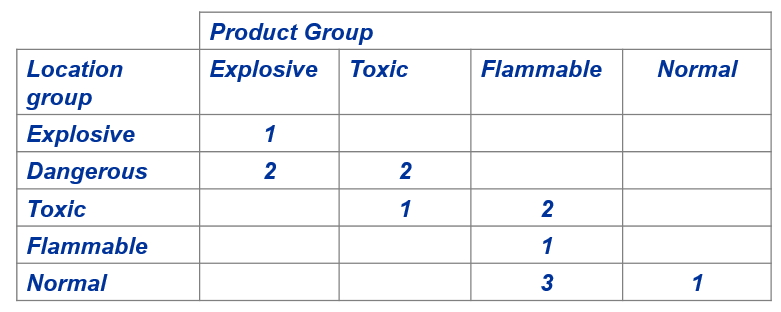
By linking a product and location group, you define where and how the product is stored in the warehouse. The locations must be assigned to location groups for the relationships to function.
The example below displays relations between the product location group of the item (with a preference number) versus the location group of the location.
Add a product and location group relationship
- On the menu, expand Basic Data > Stock Keeping Units > Product Parameter, and then double-click Product Location Group.
- On the Product Location Group window, right-click the product location group to which you want to add a location group relationship, and then click Product and Location Group.
- In the Product and Location Group grid view toolbar, click . The Add Product and Location Group dialog box appears.
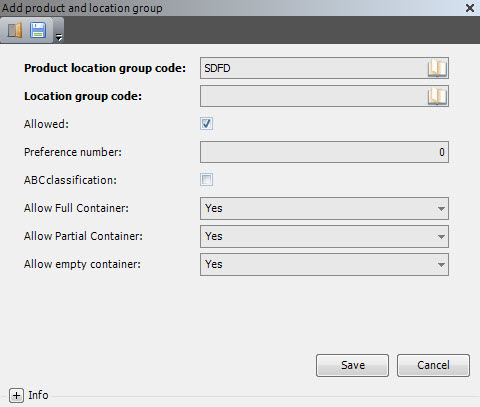
- Enter the following information.
| Field | Description | Required |
| Product Location Group Code | Unique system code that identifies a product location group. | Display only |
| Location Group Code | Unique system code that identifies a location group. A location group is a set of locations that store goods of a certain product group and type. | No |
| Allowed | When selected, indicates that products that belong to the product location group specified are allowed to store on locations that belong to the location group specified. | No |
| Preference Number | Value that is used by some putaway algorithms. Small numbers indicate the most preferable combinations. | No |
| ABC Classification | Currently not in use. | No |
| Allow Full Container | Value that specifies a full container is allowed on the location group (Y), not allowed at all (N), or if the location group is allowed but will never be proposed in putaway proposals (P). | No |
| Allow Partial Container | Value that specifies if a non-full container is allowed on the location group (Y), not allowed at all (N), or if the location group is allowed but will never be proposed in putaway proposals (P). | No |
| Allow Empty Container | Reserved for future use. | No |
- Click Save.
Product families
Product families are used to classify products and to define exclusions. Product family exclusions are optional but can be used for reporting or in putaway rules, picking rules, etc.
Add a product family
- On the menu, expand Basic Data > Stock Keeping Units > Product Parameter, and then double-click Product Family.
- On the Product Family window, in the toolbar, click . The Add Product Family dialog box appears.
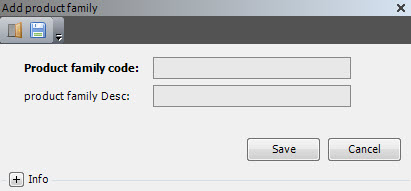
- Enter the following information.
| Field | Description | Required |
| Product Family Code | Unique system code that identifies the product family. | Yes |
| Product Family Description | Simple statement that describes the product family. | Yes |
- Click Save.
Product family exclusions
Product family exclusions are used to define the minimum distance (in terms of aisles, stacks and altitude) between locations with the same or another product family group. This can be useful for hazardous material.
Add a product family exclusion
- On the menu, expand Basic Data > Stock Keeping Units > Product Parameter, and then double-click Product Family.
- On the Product Family window, right-click the product family for which you want to add an exclusion, and then click Product Family Exclusion.
- In the Product Family Exclusion grid view toolbar, click . The Add Product Family Exclusion dialog box appears.
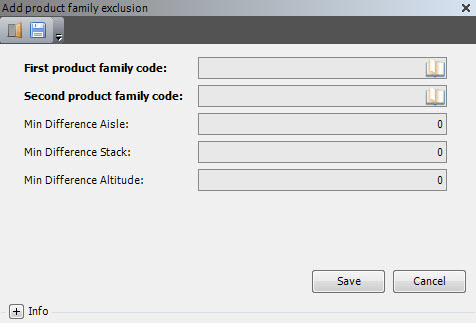
- Enter the following information.
| Field | Description | Required |
| First Product Family Code | Unique system code that identifies the first product family code. | No |
| Second Product Family Code | Unique system code that identifies the second product family code. | No |
| Min Difference Aisle | Informational only. Not implemented in the system. | No |
| Min Difference Stack | Informational only. Not implemented in the system. | No |
| Min Difference Altitude | Informational only. Not implemented in the system. | No |
- Click Save.
Item types
Item types are typically used in the MES functions. The system comes standard with the following codes:
- 1 – End item
- 2 – Sub-assembly
- 3 – Material
- 4 – Purchased
- 8 – Forecast item
- 9 – Free usage
Add an item type
- On the menu, expand Basic Data > Stock Keeping Units > Product Parameter, and then double-click Item Type.
- On the Item Type window, in the toolbar, click . The Add Item Type dialog box appears.
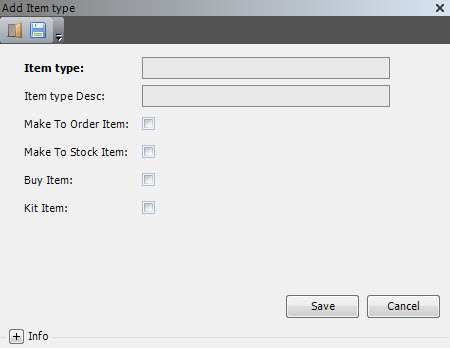
- Enter the following information.
| Field | Description | Required |
| Item Type | Value that defines the item type. | Yes |
| Item Type Desc | Simple statement that describes the item type. | Yes |
| Make to Order Item | Informational only. Not implemented in the system. | No |
| Make to Stock Item | Informational only. Not implemented in the system. | No |
| Buy Item | Informational only. Not implemented in the system. | No |
| Kit Item | Informational only. Not implemented in the system. | No |
- Click Save.
Item level types
Item level types are used to classify items in relation to a multi-level structure of containers. This definition is related to the container level type.
Add an item level type
- On the menu, expand Basic Data > Stock Keeping Units > Product Parameter, and then double-click Item Level Type.
- On the Item Level Type window, in the toolbar, click . The Add Item Level Type dialog box appears.
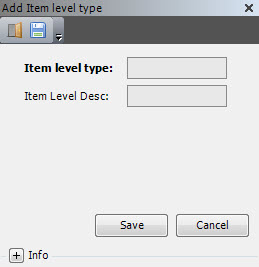
- Enter the following information.
| Field | Description | Required |
| Item Level Type | Value that identifies the item level type. | Yes |
| Item Level Desc | Simple statement that describes the item level. | Yes |
- Click Save.
Item and container level type relationships
This setup is used to configure an item level type and container level type relationship.
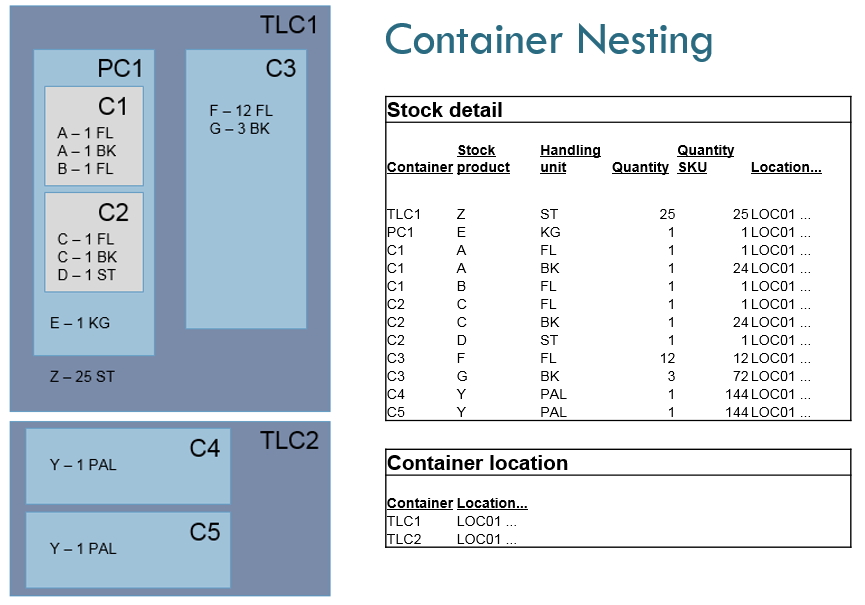
When dealing with multi-level containers, the top level container is the container that can be on a location. The child containers in this container are stock level containers.
A container is a top level container as long as it is (directly) on a location. A container is a stock level container if it is in / on another container. Since nesting is possible, the system identifies for a stock level container the level of nesting and the relation between stock level container(s) up to the top level container. This is done internally in the container explosion table.

Add an item and container level type relationship
- On the menu, expand Basic Data > Stock Keeping Units > Product Parameter, and then double-click Item Level Type.
- On the Item Level Type window, right-click the item level type for which you want to add a container type relationship, and then click Item Container Level Type Relation.
- In the Item Container Level Type Relation grid view toolbar, click . The Add Item Container Level Type Relation dialog box appears.

- Enter the following information.
| Field | Description | Required | ||||||||
| Item Level Type | Value that identifies the item level type. | Display only | ||||||||
| Container Level Type | Value that identifies the container level type. | Yes | ||||||||
| Level Relation |
Value that defines the item and container level type relationship.
|
Yes | ||||||||
| Allowed | When selected, indicates that the item and container level type relationship is allowed. | No | ||||||||
| Allow Multiple Owners | When selected, indicates that multiple owners are allowed for the combination item level type and container level type. | No | ||||||||
| Allow Multiple Items | When selected, indicates that multiple items are allowed for the combination item level type and container level type. | No | ||||||||
| Allow Multiple Stock Products | When selected, indicates that multiple stock products are allowed the combination item level type and container level type. | No | ||||||||
| Allow Multiple Handling Units | When selected, indicates that multiple handling units are allowed for the combination item level type and container level type. | No |
- Click Save.
Stacking classes
Stacking classes are informational fields that can be useful for operators who are stacking containers (for example, so that heaviest goods are placed on the bottom and lightest goods are placed on the top).
The system uses the stacking classes in the sequencing of the tasks that are created by the package calculation, when the sequence handling of the picklist header (from the picklist template) is ‘Volume and stacking class’ (VOST).
Add a stacking class
- On the menu, expand Basic Data > Stock Keeping Units > Product Parameter, and then double-click Stacking Class.
- On the Stacking Class window, in the toolbar, click . The Add Stacking Class dialog box appears.
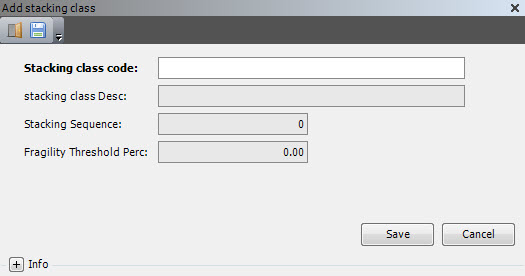
- Enter the following information.
| Field | Description | Required |
| Stacking Class Code | Unique system code that identifies the stacking class. | No |
| Stacking Class Desc | Simple statement that describes the stacking class. | No |
| Stacking Sequence | Value that indicates the sequence of stacking goods on a container. | No |
| Fragility Threshold Perc | Threshold to take into account when a deviation from the stacking sequence occurs. The more fragile the products are, the higher this percentage should be. When no deviation is allowed, this percentage should be (at least) 100. | No |
- Click Save.
Items
An item is any product that is processed by Iptor WM1 (for example, raw materials, packaging materials, in-process materials, supplies, and finished goods). An item always belongs to an owner.
| Note | Some warehouses refer to items as stock keeping units (SKUs). Iptor WM1 uses another field name to define the unit of the item in which inventory is held. Therefore, the terms stock keeping unit or SKU will not be used in general discussion to help eliminate confusion on the subject. |
Iptor WM1 logic handles inventory by using a “stock product”. A stock product is uniquely defined by its owner code, item code and product codes 2–8. Each needed piece of information that differentiates a product from another should be stored in one of the product keys. For example, a commonly used product key is the lot number of a product.
Consequently, a stock product is real or generic in Iptor WM1. Only real stock product can be used in the functions that store or handle inventory. Generic stock products can, for example, be used in the arrival detail of outbound order lines where not all product keys are needed (for example, a customer requests the generic stock product, not a specific lot).
Before Iptor WM1 can effectively store, track, and manipulate inventory, every item within your facility must be assigned a unique item code, and its attributes must be defined.
Items:
- Are uniquely identified by their item code and owner code (combination).
- Can be created and updated manually in the system or via interface.
- Support multiple units and packaging.
- Support a second unit of measure.
- Support the standard use of EAN or UPC codes.
- Support multi-language descriptions.
Item attributes examples include:
- Item business partner
- Item container
- Item unit
- Item language
- Stock product
- Item pick location management
- Item substitute
- Item activity time
- Item text
- Item warehouse margin
Prerequisites
When defining an item, you are asked to provide the following prerequisite data.
- Owner
- Units (for stock keeping unit, second stock keeping unit (optional), dimension unit (optional), handling unit, inbound unit (optional), outbound unit (optional))
- Product location group
- Product family (optional)
- Item level type
- Warehouse (for default warehouse)
- Product control type
- Counting group code (optional)
- Package nesting code (optional)
- Package reuse code (optional)
- Package compression code (optional)
- Putaway group code (optional)
- Picking group code (optional)
- Replenishment group code (optional)
- Inbound Logistic group code (optional)
- Outbound Logistic group code (optional)
- Planning User code (optional)
- Inventory status (optional)
- Container size code (optional)
- Container type code (optional)
- Item type (optional)
- Business partner (for supplier business partner – (optional))
- Package type (optional)
- Stacking class (optional)
If you have not done so, perform the setup tasks for required data first. Then, return to complete this procedure. For optional data, if you do not have it defined yet, you can return to this section later in the setup process to add that detail.
Add an item
- On the menu, expand Basic Data > Stock Keeping Units > Product Setup, and then double-click Item.
- On the Item window, in the toolbar, click . The Add Item dialog box appears.

- Enter the following information.
| Field | Description | Required |
| Owner Code | Unique system code that identifies an owner. If no third party warehousing is used, a default owner will be used. | Yes |
| Item Code | Unique system code that identifies an item. | Yes |
- On the General tab, enter the following information.
| Field | Description | Required | ||
| Item Initiation | Value that indicates how the item is created. The following values are supported.
|
No | ||
| Item Code Alias | Value that can be used as an alternative item code. | No | ||
| Item Desc | Simple statement that describes the item. It is taken as a default when creating a stock product. | Yes | ||
| Item Desc Extra | Extra description used when creating a stock product. | No | ||
| Item Desc 3–4 | Extra description used when creating a stock product. | No | ||
| Stock Keeping Unit Code | Value that determines the unit in which all inventory for the item is kept. Must be a valid value in the unit table. | Yes | ||
| Second Stock Keeping Unit Code | Second unit of measure that can be defined, when indicated in the product control type. Whenever a quantity is specified for the first stock keeping unit, the second unit is requested also. This is not used for items that have a fixed conversion factor against the stock keeping unit (for example, a 3kg bag of potatoes), but for items where each inventory record has two unrelated quantities (for example, bacon of 2.3 kg versus bacon of 2.1 kg). | No | ||
| Product Location Group Code | Unique system code that identifies a product location group.The product location group of an item is taken as a default when creating a stock product. By linking product location groups to location groups, it is defined where products may be stored. It is validated in the product location group table. | Yes | ||
| Product Family Code | Unique system code that identifies a product family. The product family of an item is taken as a default when creating a stock product. Product families are used to define exclusions, meaning that there should be a minimum distance (in terms of aisles, stacks and altitude) between locations with the same or another product family group. If filled in, it is validated in the product family table. | No | ||
| Item Level Type | Attribute that can be used to relate item versus container level types. An item can only be put on a container with a container level type that is related to its item level type. | Yes | ||
| Default Warehouse Code | Unique system code that identifies a warehouse. Value that is used to create a record in stock_product_management when a stock product is created by the system without user interaction. | Yes | ||
| Backlog Allowed |
When selected, indicates that using a backlog is allowed. This, in combination with the backlog allowed flag on the business partner, is used when creating inbound or outbound order lines.
|
No | ||
| SKU Number of Decimals | Number of decimals used for quantities in stock keeping units. Informational only. | No | ||
| ABC Code | Informational field that can be used for reporting purposes and in rules. This value (A, B, …, Z.) is taken as a default when creating a stock product. | No | ||
| EAN Code | Standard EAN code of the item. Informational only (for example, to print on documents). It is not used for checking and/or retrieving an item (for which only product synonyms are used.) | No | ||
| Labeled |
Value that indicates how the item is labeled. This is used during the picking process to determine if scanning the product is possible. The following values are supported.
|
No |
- Click the Item tab.
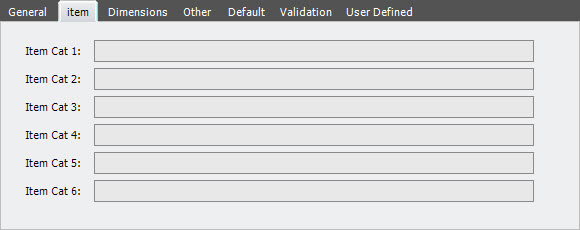
- Enter the following information.
| Field | Description | Required |
| Item Cat 1–6 | Values that can be used to search items and for reporting purposes. Descriptions can be stored in the code checking table. | No |
- Click the Dimensions tab.
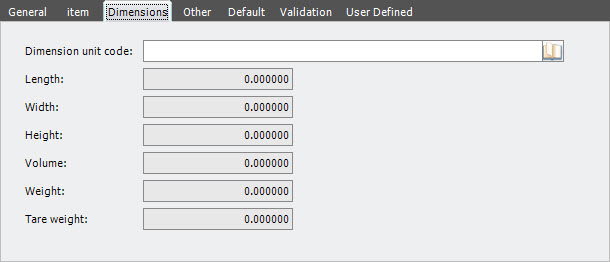
- Enter the following information.
| Field | Description | Required |
| Dimension Unit Code | Unique system code that defines the unit used for the length, width and height of an item. | No |
| Length | Length of one stock unit of an item. The value is taken as a default when creating a stock product. It can be used for package calculations during the picking process (depending on the package calculation algorithm). | No |
| Width | Width of one stock unit of an item. The value is taken as a default when creating a stock product. It can be used for package calculations during the picking process (depending on the package calculation algorithm). | No |
| Height | Height of one stock unit of an item. The value is taken as a default when creating a stock product. It can be used for package calculations during the picking process (depending on the package calculation algorithm). | No |
| Volume | Volume of one stock unit of an item. The value is taken as a default when creating a stock product. It can be used for package calculations during the picking process (depending on the package calculation algorithm). | No |
| Weight | Weight of one stock unit of an item. The value is taken as a default when creating a stock product. It can be used for package calculations during the picking process (depending on the package calculation algorithm). | No |
| Tare Weight | Weight of the packing material. It must be subtracted from the weight to obtain the net weight of a stock keeping unit. | No |
- Click the Other tab.
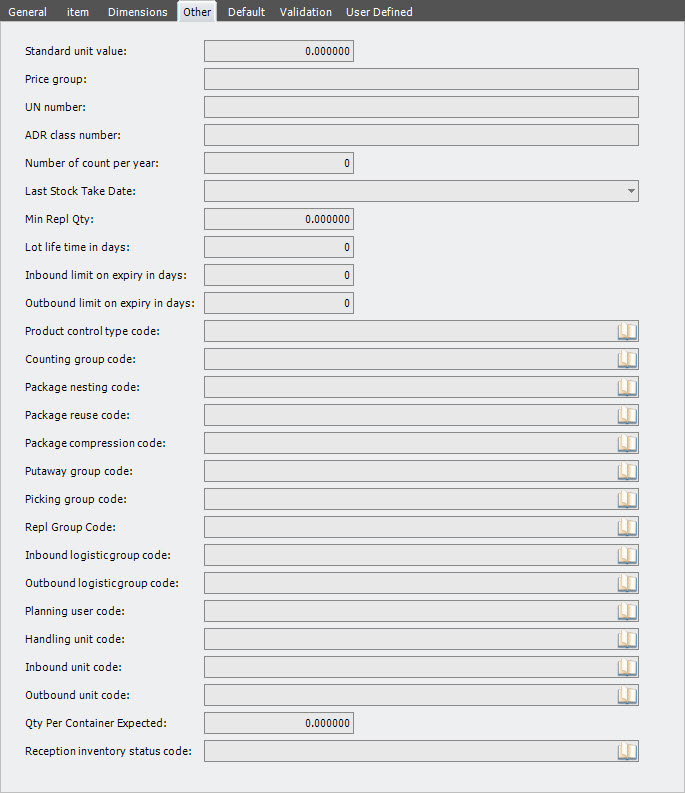
- Enter the following information.
| Field | Description | Required |
| Standard Unit Value | Informational field that can be used for reporting purposes. The value is taken as a default when creating a stock product. | No |
| Price Group | Informational only. | No |
| UN Number | Informational only. | No |
| ADR Class Number | Informational only. | No |
| Number of Count Per Year | Value that is used to determine the items that must be considered for counting, when running the cycle count routine. | No |
| Last Stock Take Date | Option to update the last stock take date for the items counted, when an inventory control is closed. | No |
| Min Repl Qty | Value that is taken as a default when creating records in the stock product management table. | No |
| Lot Life Time in Days | Value that is used for items that have an expiry date. There will be a proposal at receiving time for the expiry date, based on the receiving date and the lot life time in days. | No |
| Inbound Limit On Expiry in Days | Minimum number of days, between today and the expiry date of the product, that must be respected before accepting the product into the warehouse. | No |
| Outbound Limit On Expiry in Days | Minimum number of days, between today and the expiry date of the product, that must be respected for delivering the product to the warehouse. | No |
| Product Control Type Code | Unique system code that defines the use of stock product keys (for example, lot number or serial number) and the use of expiry dates. If filled in, it is validated in the product control type table. | No |
| Counting Group Code | Unique system code that can be used by inline counting, which can be linked to putaway, replenishment and pick tasks. If filled in, it is validated in the counting group table. | No |
| Package Nesting Code | Unique system code that can be used for package calculations during the picking process (depending on the package calculation algorithm). For some products (for example, baskets), the volume of several items doesn’t need to be multiplied. The nesting factor represents the percentage of the normal volume that an additional item takes. The weights of additional items are simply added. If filled in, it is validated in the package nesting table. | No |
| Package Reuse Code | Unique system code that can be used for package calculations during the picking process (depending on the package calculation algorithm). For some products, a fraction of the volume can be used for other items (for example, a basket can be filled with screws). The reuse percentage represents the fraction of the volume of an item that can be reused to put smaller items in, meaning that those smaller items won’t consume additional volume. If filled in, it is validated in the package reuse table. | No |
| Package Compression Code | Unique system code that is not used yet for calculations. If filled in, it is validated in the package compression table. | No |
| Putaway Group Code | Unique system code that identifies a putaway group. Putaway groups are used by the putaway logic in Iptor WM1. The putaway group can be defined on the arrival detail, stock product/item, product location group and/or warehouse default and is the stakeholder for the putaway rules to be used. | No |
| Picking Group Code | Unique system code that identifies a picking group. A picking group is a group of sequenced picking rule sets that are linked to an order. The picking rules within the picking group are used to search for the inventory to satisfy an order. | No |
| Repl Group Code | Unique system code that identifies a replenishment group. | No |
| Inbound Logistic Group Code | Unique system code that identifies a logistic group. Logistics groups are used by the Iptor WM1 Compact Application to evaluate if logistic action (In-line VAL) must be executed during reception, picking or other task execution. In this usage, it is the logistic group that the system will use in inbound processing to evaluate if logistic action (In-line VAL) must be executed. | No |
| Outbound Logistic Group Code | Unique system code that identifies a logistic group. Logistics groups are used by the Iptor WM1 Compact Application to evaluate if logistic action (In-line VAL) must be executed during reception, picking or other task execution. In this usage, it is the logistic group that the system will use in outbound processing to evaluate if logistic action (In-line VAL) must be executed. | No |
| Planning User Code | Unique system code that identifies a user. In this usage, it is the user that can be used for outbound container planning. | No |
| Handling Unit Code | Value that defines the handling unit. Beside the stock keeping unit of the item, the inventory can also be expressed in a handling unit. For example, a handling unit is a box that contains 6 bottles, where the stock keeping unit is bottle. | No |
| Inbound Unit Code | Unique system code that identifies an inbound unit. | No |
| Outbound Unit Code | Unique system code that identifies an outbound unit. | No |
| Qty Per Container Expected | Default quantity per pallet expected for the item that is used at receiving time. | No |
| Reception Inventory Status Code | Unique system code that is used as a default when receiving the specified item. If filled in, it is checked in the inventory status table. | No |
- Click the Default tab.
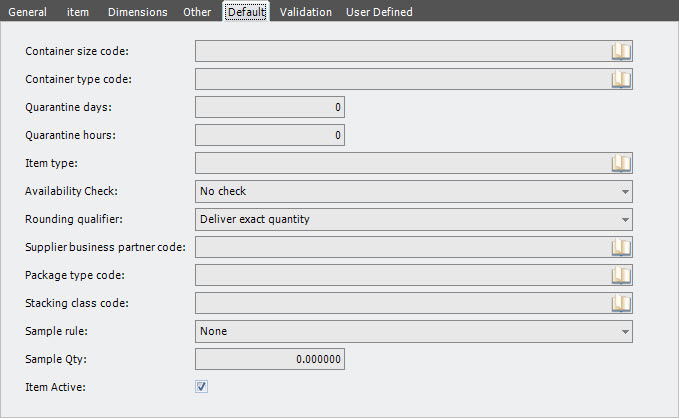
- Enter the following information.
| Field | Description | Required |
| Container Size Code | Unique system code that identifies the container size for the item that is used at receiving. The default value is taken from the owner table. If filled in, it must be a valid value in the container size table. | No |
| Container Type Code | Unique system code that identifies the container type for the item that is used at receiving. The default value is taken from the owner table. If filled in, it must be a valid value in the container type table. | No |
| Quarantine Days | Reserved for future use. | No |
| Quarantine Hours | Reserved for future use. | No |
| Item Type | Value that indicates the item type. Informational only. | No |
| Availability Check | Value that indicates whether to perform an availability check for all critical components. Informational only. | No |
| Rounding Qualifier | Value that is used by the system when making reservations and tasks for released pick-lists. The requested quantity from the outbound order lines will be increased or decreased according to the rounding qualifier. The default value is taken from the warehouse default table. The following values are supported.
|
No |
| Supplier Business Partner Code | Unique system code that identifies a supplier business partner. An item can have a default supplier. If filled in, it must be a supplier in the business partner table. | No |
| Package Type Code | Unique system code that identifies a package type. It is used in the package calculation that is invoked at picklist release, to determine the ‘to containers’ for the pick tasks, based on the allowed container sizes for the package type. The default value is taken from the owner table. This value is checked in the package type table. | No |
| Stacking Class Code | Unique system code that identifies a stacking class. It is used when the system sequences tasks in the picklist release / task creation function, based on the stacking cIass of the items (for example, to pick the heaviest items first). If filled in, it must be a valid value from the stacking class table. | No |
| Sample Rule | Reserved for future use. | No |
| Sample Qty | Reserved for future use. | No |
| Item Active | When selected, indicates that the item is usable. | No |
- Click the Validation tab.
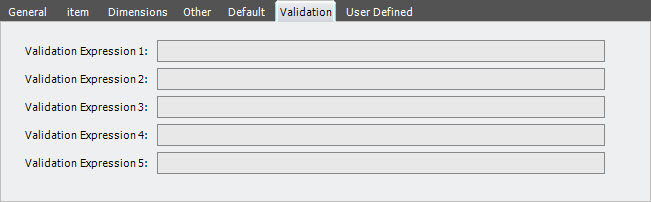
- Enter the following information.
Field Description Required Validation Expression 1–5 Reserved for future use. No - Click the User Defined tab.

- Enter the following information.
| Field | Description | Required |
| User Def Flag 1–9 | Reserved for customer-specific needs. | No |
- Click Save.
Item business partners
Item business partner information is mainly used for inbound activities. If the item can be sourced from multiple business partners, then details per business partner can be recorded against each individual business partner.
Add an item business partner
- On the menu, expand Basic Data > Stock Keeping Units > Product Setup, and then double-click Item.
- On the Item window, right-click the item for which you want to add a business partner relationship, and then click Item Business Partner.
- In the Item Business Partner grid view toolbar, click . The Add Item Business Partner dialog box appears.
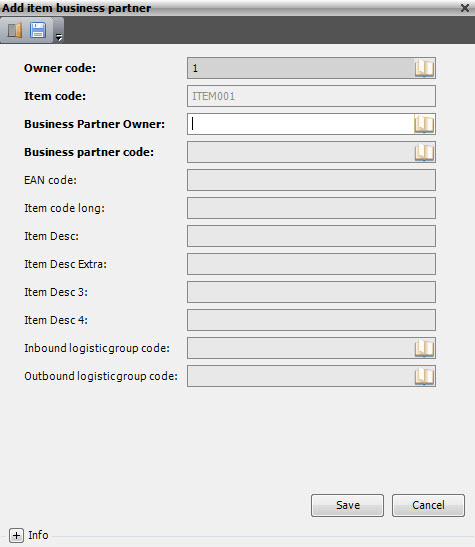
- Enter the following information.
| Field | Description | Required |
| Owner Code | Unique system code that identifies an owner. Each item belongs to an owner. If no third party warehousing is used, a default owner will be used. The owner code is part of the item identification. | Yes |
| Item Code | Unique system code that identifies an item. This field is used to indicate the item code of the goods. It must be a valid value in the item table. | Yes |
| Business Partner Owner | Value that is used in combination with the Business Partner Code to identify the business partner-specific information of the goods. It must be a valid value in combination with the Business Partner Code in the business partner table. | Yes |
| Business Partner Code | Unique system code that identifies a business partner. This field is used to identify the business partner specific information of the goods. It must be a valid value in the business partner table. | Yes |
| EAN Code | Standard EAN code of the business partner for the item. Informational only (for example, to print on documents). It is not used for checking and/or retrieving an item (for which only product synonyms are used.) | No |
| Item Code Long | Item code that the business partner uses, if known. | No |
| Item Desc | Simple statement that describes the item. | No |
| Item Desc Extra | Additional business partner specific description line. | No |
| Item Description 3–4 | Additional business partner specific description lines. | No |
| Inbound Logistic Group Code | Unique system code that identifies a logistic group. Logistics groups are used by the Iptor WM1 Compact Application to evaluate if logistic action (In-line VAL) must be executed during reception, picking or other task execution. In this usage, it is the logistic group that the system will use in inbound processing to evaluate if logistic action (In-line VAL) must be executed. | No |
| Outbound Logistic Group Code | Unique system code that identifies a logistic group. Logistics groups are used by the Iptor WM1 Compact Application to evaluate if logistic action (In-line VAL) must be executed during reception, picking or other task execution. In this usage, the system will use this logistic group in outbound processing to evaluate if logistic action (In-line VAL) must be executed. | No |
- Click Save.
Item containers
This setup is used to configure container sizes allowed for an item. If the item can be received in different container sizes, then you can link the container sizes to the item.
| Note | Setting up item containers is optional. |
Add an item container
- On the menu, expand Basic Data > Stock Keeping Units > Product Setup, and then double-click Item.
- On the Item window, right-click the item for which you want to add a container, and then click Item Container.
- In the Item Container grid view toolbar, click . The Add Item Container dialog box appears.
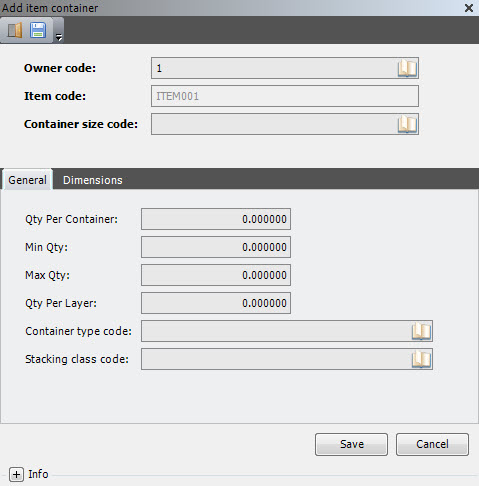
- Enter the following information.
| Field | Description | Required |
| Owner Code | Unique system code that identifies an owner. | Display only |
| Item Code | Unique system code that identifies an item. | Yes |
| Container Size Code | Unique system code that identifies a container size. | Yes |
- On the General tab, enter the following information.
| Field | Description | Required |
| Qty per Container | Quantity allowed per container | No |
| Min Qty | Minimum quantity allowed per container. | No |
| Max Qty | Maximum quantity allowed per container. | No |
| Qty per Layer | Quantity allowed per container layer. This is used in the package sequence handling of the package calculation for picklists that are using sequence handling, ‘Volume and stacking class’ (VOST). This function handles packages per package and the first full layers in descending volume within a package. | No |
| Container Type Code | Unique system code that identifies a container type. | No |
| Stacking Class Code | Unique system code for the stacking class. | No |
- Click the Dimensions tab.
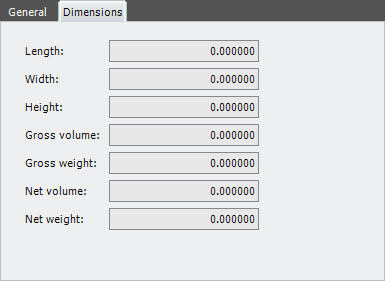
- Enter the following information.
| Field | Description | Required |
| Length | Length of the container. | No |
| Width | Width of the container. | No |
| Height | Height of the container. | No |
| Gross Volume | Gross volume of the container. | No |
| Gross Weight | Gross weight of the container. | No |
| Net Volume | Net volume of the container. | No |
| Net Weight | Net weight of the container. | No |
- Click Save.
Item units
This setup is used to configure item-specific conversions between units.
Stock keeping units and handling units are used to express inventory quantities. Most of the time, those units are the same. Handling quantities are expressed in handling units. Inventory quantities, and other quantities in the stock detail, are expressed in stock keeping units. If the item should be handled with several units, the relation between those units and conversion factors should be defined.
Add an item unit
- On the menu, expand Basic Data > Stock Keeping Units > Product Setup, and then double-click Item.
- On the Item window, right-click the item for which you want to add a container, and then click Item Unit.
- In the Item Unit grid view toolbar, click . The Add Item Unit dialog box appears.
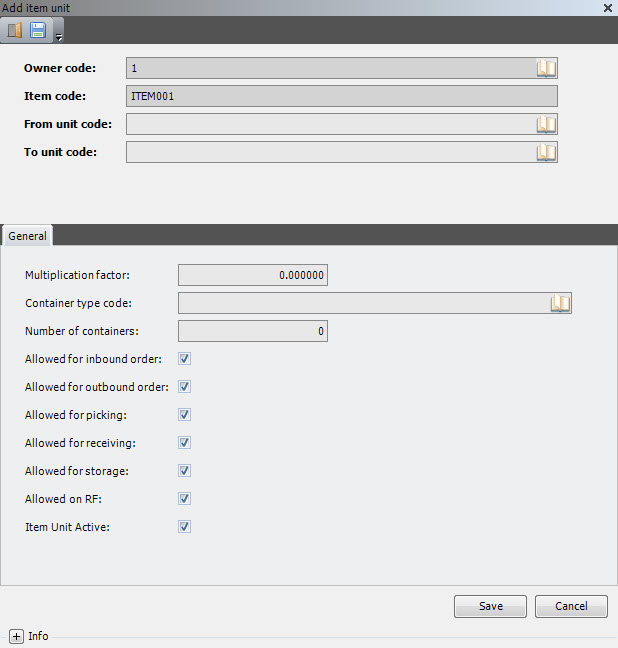
- Enter the following information.
| Field | Description | Required |
| Owner Code | Unique system code that identifies an owner. Each item belongs to an owner. If no third party warehousing is used, a default owner will be used. The owner code is part of item identification. | Display only |
| Item Code | Unique system code that identifies an item. This field is used to indicate the item code of the goods. It must be a valid value in the item table. | Display only |
| From Unit Code | Unit in which the original quantity to convert is expressed. Must be a valid value in the unit table. | Yes |
| To Unit Code | Unit in which the quantity must be converted. Must be a valid value in the unit table. | Yes |
| Multiplication Factor | Conversion factor between units. The interpretation is that 1 from_unit_code = multiplication_factor * to_unit_code. | No |
| Container Type Code | Unique system code for the container type. This will be passed to the stock_product_unit and will be used to validate during outbound returnable packaging registration, reception of returnable packages, inventory transfer during inline counting process, or the container shipping process. | No |
| Number of Containers | Value that is used along with the container_type_code and passed to the stock_product_unit. In the case of container_type_code, the number_of_containers value must be at least 1 for the validation to pass. |
No |
| Allowed for Inbound Order | When selected, indicates that the unit is allowed on inbound orders. | No |
| Allowed for Outbound Order | When selected, indicates that the unit is allowed on outbound orders. | No |
| Allowed for Picking | When selected, indicates that the unit is allowed during picking. | No |
| Allowed for Receiving | When selected, indicates that the unit is allowed during receiving. | No |
| Allowed for Storage | When selected, indicates that the unit is an allowed handling unit. | No |
| Allowed on RF | When selected, indicates that the unit code is allowed in RF processes. | No |
| Item Unit Active | When selected, indicates that the item unit is usable. | No |
- Click Save.
Item languages
If a multi-language version is used, add item languages to define the item descriptions. The language dependent descriptions are mainly used for printing on documents or labels.
Add an item language
- On the menu, expand Basic Data > Stock Keeping Units > Product Setup, and then double-click Item.
- On the Item window, right-click the item for which you want to add a language, and then click Item Language.
- In the Item Language grid view toolbar, click . The Add Item Language dialog box appears.
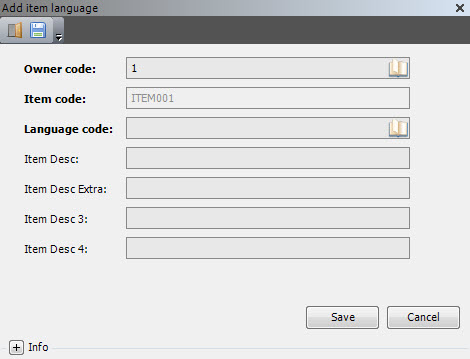
- Enter the following information.
| Field | Description | Required |
| Owner Code | Unique system code that identifies an owner. Each item belongs to an owner. If no third party warehousing is used, a default owner will be used. The owner code is part of item identification. | Yes |
| Item Code | Unique system code that identifies an item. This is used to indicate the item code of the goods. It must be a valid value in the item table. | Yes |
| Language Code | Unique system code that identifies a language. Iptor WM1 uses ISO standard codes by default. However, these values can be changed. For example, they can be mapped to the codes for any host system. If a language is not specified, then the company language code is used by default. This must be a valid value in the language table. | Yes |
| Item Desc | Simple statement that defines the item in the specified language. | No |
| Item Desc Extra | Additional language-specific description line. | No |
| Item Desc 3–4 | Additional language-specific description lines. | No |
- Click Save.
Stock products
In Iptor WM1, a stock product is uniquely defined by its owner code, item code and product codes 2–8.
For traceability (when receiving, moving, consuming, and shipping inventory), each piece of information that differentiates a product from other inventory of the same product is needed. This information is stored in one of the product keys (codes). The product control type at the item level allows you to define how many pieces of information should be known to identify a certain kind of product in a unique way by defining which product keys are used (input product codes 2–8, mandatory or optional). Examples are included below.
| Note | Product codes are also known as product keys. |
Real vs generic stock products
For a given owner, item and product key combination, you can supply only one value for the stock product nature column. This is an “exclusive or”. Consequently, a stock product is considered, generic or real.
Iptor WM1 only holds inventory for products for which all pieces of information are known. If values for all defined product keys are known and thus can be kept in inventory (stock), they are defined as real stock products. Common product key usage examples are as follows.
- Lot controlled products – at least one product key should contain the lot information (product code 7 recommended)
- Serial number controlled products – at least one product key should contain the serial number (product code 8 recommended)
- Consignment goods – a product key could contain the owning supplier
- Make to order goods – a product key could contain the corresponding outbound order number
- Quality considerations (for example, woven fabrics or vegetables) – a product key could contain an expiry date
| Note | If products are not lot controlled but an expiry date or best before date is needed, it is advisable to include that date in one of the keys unless those products are only stored on clean containers (as expiry date is defined at the container inventory level and therefore should be unique for each combination of stock product/handling unit/container). The same applies for products that have multiple expiry dates within the same lot. |
Product codes typically have traceability reasons (for example, lot, serial number) or are for internal use (for example, consignment goods). In most cases, this information is not available at ordering time. To allow the ordering of goods without knowing all inventory-specific details, generic stock products were introduced. A generic stock product is a stock product where the value of at least one mandatory product key is not (yet) known. They are called “generic” because their properties (like product location group, put-away group, picking group) are used to “generate” the corresponding real stock products at receiving time. In Iptor WM1, outbound (and inbound) order lines can be created for any existing stock product (both real and generic).
- Outbound/inbound order lines for real stock products can be created:
- where products don’t need product keys (for example, goods that we consume ourselves apart from any production process, such as copying-paper)
- where car dealers order a specific serial number (stock sales)
- where shipping expired goods to waste disposal plants require lot specific (internal) order lines
- when (in 3PL) owners indicate specific lot numbers or expiry dates (that are defined in product keys)
- For products using multiple product keys, a generic stock product can already have non-blank product keys (as only one missing value is required to have a generic stock product). A typical example is when the quality of the product is part of the product keys.
Stock product creation
An existing stock product is needed in the database in order to store products on outbound order lines, inbound order lines, arrival lines, etc. For manageability purposes, the system offers functionality to include automatic creation of stock products (generic and/or real).
Item creation
When an item is created, Iptor WM1 can be set-up to include the creation of a corresponding stock product. This mechanism is controlled by the “create stock product” property at the product control type level. Supported values are N(o), G(eneric) and R(eal). Unless N(o) is specified, the system will create a stock product with all product keys empty when the item is created.
The stock product nature that will be assigned to the created stock product depends on the supplied value: G(eneric) or R(eal). If any product key of the product control type is defined as mandatory, G(eneric) should be selected (because at least one value will be missing as a stock product with all empty keys will be created). If no product keys are used, R(eal) should be selected.
| IMPORTANT |
The “create stock product” property is only evaluated at item creation time. Assigning a product control type to an existing item will not trigger the stock product creation process. Why select N(o)? Stock product creation at item creation time always results in a stock product without any product keys specified (and – as most products use at least one product key – in a generic stock product without any product keys). The existence of a (generic) stock product in Iptor WM1 acts as an authorization to allow customers to order it. It is not always the desired behavior that order lines for products without any keys can be created. More specifically, in environments where quality is one of the product keys, customers commonly have to specify the desired quality of the products they order. In this case, for each available quality a (generic) stock product would need manual creation first. |
Examples
In the examples below:
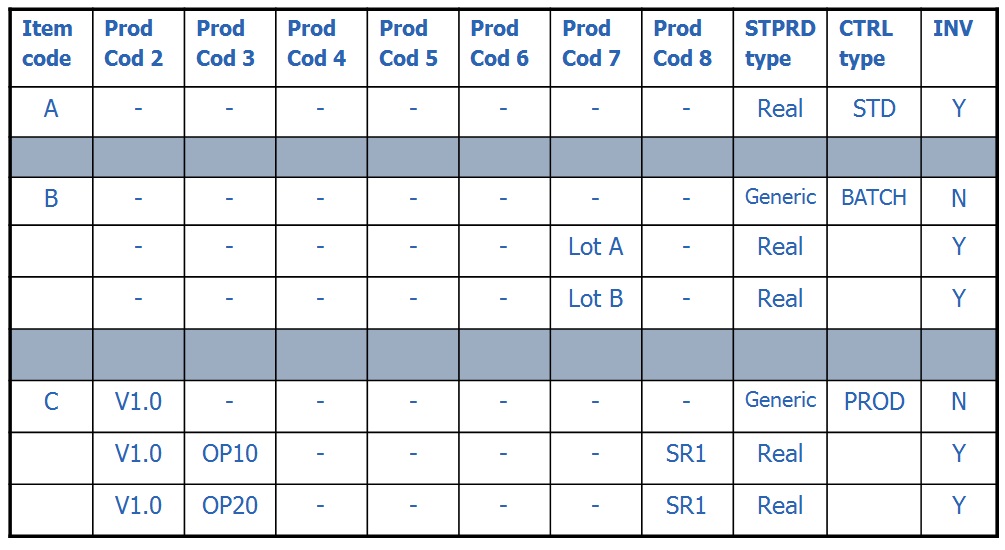
- Item A has no attributes defined in the product codes. The system will only have real stock product having the owner code and item code as key.
- Item B uses the product control type ‘BATCH’ which defines that product code 7 will be used for the lot number. The system will only keep inventory for real stock product that have the owner code, item code and product code 7 as key. Generic stock product, with only the owner code and item code as key, can be used for example, in arrival inbound or detail or in outbound order detail lines.
- Item C is an MES item example. The product control type ‘PROD’ defines that product code 2 can be used for a version number, product code 3 identifies the operation step, and product code 8 identifies the unique serial number of every assembled finished item.
Add a stock product
- On the menu, expand Basic Data > Stock Keeping Units > Product Setup, and then double-click Item.
- On the Item window, right-click the item for which you want to add a stock product, and then click Stock Product.
- On the Stock Product window, click . The Add Stock Product dialog box appears.
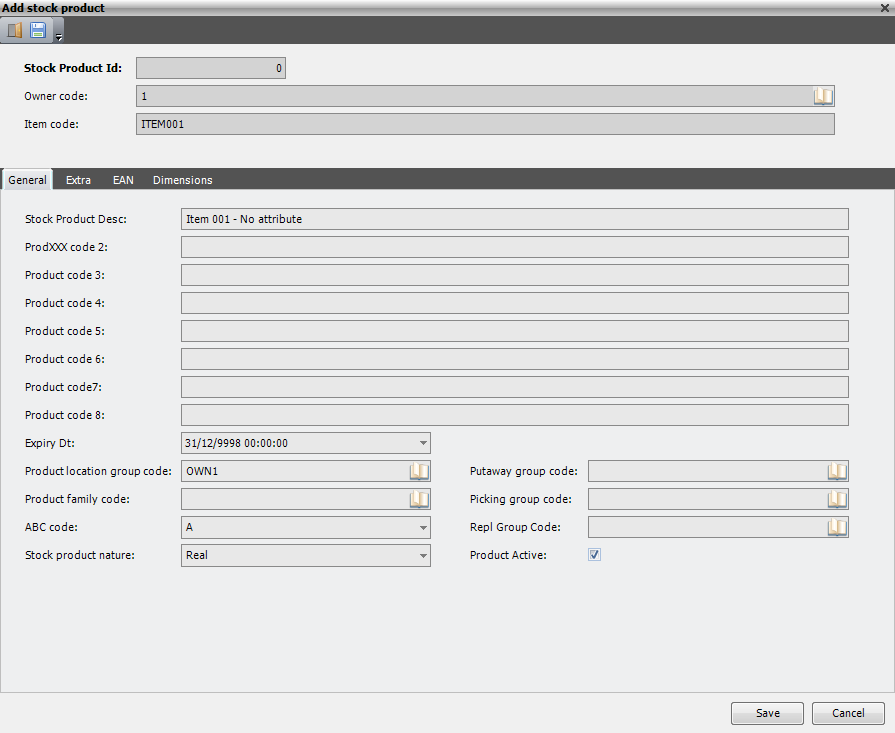
- On the General tab, enter the following information.
Field Description Required Stock Product Id Internally used unique identifier that is assigned by the system. Display only Owner Code Unique system code that identifies an owner. Display only Item Code Unique system code that identifies an item. Display only Stock product description Simple statement that is taken from the item table when creating a stock product. Yes Product code 2–8 Stock products can be identified with seven additional key elements (apart from owner code and item code). Values are not table controlled, but descriptions for the field values can be stored in the code checking table.
Note In a standard setup:
Product key 7 is used as lot number (if applicable).
Product key 8 is used as serial number (if applicable).No Expiry Dt Expiry date and time of the stock product. Upon receiving a new stock product, it can be calculated automatically by the system based on the item’s lot life time. If expiry dates are not handled for an item (as defined in the product control type table), this field will get the (maximum) value: 9998, Dec 31 00:00:00. Product location group code Unique system code that identifies a product location group. The product location group specifies several aspects about the way a stock product is handled, such as the put-away algorithm, the picking algorithm and the replenishment algorithm. The product location group of the item is taken as a default when creating a stock product. By linking product location groups to location groups, it is defined where products may be stored. It is is validated in the product location group table. No Product family code Product families are used to define exclusions, meaning that there should be a minimum distance (in terms of aisles, stacks and altitude) between locations with the same or an other product family group. The product family of the item is taken as a default when creating a stock product. If it is filled in, it is validated in the product family table. No ABC code Informational field that can be used for reporting purposes and in rules. This value (A, B, …, Z.) is taken as a default when creating a stock product. No Stock product nature Nature of the stock product: real (R) or generic (G). Real stock products are products for which inventory can be kept. For a real product, additional product keys can be blank or filled in. Generic products are products with at least one mandatory product key that is blank (missing). They can for example, be ordered by a customer or to a supplier. In that case, one or several product keys are blank. No Putaway group code Unique system code that identifies a putaway group. Putaway groups are used by the putaway logic in Iptor WM1. The putaway group can be defined on the arrival detail, stock product/item, product location group and/or warehouse default and is the stakeholder for the putaway rules to be used. No Picking group code Unique system code that identifies a picking group. A picking group is a group of sequenced picking rule sets that are linked to an order. The picking rules within the picking group are used to search for the inventory to satisfy an order. No Replenishment group code Unique system code that identifies a replenishment group. No Product active When selected, indicates that the product is usable. No - On the Extra tab, enter the following information.
Field Description Required Creation dt Date and time of creation. Defaults to the current date and time. No Last change dt Date and time that an update was last saved. No - Click Save.
