
Contents
Introduction
Package calculation, also known as cartonization, is a function that determines the type and number of target containers to use during picking to support a pick and pack process. Pick and pack is a process in which operators pick inventory for orders directly into shipping containers. This eliminates the repacking and consolidating of orders prior to shipping.
The package calculation function is part of the picking reservation process, and it is performed after pick tasks are created. After the target containers are calculated, they are assigned to pick tasks. If pick quantities for a single pick task exceed container capacity, then the pick task is split into two or more pick tasks. Pick tasks are not released until the calculated containers are assigned.
Package calculation is done by picklist and package type, as defined in the outbound order details, and modifiable in the picklist shortages. This ensures that pick tasks for different picklists always end up on separate target containers, and order lines with different package types will not be merged into a target container.
This guide explains how to identify and provide specific details about package calculation and how to configure the package calculation function to support a pick and pack process.
Basic data
In this guide you will learn how to set up the following data.
- Package types
- Package nesting
- Package reuse
- Package calculations
- Business partner package types
- Pick list templates
- Package picking zone combinations
| Note | This document focuses only on configuring the data that is relevant for package calculations. |
Algorithm overview
Several package calculation algorithms exist. This document focus on the all dimensions package calculation algorithm, which described in detail later in this document.
The all dimensions package calculation algorithm is volume-based, and it uses product dimensions when performing calculations. The package type from the outbound order detail lines defines the valid container sizes for packing the products. It takes the following steps when calculating the target container(s).
- Order details are grouped by picklist number, package type, owner code, business partner code, warehouse code and picking zone code. Calculation is done for each group.
- Outbound order details for a given group are sorted on descending length (the longest product is considered first when calculating target containers).
- When an outbound order detail line is evaluated, Iptor WM1 first determines whether an existing package for the same group will hold the line items (the package accommodates all dimensions, volume and weight). If such a container exists, it will be the target container for the line.
- If an existing container will not hold the line items, the algorithm performs these steps to calculate a new target container.
- The algorithm calculates the maximum length, maximum width, maximum height, total volume and total weight for the remaining lines in the group, and then it tries to find a container size for the package type where the maximum dimensions, and total volume and weight will fit.
- If such a container size is found, a new container of this size is created and assigned as the target container for the line. The algorithm then returns to step 3 to evaluate another outbound order detail line.
- If no such container size is found, the algorithm tries to find a container size where the maximum dimensions and total volume will fit. If multiple container sizes exist, the one that allows the most weight is selected. If such container size is found, a new container of this size is created and assigned as the target container for the line.
- If no such container size is found, the algorithm tries to find a container size where the maximum dimensions will fit. If multiple container sizes exist, the one that allows the most volume is selected. If such container size is found, a new container of this size is created and assigned as target container for the line. The algorithm then returns to step 3 to evaluate another outbound order detail line.
- If no such container size is found, the algorithm selects the container size that holds the most volume. If such container size is found, a new container of this size is created and assigned as target container for the line. The algorithm then returns to step 3 to evaluate another outbound order detail line.
- If no such container is found, the algorithm selects the container size that is set as the default for the package type, creates a new container of this size and assigns this as the target container for the line. The algorithm then returns to step 3 to evaluate another outbound order detail line.
- After the initial package calculations, an optimization step is performed to verify whether packages can be combined. This occurs to increase efficiencies and avoid too many small packages. The recombination does not mix package types, but it can combine packages in the same picking zone, or for different picking zones.
Prerequisites
When configuring the parameters, you are asked to provide the following prerequisite data.
- Container sizes
- Container types
- Items
- Business partners
- Picklist template
If you have not done so, perform the setup tasks for required data first. Then, return to complete the package calculation setup.
Package types
The package and container size table is used to define the valid container sizes and types for a given package type. For example, different box sizes can be defined for the BOX package type.
Add a package type
- On the menu, expand Basic Data > Advanced Functions > Package Calculation, and then double-click Package Type.
- On the Package Type window, in the toolbar, click
 . The Add Package Type dialog box appears.
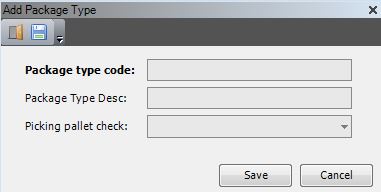
- Enter the following information.
| Field | Description | Required | ||
| Package Type Code | Unique system code that identifies a package type. Package calculation types can be used for package calculations during the picking reservation process, depending on the picking algorithm. Records from the Outbound order detail table can refer to a package calculation type. The package calculation can be done, based on the package type code on the picklist order shortage. | Yes | ||
| Package Type Desc | Simple statement that defines the package type. For example, if the package type is INDPAL, the description may be Industry Pallet. | Yes | ||
| Picking Pallet Check |
Value that indicates whether to perform checks based on container size to determine if the container can be used for pallet picking. The following values are supported:
|
No |
- Click Save.
Associate a package type with container sizes
- On the menu, expand Basic Data > Advanced Functions > Package Calculation, and then double-click Package Type.
- On the Package Type window, right-click the package type for which you want to associate a container size, and then click Package and Container Size.
- On the Package and Container Size window, in the toolbar, click . The Add Package and Container Size dialog box appears.
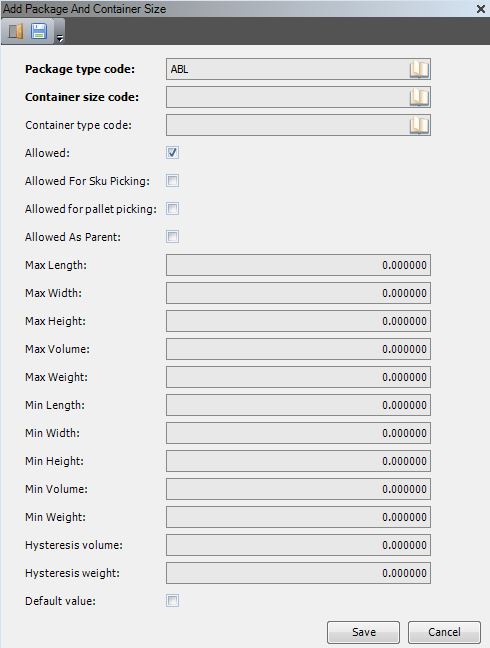
- Enter the following information, as required.
| Field | Description | Required | ||
| Package Type Code | Unique system code that identifies a package type. Package calculation types can be used for package calculations during the picking reservation process, depending on the picking algorithm. Records from the Outbound order detail table can refer to a package calculation type. The package calculation can be done, based on the package type code on the picklist order shortage. In this usage, it defaults to the package type selected on the Package Type window. | Yes | ||
| Container Size Code | Unique system code that identifies a container size. In this usage, it is a valid container size for the package type. The code must exist in the container size table. | Yes | ||
| Container Type Code | Unique system code that identifies a container type. In this usage, it is a valid container type for the container size. | Yes | ||
| Allowed | When selected, indicates that the package and container size is a valid combination, and it is usable. | Yes | ||
| Allowed for SKU Picking |
When selected, indicates that the package and container size combination is valid for SKU picking.
|
Yes | ||
| Allowed for Pallet Picking |
When selected, indicates that the package and container size combination is valid for pallet picking.
|
No | ||
| Allowed as Parent |
When selected, indicates that the specified combination of package type and container size is allowed for parent package calculation.
|
No | ||
| Max Length, Width, Height, Volume and Weight |
Maximum product dimensions, volume and weight that the container size can hold for this package type. These values may differ from the values set up on container sizes. To ease packing, typically the values set up here will be less than the true values.
|
No | ||
| Min Length, Width, Height, Volume and Weight |
Minimum product dimensions, volume and weight that the container size can hold for this package type.
|
No | ||
| Hysteresis Volume and Weight |
Value that identifies the extra volume and/or that is not used in normal circumstances, but that is available in exceptional cases.
|
No | ||
| Default Value | When selected, indicates that this is the default container size to use for the package type when the package calculation algorithm does not find a valid container size. | No |
- Click Save.
Package nesting
Package nesting is used for products that can be stacked together, each fitting within the one immediately larger. For example, buckets of different sizes may be nested. The nesting factor is the percentage of the volume required for each additional piece.
Add a package nesting code
- On the menu, expand Basic Data > Advanced Functions > Package Calculation, and then double-click Package Nesting.
- On the Package Nesting window, in the toolbar, click . The Add Package Nesting dialog box appears.
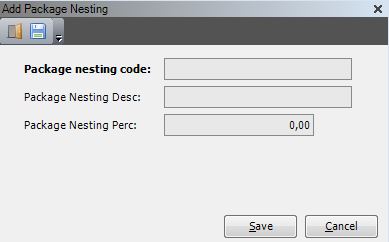
- Enter the following information.
| Field | Description | Required |
| Package Nesting Code | Unique system code that the package calculation will use when referring to the nesting factor. | Yes |
| Package Nesting Description | Simple statement that describes the nesting factor. | Yes |
| Package Nesting Percentage | Percentage of the volume that the additional items will occupy in the target container. For example, if you enter 20, the calculation will include 20% of the volume for the first item for the additional items. | Yes |
- Click Save.
Package reuse
Package reuse is used for products where part of the volume can be used for other products. For example, it may be possible to pack other products into buckets.
Add a package reuse code
- On the menu, expand Basic Data > Advanced Functions > Package Calculation, and then double-click Package Reuse.
- On the Package Reuse window, in the toolbar, click . The Add Package Reuse dialog box appears.
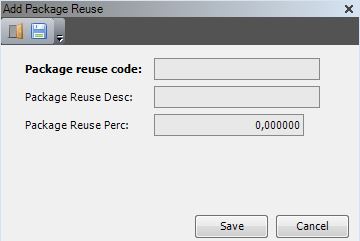
- Enter the following information.
| Field | Description | Required |
| Package Reuse Code | Unique system code that the package calculation will use when referring to the reuse factor. | Yes |
| Package Reuse Description | Simple statement that describes the reuse factor. | Yes |
| Package Reuse Percentage | Percentage of the volume that can be reused to pack other products. For example, if you enter 80, the calculation will allow 80% of the volume to be reused. | Yes |
- Click Save.
Package calculations
All items involved with package calculation must have the following item attributes defined: package nesting code, package reuse code and package type code. All stock products used in a package calculation must have the following stock product units defined: length, width, height, volume and weight.
Enable package calculation for an item
- On the menu, expand Basic Data > Stock Keeping Units > Product Setup, and then double-click Item.
- On the Item window, in the grid view, right-click the item to which you want to add the package calculation attributes, and then click Edit Item. The Edit Item dialog box appears.
- Click the Other tab.
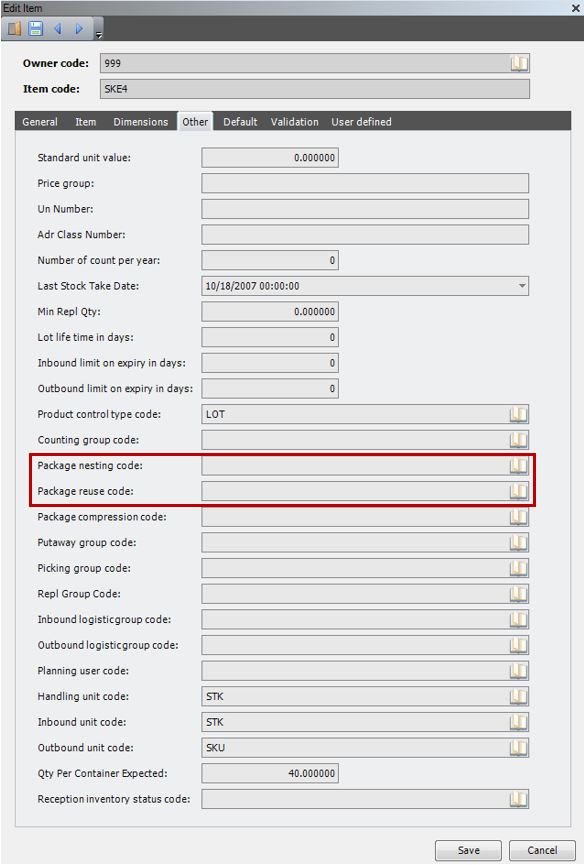
- Enter the following information, as required.
| Field | Description | Required |
| Package Nesting Code | Valid nesting code for the item. This code must exist in the package nesting code table. | No |
| Package Reuse Code | Valid reuse code for the item. This code must exist in the package reuse code table. | No |
- Click the Default tab.
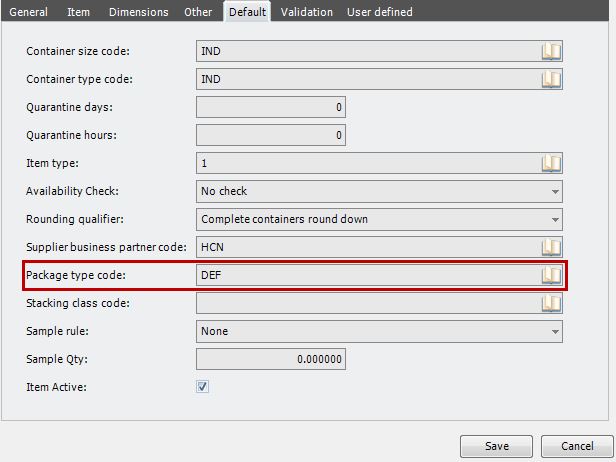
- Enter the following information, as required.
| Field | Description | Required | ||
| Package Type Code |
Default package type code to be used on outbound orders for the item. It can be overridden on outbound orders manually or when the order is interfaced.
|
Yes |
- Click Save.
Enable package calculation for a stock product
- On the menu, expand Basic Data > Stock Keeping Units > Product Setup, and then double-click Item.
- On the Item window, right-click the item for which you want to enable package calculation for stock products, and then click Stock Product.
- On the Stock Product window, right-click the stock product for which you want to update units, and then click Stock Product Unit.
- Double-click the stock product unit that you want to update. The Edit Stock Product Unit dialog box appears.
- Click the Dimensions tab.
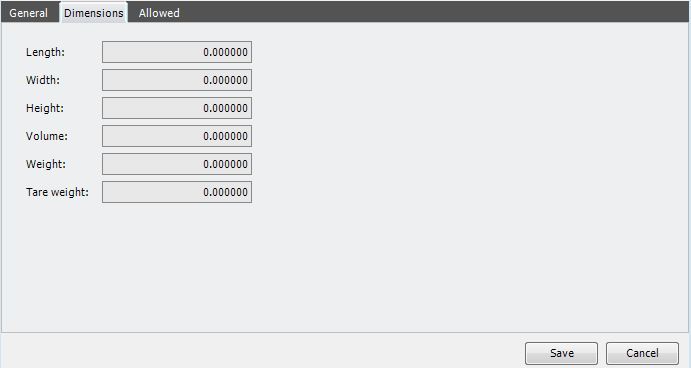
- Enter the following information, as required.
| Field | Description | Required |
| Length | Length of the stock product unit to be used in the package calculation. This does not have to be the true dimensions of the stock product. However, because the all dimensions algorithm sorts the lines by length, this should be the longest dimension. | Yes |
| Width | Width of the stock product unit to be used in the package calculation. This does not have to be the true dimensions of the stock product. | Yes |
| Height | Height of the stock product unit to be used in the package calculation. This does not have to be the true dimensions of the stock product. | Yes |
| Volume | Volume of the stock product unit to be used in the package calculation. This does not have to be the true volume of the stock product. | Yes |
Business partner package types
To support business partner-specific package calculations, you must associate business partners with a package type.
| IMPORTANT | The business partner package type associations that you configure here will override the package type that appears on the outbound order detail line. |
Associate a business partner with a package type
- On the menu, expand Basic Data > Names, and then double-click Business Partners.
- On the Business Partner window, right-click the business partner with which you want to associate a package type, and then click Business Partner Package Type.
- On the Business Partner Package Type window, in the toolbar, click . The Business Partner Package dialog box appears.
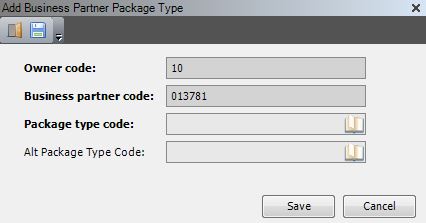
- Enter the following information, as required.
| Field | Description | Required |
| Package Type Code | System code for the package type to replace if it appears on an outbound order line for the selected business partner. | Yes |
| Alternate Package Type Code | System code for the package type that will replace the package type that appears on an outbound order line for the selected business partner. More specifically, during package calculation, if the package type on the outbound order line matches the package type specified in the Package Type Code field, then the system will replace the package type with this alternate package type. | Yes |
- Click Save.
Pick list templates
The information you provide on the picklist template controls how package calculation is performed.
Configure package calculation information on a pick list template
- On the menu, expand Basic Data > Advanced Functions > Outbound, and then double-click Picklist Template.
- On the Picklist Template window, double-click the picklist template that you want to configure for package calculation. The Edit Picklist Template window appears.
- Click the Packing tab.
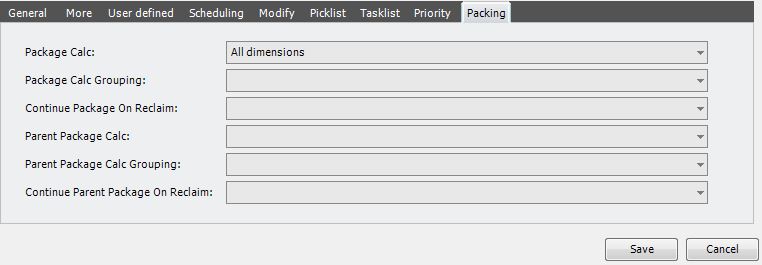
- Enter the following information, as required.
| Field | Description | Required | ||
| Package Calculation | Package calculation algorithm. Select All dimensions. | Yes | ||
| Package Calculation Grouping |
Grouping level for the package calculation. Select None.
|
Yes | ||
| Continue Package On Reclaim | Value that indicates whether to continue filling packages or to work with new packages on a reclaim. When using the all dimensions package calculation algorithm, select Always. This ensures that existing target containers are evaluated at picklist reclaim. | Yes | ||
| Parent Package Calculation, Parent Package Calculation Grouping, Continue Parent Package on Reclaim | When using the all dimensions package calculation algorithm, leave these fields blank. | No |
Package picking zone combinations
Package picking zone combinations allow the system to consider recombining packages for different picking zones in the recombination step, which is done at the end of the package calculation. For example,
- Two picking zones exist, A and B.
- Two package types exist, PARCELS and PALLETS.
- Parcels will be picked and packed by picking zone. Pallets will be picked and packed across zones.
- To allow recombination of pallets across the two picking zones, a package picking zone combination is set up for package type PALLETS and zone A and B to allow the recombination of pallets for the two zones.
Configure a package and picking zone combination
- On the menu, expand Basic Data > Advanced Functions > Outbound, and then double-click Picklist Template.
- On the Picklist Template window, right-click the picklist template for which you want to configure a package and picking zone combination, and then select Package Picking Zone Combination.
- On the Package Picking Zone Combination window, in the toolbar, click . The Add Package Picking Zone Combination dialog box appears.
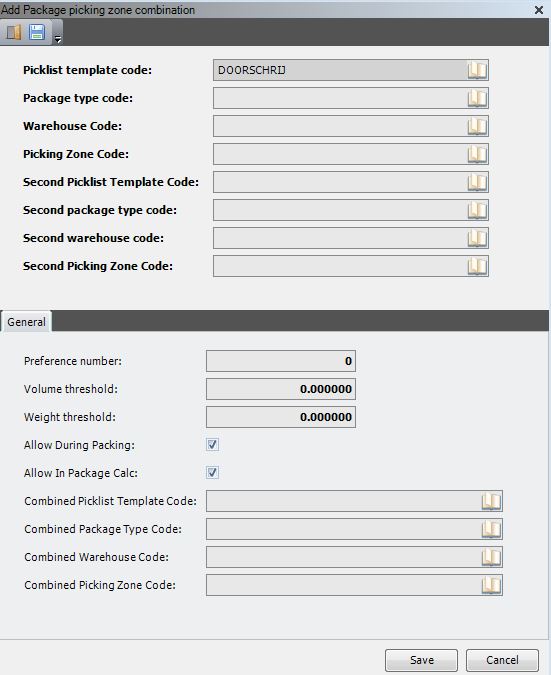
- Enter the following information, as required.
| Field | Description | Required |
| Picklist Template Code | First picklist template where combination is allowed. | Yes |
| Package Type Code | First package type where combination is allowed. | Yes |
| Warehouse Code | First warehouse code where combination is allowed. | Yes |
| Picking Zone Code | First picking zone where combination is allowed. | Yes |
| Second Picklist Template Code | Second picklist template where combination is allowed. | Yes |
| Second Package Type Code | Second package type where combination is allowed. | Yes |
| Second Warehouse Code | Second warehouse code where combination is allowed. | Yes |
| Second Picking Zone Code | Second picking zone where combination is allowed. | Yes |
| Preference Number | Preference order in which the system to consider the combinations. | Yes |
| Volume Threshold | Only containers with a volume below this threshold will be considered for recombination. | Yes |
| Weight Threshold | Only containers with a weight below this threshold will be considered for recombination. | Yes |
| Allow During Packing | Not used for package calculation. | No |
| Allow In Package Calculation | When selected, indicates that this combination should be considered during package calculation. | Yes |
| Combined Picklist Template Code | Picklist template to use for the combined package. | Yes |
| Combined Package Type Code | Package type to use for the combined package. | Yes |
| Combined Warehouse Code | Warehouse in which the packages will be combined. | Yes |
| Combined Picking Zone Code | Picking zone for the combined package. | Yes |
- Click Save.
All dimensions package calculation algorithm details
This section provides a detailed and technical description of the all dimensions package calculation algorithm. This information may be especially relevant for testing and simulation of the package calculation.
Stock product unit
When the table picking_package_calc_01 is initially filled (which happens in stored procedure spi__package_calculation_create_temp_calc_files), the dimensions are taken from table stock_product, meaning that it is for the stock keeping unit.
However, when other handling units exists for a product, it is the intention to take this into account to get a more optimal calculation. The system will search for the active record in stock_product_unit with the highest possible multiplication_factor that does not exceed the qty_on_picklist. In this case:
- Length, width and height in picking_package_calc_01 are copied from the corresponding fields in stock_product_unit.
- Volume in picking_package_calc_01 is calculated as the volume from stock_product_unit divided by the multiplication_factor.
- Weight in picking_package_calc_01 is calculated as the weight from stock_product_unit divided by the multiplication_factor.
Afterwards the total volume and total weight for a record in picking_package_calc_01 can be obtained as the product of the quantity and the volume or weight respectively.
| Note | It is assumed that the stock product in the outbound order detail is also the stock product for which stock product units are defined. |
| Note | It is possible that the quantity to be taken into account for this package calculation is not an entire multiple of the multiplication_factor that is found in stock_product_unit. In this case, the calculation nevertheless will be done based on that stock_product_unit information, meaning that for this calculation, the quantity will not be split amongst two handling units. |
Package nesting and reuse
The package reuse factor indicates the percentage of the volume of an item can be used to put other items in a container. For example, placing other items into a bucket.
The package nesting factor indicates the percentage of the volume of a single item that is needed when adding additional items. For example, stacking dustpans. Obviously the package nesting factor is only applicable after the first item.
Suppose the volume of a single piece is @v_unit_volume, then the total volume @v_total_volume for @v_inventory_qty pieces is calculated as:
@v_total_volume =
(@v_unit_volume
+ ((@v_inventory_qty – 1) * @v_unit_volume
* package_nesting_perc / 100)
– (@v_unit_volume * package_reuse_perc / 100)
The package reuse factor, as well as the package nesting factor, are defined at the item level, and they only apply when the picking is done for the stock keeping unit. This implies that these factors are not relevant when a handling unit other than the stock keeping unit (that is, with multiplication_factor > 0) is being used.
Package calculation: assign package
The package calculation algorithm “all dimensions” should be activated. The first part of this algorithm operates as described below.
A grouping set is defined by the combination of picklist_number, package_type_code, owner_code, business_partner_code, warehouse_code and picking_zone_code.
For a certain grouping set of picking_package_calc_01, the lines to assign to packages are sorted on descending length (the longest product is handled first).
When an order line is evaluated, the system first tries to find an existing package (based on picking_package_calc_02) for the same grouping set, fitting dimensions (length, width, height) and in which the calculated weight and calculated volume (of the task quantity) can be added at once. If such a package is found, the complete (task) quantity is assigned to it, and free weight and free volume for this package are recalculated.
If several such packages are available for selection, the one that was created first is selected.
If such a package is not found, the maximum length (called @v_max_length), maximum width (called @v_max_width) and maximum height (called @v_max_height) for the unassigned records of the grouping set are calculated, as well as the sum of the calculated volume (called @v_max_calculated_volume) and the sum of the calculated weight (called @v_max_calculated_weight).
With this information, the container size to use is searched for the appropriate package_type_code (called @v_package_type_code) in the package_and_container_size table, where all dimensions fit and where the total remaining volume and weight fit in. This is done according to the following query:
SELECT TOP 1 *
FROM package_and_container_size pacacs
WHERE pacacs.package_type_code = @v_package_type_code
AND pacacs.allowed_for_sku_picking = 1
AND pacacs.allowed = 1
AND @v_max_length <= pacacs.max_length
AND @v_max_width <= pacacs.max_width
AND @v_max_height <= pacacs.max_height
AND @v_max_calculated_volume <= pacacs.max_volume
AND @v_max_calculated_weight <= pacacs.max_weight
ORDER BY pacacs.max_length, pacacs.max_width, pacacs.max_height,
pacacs.max_volume, pacacs.max_weight;
When this is not possible, the system tries to find a container size fulfilling the three basic dimensions and the volume dimension for the same package type. If there are several candidates, the one with the largest allowed weight is taken. This can be expressed by the following query:
SELECT TOP 1 *
FROM package_and_container_size pacacs
WHERE pacacs.package_type_code = @v_package_type_code
AND pacacs.allowed_for_sku_picking = 1
AND pacacs.allowed = 1
AND @v_max_length <= pacacs.max_length
AND @v_max_width <= pacacs.max_width
AND @v_max_height <= pacacs.max_height
AND @v_max_calculated_volume <= pacacs.max_volume
ORDER BY pacacs.max_weight DESC;
If this still does not lead to a result, the largest container that fits the dimensions is taken. This can be expressed by the following query:
SELECT TOP 1 *
FROM package_and_container_size pacacs
WHERE pacacs.package_type_code = @v_package_type_code
AND pacacs.allowed_for_sku_picking = 1
AND pacacs.allowed = 1
AND @v_max_length <= max_length
AND @v_max_width <= max_width
AND @v_max_height <= max_height
ORDER BY pacacs.max_volume DESC;
If another attempt is required, the limitations on the dimensions are omitted and the largest container size is taken, which can be expressed by the following query:
SELECT TOP 1 *
FROM package_and_container_size pacacs
WHERE pacacs.package_type_code = @v_package_type_code
AND pacacs.allowed_for_sku_picking = 1
AND pacacs.allowed = 1
ORDER BY max_volume desc;
As a last resort, the default value is taken:
SELECT TOP 1 *
FROM package_and_container_size pacacs
WHERE pacacs.package_type_code = @v_package_type_code
AND pacacs.allowed_for_sku_picking = 1
AND pacacs.allowed = 1
AND pacacs.default_value = 1
ORDER BY max_volume desc;
When a package is determined, a new record in picking_package_calc_02 is created, and the handled record in picking_package_calc_01 is updated to refer to the newly introduced package. Updates on the calculation fields will be considered in detail during technical analysis.
Package calculation: recombination
After the initial calculation of packages with package calculation algorithm “all dimensions”, an optimization step is introduced to verify if some packages can be combined in an efficient way (to avoid too many small packages). The recombination does not mix package types, but it can combine packages in the same picking zone or for different picking zones.
Package picking zone combination
The recombination is based on the settings in the package_picking_zone_combination table .
The aim of the package recombination is to try to transfer a complete box from one picking zone (under the threshold values for volume and weight) to another box (also under the threshold values) in another picking zone.
The possible combinations, as defined in the package_picking_zone_combination table, will be treated in order of preference. When package_type_code PA, warehouse_code WA and picking_zone_code ZA may be combined with package_type_code PB, warehouse_code WB and picking_zone_code ZB, then the last calculated boxes for both combinations are considered (that is; the ones with most free capacity and with shortest length), for which the thresholds are not exceeded. If no such boxes are found, the calculation proceeds to the next preference combination.
If, however, such boxes are found for the same customer address, with container size SA and SB respectively, the box with the highest length is taken (and if both have the same length, then the biggest volume prevails). If both packages can be combined without exceeding the maximum (as defined in package_and_container_size for the combined package type), the boxes are combined, which results in updates in picking_package_calc_01 and picking_package_calc_02.
When a recombination has been performed, the system proceeds to the next preference in the package_picking_zone_combination table.
Algorithm
The processing for the recombination step is a stored procedure (spi__package_calculation_recombine_containers) that already exists, and that must be called from within the package calculation for algorithm “all dimensions”.
For simulation and testing purposes, the logic executed by this procedure is described below.
- Per package type, all calculated target containers are considered (table picking_package_calc_02) for which the minimum volume is not yet reached. The following things are compared:
- The provisional number of calculated incomplete target containers: this the number of records in the picking_package_calc_02 table for which the above mentioned condition is true (for which cur_volume < min_volume en cur_weight < min_weight). This number is called @v_cur_number_of_containers.
- For these incomplete target containers the total volume is calculated (sum of cur_volume) and in the package_and_container_size table (with allowed_for_sku_pickking = 1 = allowed) it is checked how many target containers are needed as a minimum, this means based on the container size with the highest value for max_volume (to be rounded up to the next unit). This number is called @v_min_number_of_containers.
- When @v_cur_number_of_containers ≤ @v_min_number_of_containers, this means that the total number of containers needed cannot be decreased; hence no further calculation for recombination will be performed.
- When @v_cur_number_of_containers > @v_min_number_of_containers, there is potential to make a profit on the number of target containers. The recombination algorithm takes the following actions:
- The incomplete target containers (for which cur_volume < min_volume and cur_weight < max_weight) are considered (always within a single package type) and are arranged in sequence of cur_volume (ascending). Hence the containers with the lowest volume will be treated first. Then the system tries to combine target containers in the following sequence:
- first target container with the second target container
- first target container with the third target container
- first target container with the … target container
- first target container with the last target container
- second target container with the third target container
- second target container with the fourth target container
- second target container with the … target container
- second target container with the last target container
- …
- penultimate target container with last target container
- While processing a combination, it is first checked to determine if the combination of picklist_template_code, package_type_code, warehouse_code and picking_zone_code with second_picklist_template_code, second_package_type_code, second_warehouse_code and second_picking_zone_code is defined and allowed (allow_in_package_calc = 1) in the package_picking_zone_combination table for the processed picklist_template_code. It should be noticed that picklist_template_code and package_type_code must always be equal to second_picklist_template_code and second_package_type_code for the automatic recombination (in the manual packing function, this can be deviated).
- When the sum of the volumes (cur_volume) and weights (cur_weight) of the target containers under investigation do not exceed the values for threshold_volume and threshold_weight respectively, the system will try to combine the target containers. The following cases are identified:
- If both target containers have the same container_size_code and the sum of both volumes and both weights is not higher than max_volume and max_weight in package_and_container_size respectively, the two target containers are combined, with retention of the container_size_code.
- When the container_size_code is different for the two target containers or if the sum of the volumes or the sum of the weights exceeds the values for max_volume en max_weight in package_and_container_size respectively, then a new target container is searched for the combined volume and weight, based on table package_and_container_size (as described above in the initial calculation step).
- From a technical point of view, the combination of two target containers will result in removing a record in picking_package_calc_02, in updating the fields cur_volume and cur_weight, free_volume and free_weight, and possibly also container_size_code for the target container that is kept, as well as in updating the package_number in picking_package_calc_01. In the record that is retained, the combined_picklist_template_code, combined_package_type_code, combined_warehouse_code and combined_picking_zone_code are copied from package_picking_zone_combination.
- After combining two target containers, the above procedure is resumed, after reordering on cur_volume (as the recombination can influence this sequence).
- The incomplete target containers (for which cur_volume < min_volume and cur_weight < max_weight) are considered (always within a single package type) and are arranged in sequence of cur_volume (ascending). Hence the containers with the lowest volume will be treated first. Then the system tries to combine target containers in the following sequence:
