
Introduction
Cycle counting is an inventory control function in which the inventory within specific locations is counted. The goal of cycle counting is to compare the actual quantity in a location to the quantity that is defined in the system. When quantities vary, corrective actions can be taken to ensure an ongoing measure of inventory accuracy.
| Note | In WM1, the term inventory control refers to a cycle count. You will see these terms used interchangeably throughout this guide. |
Cycle counting differs from a physical count because it is performed along with daily warehousing operations, instead of shutting down operations to complete a full warehouse count.
Determining how often locations are counted is often based on the inventory stored in the locations. For example, cycle counting is typically configured to place more focus on high value items, fast moving items and items that are critical to the business.
Purpose of this guide
This guide provides an overview of the standard cycle counting methods in WM1. The concepts described in this guide will help you understand:
- What cycle counting is
- The available cycle counting options
- The available cycle counting levels
- When a recount may be needed
- How inventory is reconciled
- The standard process flow for offline cycle counts
The step-by-step instructions explain how to perform the following tasks.
- Generate an offline cycle count
- Create
- Approve
- Release
- Verify
- Perform an offline item-level cycle count
- Monitor cycle counting progress
- Reconcile inventory and close a cycle count
- View reconciled inventory
What this guide does not provide
This guide does not explain how to set up cycle counting. Setting up cycle counting, which includes creating the cycle count templates, is a task performed by the Iptor services team and your organization’s system administrators. Cycle count templates define the rules that identify the locations and inventory that you want to count. Cycle count templates also define the cycle count type, which determines whether the counting will be at the item or pallet level.
Audience
This guide is written for the:
- Inventory control staff who will generate and reconcile cycle counts using the WM1 desktop client.
- Warehouse floor operators who will perform the actual counts using RF terminals.
General concepts
Cycle counting options
WM1 supports both inline and offline counting.
- Inline counting – An inventory counting method that prompts operators to count the inventory in a location while performing another task such as picking or putaway. Inline counts are typically triggered when the quantity at a location reaches a specified number, or when a location is picked a specified number of times. Inline counts are generated based on counting groups, which specify the events that trigger an inline count. Counting groups are configured when your system is set up.
- Offline counting – An inventory counting method that is performed as a stand-alone task. Offline count tasks can be generated automatically based on defined rules, or manually based on workload. Offline counts are generated based on cycle count templates. The templates contain the rules that determine what, when and how to count. Cycle count templates are configured when your system is set up.
Cycle counting levels
WM1 supports cycle counting at two levels:
- Item level (container inventory check) – Operators count all inventory within a specified location/container.
- Pallet level (pallet location check) – Operators confirm that a specific pallet/container is located in a specific location.
Cycle counting progress
Inventory control personnel can monitor the progress and results of cycle counts as they are released and performed.
Recounts
When there is a discrepancy between the inventory quantity in the system and the counted quantity, a recount can be requested.
Inventory reconciliation
After cycle counts are completed and the results are acceptable, inventory control personnel close the cycle count. Closing a cycle count reconciles the actual and system inventory quantities.
Offline counting process overview
The following image illustrates the standard cycle counting flow for offline counting. The process is the same for both container inventory and pallet location checks. The difference is that container inventory checks are typically task based; whereas, pallet location checks are not.

Procedures
Generate an offline cycle count
When you generate an offline cycle count, you complete the following tasks.
- Create the cycle count
- Approve the cycle count
- Release the cycle count
- Verify that the cycle count tasks were created
| Note | Before you can create an offline cycle count, you must know which cycle count template to use. The cycle count template defines the rules that identify the locations and inventory that you want to count. The cycle count template also defines the cycle count type, which determine whether the counting will be at the item or pallet level. |
- Log on to the WM1 desktop client.
- On the menu, expand Stock management and then double-click Inventory control maintenance.
- On the Inventory control maintenance window, click
 . The Create inventory control dialog box appears.
Note There are several icons that look similar. To ensure that you click the Create inventory control icon, place the cursor over the icon to view the icon description. 
- Enter the following information.
Field Description Required Counting template code Unique system code that identifies a counting template. From the list, select the code for the counting template that you want to use. Yes Reference of origin Informational field. Not used by the system. You can use this as a reference when you set up reporting. No Reference of destination Informational field. Not used by the system. You can use this as a reference when you set up reporting. No Reference of project Informational field. Not used by the system. You can use this as a reference when you set up reporting. No - Click Confirm. The cycle count appears in the grid view on the Inventory control maintenance window. An inventory control number is assigned and the status is set to Created.
Note The statuses applied throughout this procedure are based on a standard counting template. Your statuses may vary depending on the counting template that you used to create the cycle count. - On the Inventory control maintenance window, in the grid view, select the cycle count that you created and then in the toolbar, click
 to approve the cycle count. The Approve inventory control dialog box appears, and the inventory control number is displayed.

- Click Confirm. The cycle count status changes to Approved.
- On the Inventory control maintenance window, select the cycle count again, and in the toolbar click
 to release the cycle count. The Release inventory control dialog box appears, and the inventory control number is displayed.

- Click Confirm. The cycle count tasks are created, and the cycle count status changes to Started.
- On the Inventory control maintenance window, select the cycle count again, and in the toolbar click
 . The task details appear so you can ensure that the cycle count tasks were created. For example, in the image below you can see that 11 counting tasks were created to complete inventory control (cycle count) number 14.
Note If the cycle count tasks are not created, then on the Inventory Control Maintenance window, double-click the cycle count and ensure that the Generate task option is selected. 
Perform an offline item-level cycle count
This procedure explains how to perform item-level cycle counts for which cycle count tasks have been created. These tasks are performed by RF operators.
- Log on to the WM1 CAP.
- On the Main menu, press 2 for Tasks. The Task management panel appears.
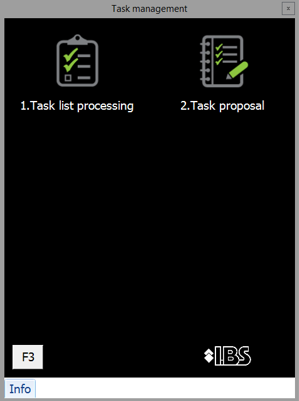
- Press 1 for Task list processing. The Task list processing panel appears.
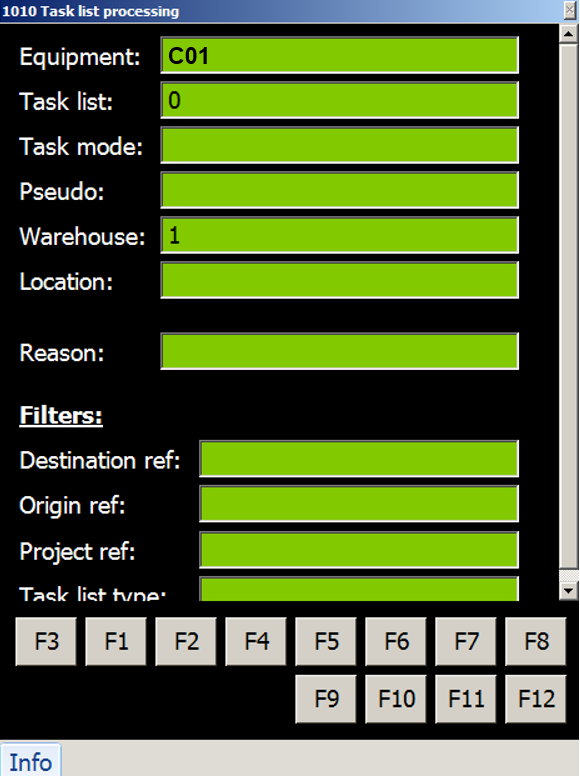
- Press F7 to get the count task. The Inventory Control Container Check panel appears.

- Go to the specified location, and then in the Container field, type or scan the number of the container that you are counting.
- Take one of the following actions.
| If the location… | Then… | ||||||||||||||
| Is empty, |
Take the following actions.
|
||||||||||||||
| Contains inventory, |
Take the following actions.
|

Perform an offline pallet-level cycle count
This is not a task-based procedure. That means, to perform this procedure you must have the following information available.
- Location codes for the locations to check
- Cycle count (inventory control) number associated with each location.
- Go to the location that you want to check.
- Log on to the WM1 CAP with equipment that can be used for cycle counting.
- On the Main menu, press 3 for Inventory. The Inventory menu appears.

- Press 5 for Pallet location check. The Pallet location check – authorization panel appears.

- In the Control number field, type or scan the cycle count (inventory control) number for the location, and then press OK. The Pallet location check – location panel appears.

- In the Location field, scan the code for the location that you are checking, and then press OK. The Pallet location check – container panel appears.

- If there are containers in the location, then take the following actions.
- In the LPN field, scan the LPN for a container in the location.
- In the Scan Loc field, scan the location code again, and then press OK. The Pallet location check – container panel appears again, and the container that you scanned appears in the list.
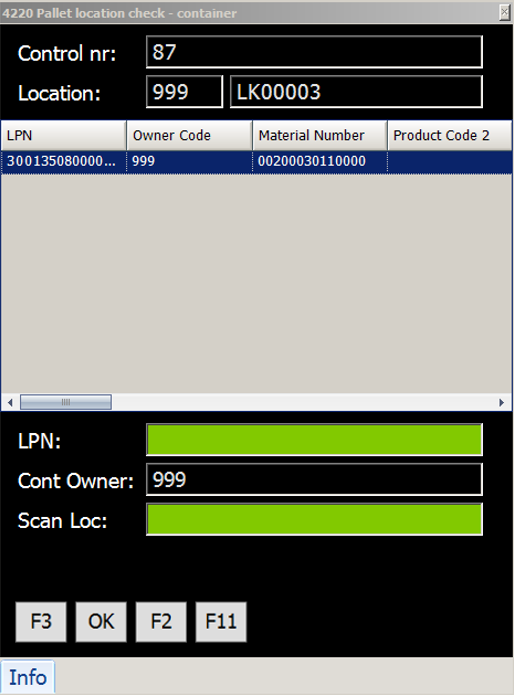
- Continue until you have scanned all containers in the location.
- When all containers are scanned, press F2. One of the following results occurs.
| If… | Then the… | And then… |
| All of expected LPNs are counted, | Pallet location check – location panel appears. |
Take the following actions.
|
|
More or less than the expected LPNs are counted, |
Pallet location check – confirm number of pallets panel appears. |
Take the following actions.
|
- If there are no containers in the location, take the following actions.
- Press F2. The Pallet location check – confirm number of pallets panel appears.

- Press F6 to confirm that the location is empty.The Pallet location check – location panel appears again.
- Press F2. The Pallet location check – confirm number of pallets panel appears.
Monitor cycle counting progress
As cycle counts are performed, inventory control personnel can monitor the results and then take appropriate actions. For example, if there is a count discrepancy, a recount can be requested. Or, if the count matches the system value, then the count can be closed.
- Log on to the WM1 desktop client.
- On the menu, expand Stock management and then double-click Inventory control maintenance.
- On the Inventory control maintenance window, in the grid view, select the cycle count for which you want to monitor status, and then in the toolbar click . The task details appear so you can view the task status.

- To view the cycle count results, in the Inventory control maintenance toolbar, click
 . The Inventory control container check grid view appears.
Note There are several icons that look similar. To ensure that you click the Inventory control container check icon, place the cursor over the icon to view the icon description. 
- Continue with the procedure to reconcile inventory.
Reconcile inventory and close the cycle count
When cycle counts are completed, inventory control personnel view the results and then take action to reconcile the inventory. Inventory reconciliation is an important part of cycle counting because it ensures that the actual and system inventory amounts are the same. Accurate inventory counts are required to support efficient warehouse processes.
- Log on to the WM1 desktop client.
- On the menu, expand Stock management and then double-click Inventory control maintenance.
- On the Inventory control maintenance window, in the toolbar, click . The Inventory control container check grid view appears.
Note There are several icons that look similar. To ensure that you click the Inventory control container check icon, place the cursor over the icon to view the icon description. - In the Inventory control container check grid view, for each count task, view the container inventory check status or compare the initial inventory quantity to the counted quantity to determine the cycle count results for each task.
Note You may need to change the order in which the columns in the grid view appear so you can easily see the container inventory check status and compare the initial inventory quantity to the counted quantity. - If the container inventory for a counting task is OK, then there are no actions to take until you have reviewed all of the tasks, and you are ready to close the cycle count.
- If the container inventory is not OK, meaning the actual count does not match the system count, you can take one of the following actions.
| You can… | In which case… | ||||
| Accept the actual count task results, |
When you close the cycle count, the inventory will be reconciled as the counted quantity; therefore, ensuring that the actual and system quantity match. For instructions, see the step to close the cycle count. |
||||
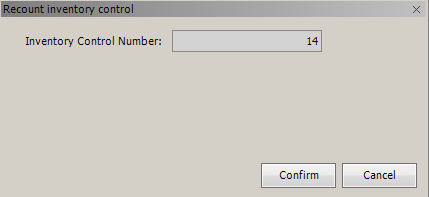
| Choose to perform a recount, |
You must take the following actions.
|



- When you have reviewed all the cycle count task results and taken appropriate actions, take the following actions to close the cycle count.
- On the Inventory Control Maintenance window, select the cycle count that was just completed, and then in the toolbar, click
 to close the cycle count. The Close inventory control dialog box appears.

- Enter the following information.
Field Definition Update processing Value that indicates whether a transaction will be sent to the host system. Stock change code Code that indicates the reason for updating stock attributes. Update last stock take Value that indicates whether the date of the last cycle count will be updated for both the item and the location, or not updated at all. - Click Confirm. The inventory control status changes to Finished.
- On the Inventory Control Maintenance window, select the cycle count that was just completed, and then in the toolbar, click
View reconciled inventory
When reconciling cycle counting tasks, you can accept a cycle count task when the actual count does not match the system count. When you close the cycle count, the inventory amount is changed in the system to match the counted amount.
- Log on to the WM1 desktop client.
- On the menu, expand Stock management, and then double-click Stock detail.
- Search for the container that had an inventory count discrepancy.
- Verify that the system quantity now matches the counted quantity
